

Make sure you have:
- Admin or Maintainer access to the GitLab project
- Access to your QA Wolf workspace
- At least one QA Wolf environment already configured
- A QA Wolf API key
How to: Enable the GitLab integration in QA Wolf
How to: Enable the GitLab integration in QA Wolf
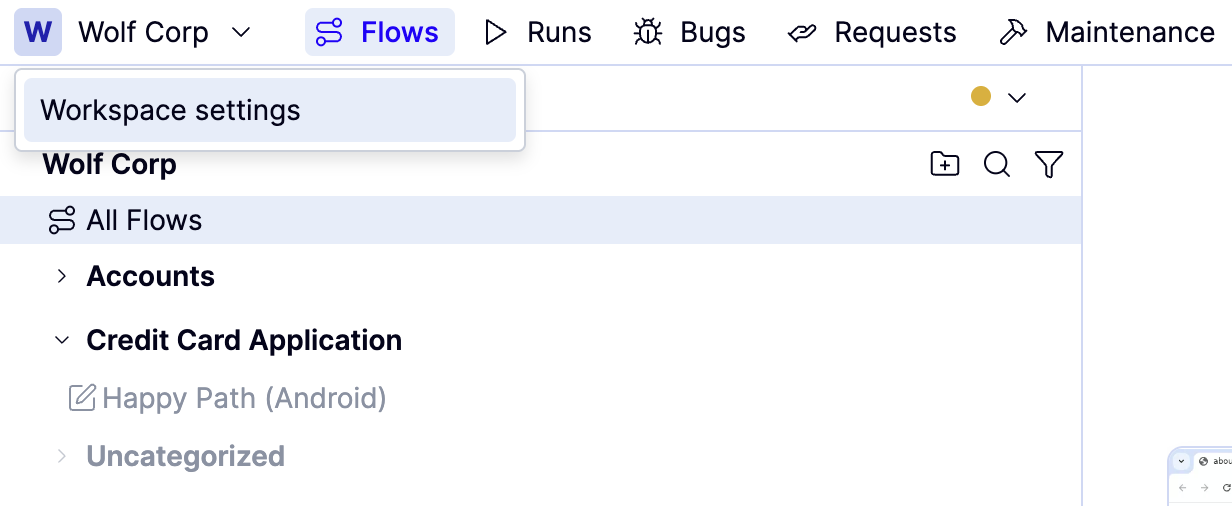
Click Integrations, then click Enable next to GitLab. This opens GitLab, where you’ll be prompted to sign in if you have not already done so. Follow the prompts to connect your GitLab account or group.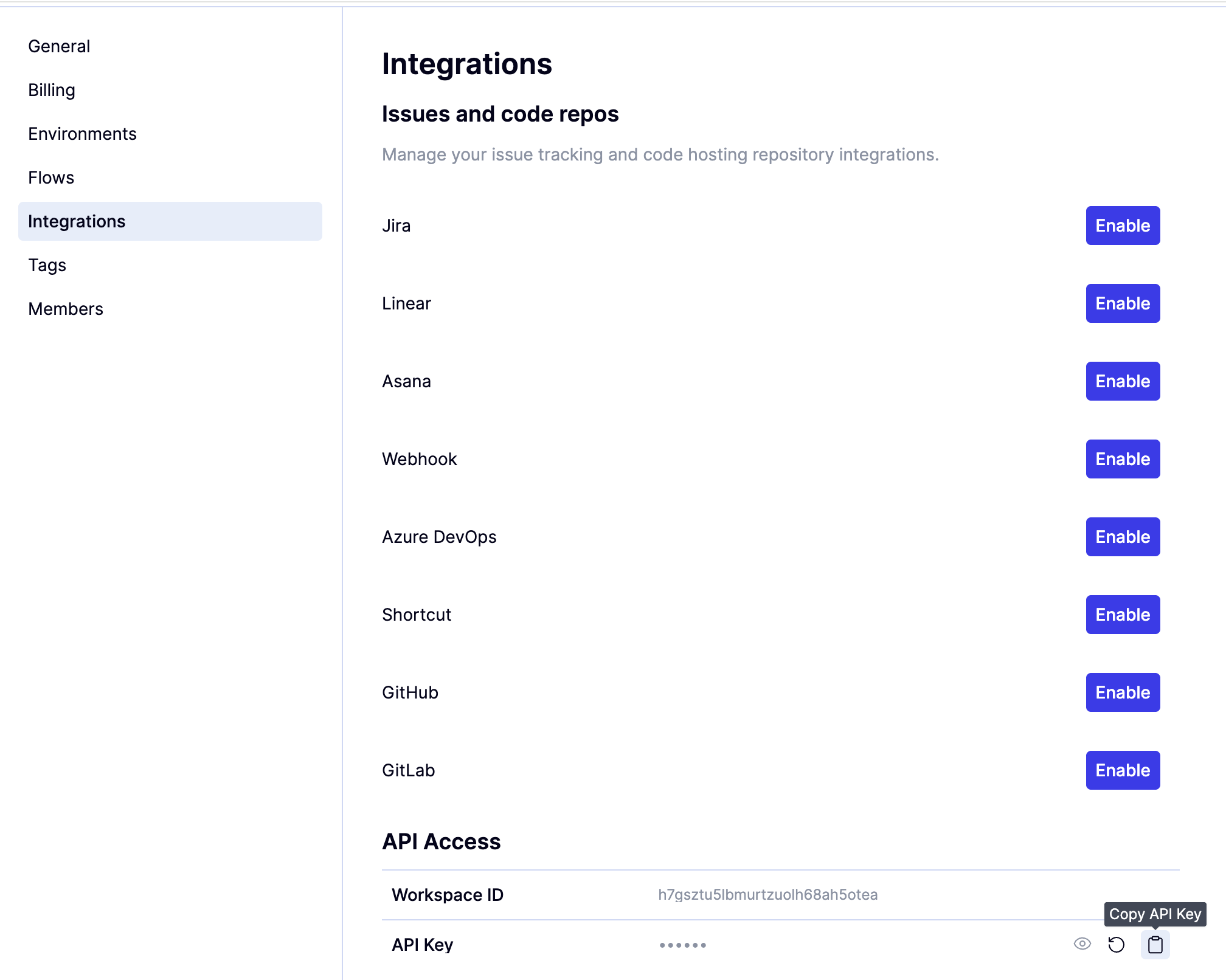
The Maintainer role is required because Developer tokens cannot create pipeline checks on protected branches.
How to: Add your QA Wolf API key to GitLab
How to: Add your QA Wolf API key to GitLab
You can also define additional variables, such as a deployment URL, if your pipeline uses them.
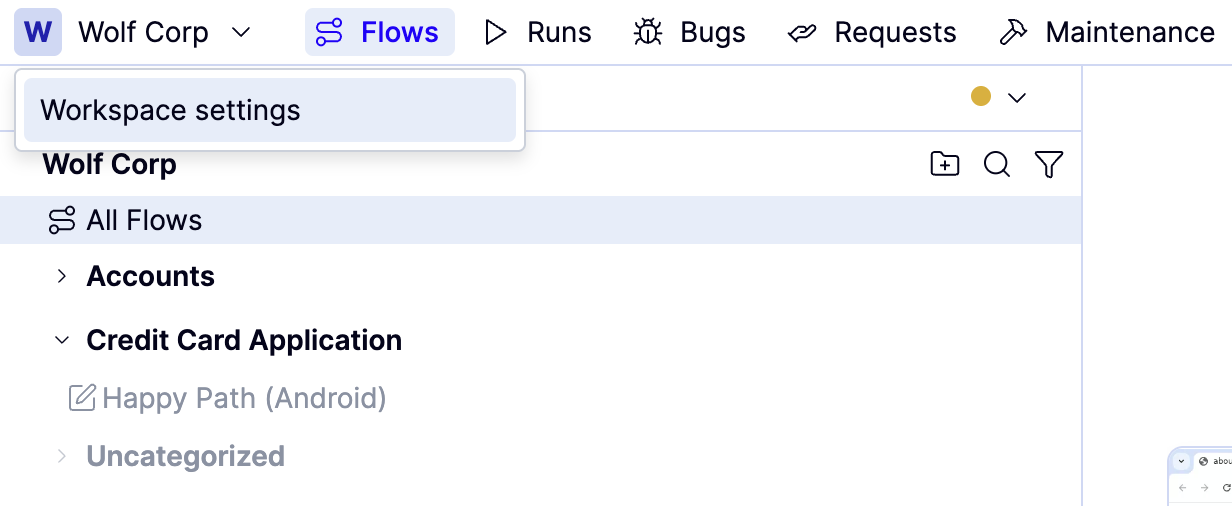
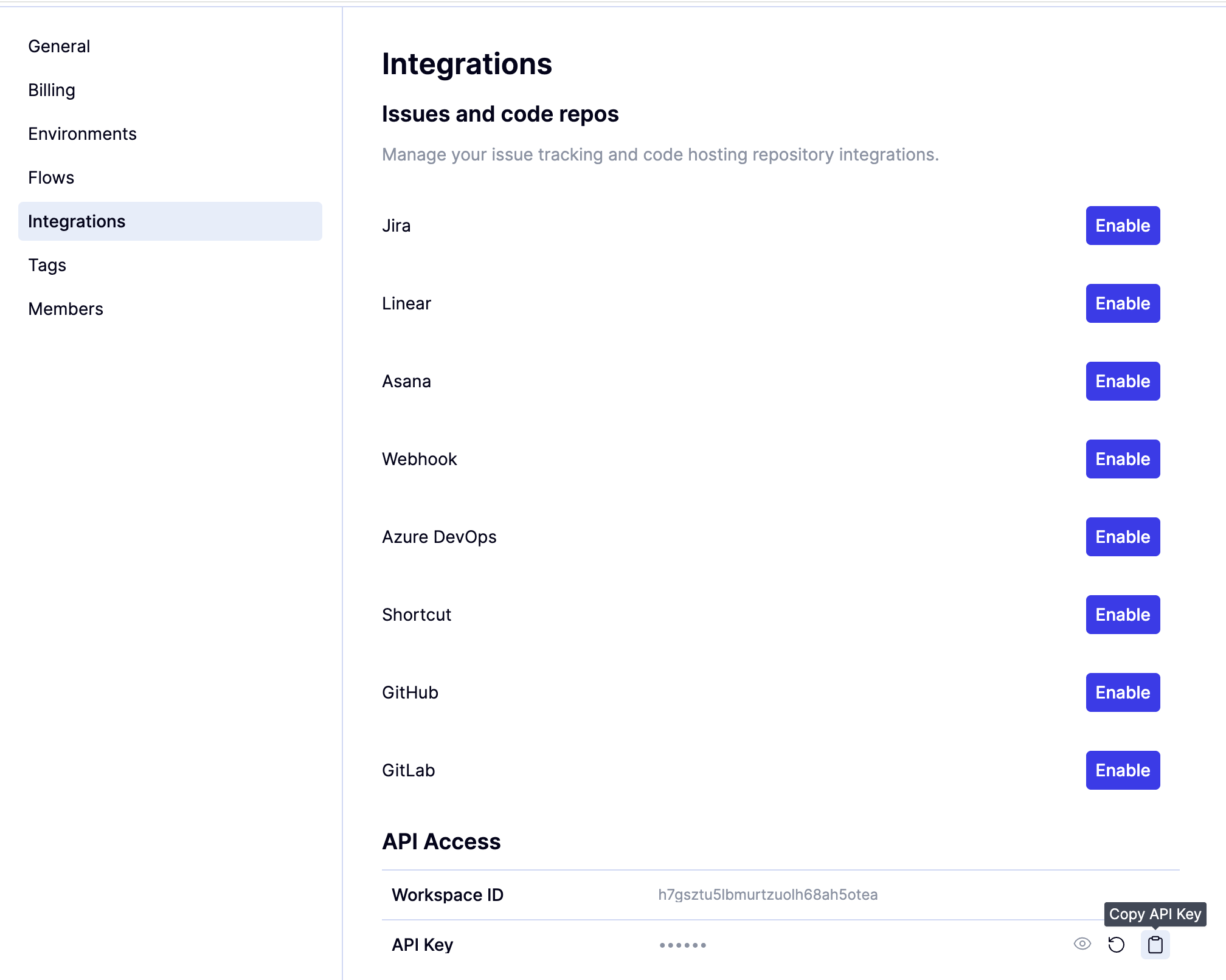
To find your QA Wolf API key:
How to: Add the deploy success notification to GitLab CI/CD
How to: Add the deploy success notification to GitLab CI/CD
QA Wolf provides a public API endpoint that your GitLab pipeline can call upon successful deployment.Add a job to your .gitlab-ci.yml that runs after your deploy step completes successfully.This job tells QA Wolf that a new deployment is ready for testing.