

Overview: Bug reports
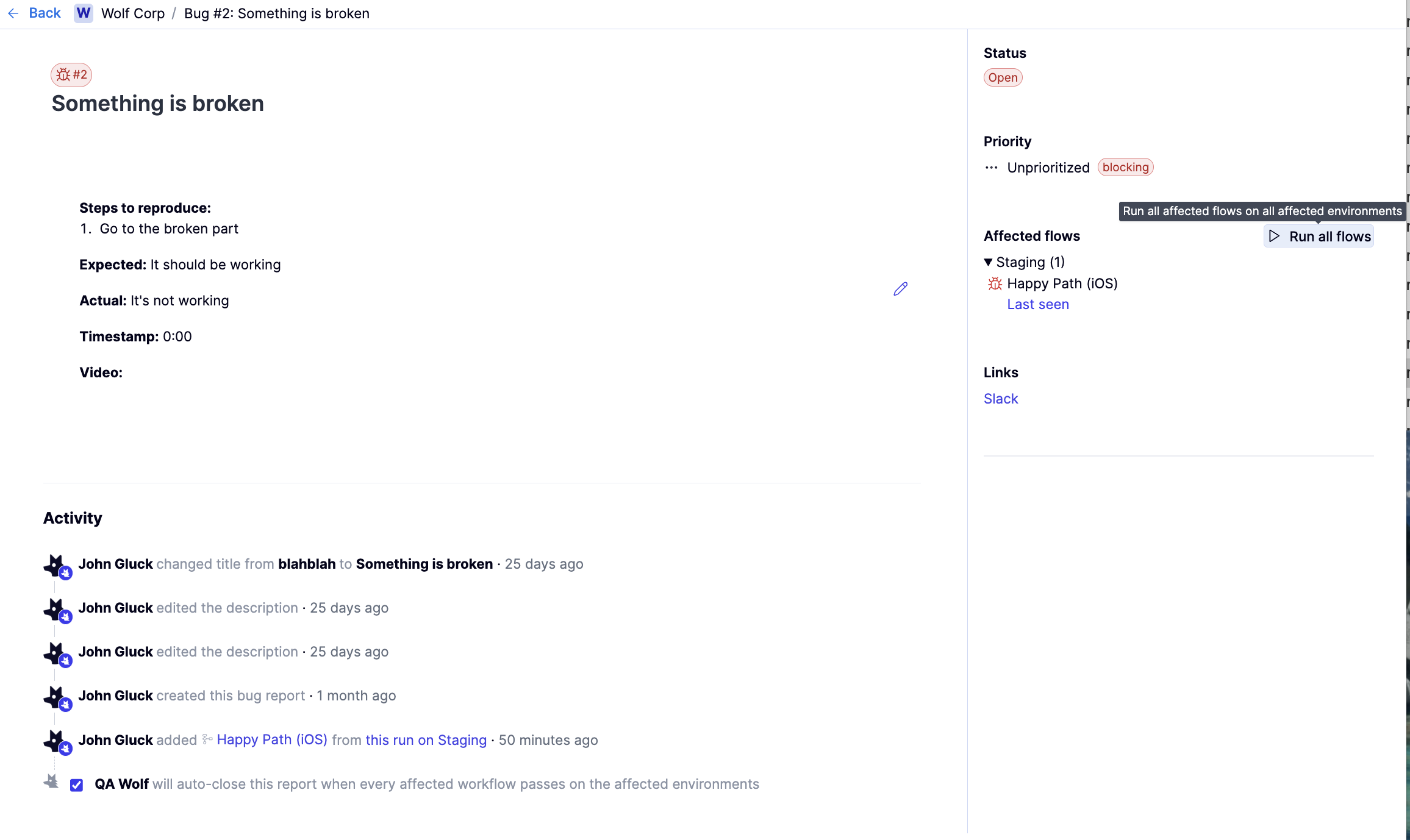
Bug reports track confirmed product defects, specifically unexpected application behavior rather than test or setup issues. Bug reports are automatically associated with flows when opened from the Investigation view. Multiple flows can be linked to the same bug report when they expose the same issue. A bug report automatically closes once all associated flows are passing. Once the test issues are fixed, you can attempt to clear the bug report by running all associated flows directly from the report. Any flows that pass are removed from the report and resume running according to their schedules. The bug report remains open until all associated flows have passing runs.Overview: Get to know the bug report tab
Overview: Get to know the bug report tab
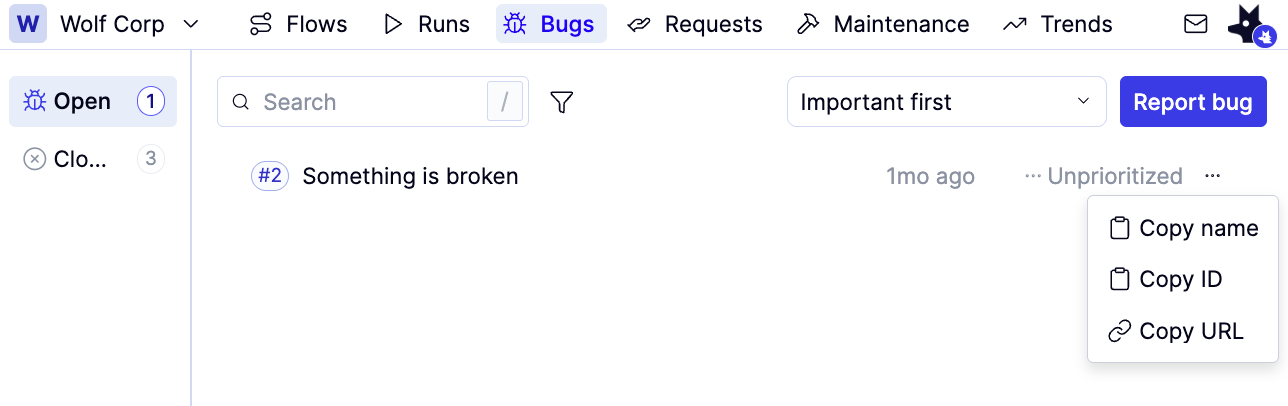
You can find all bug reports for your workspace in the Bugs tab. This page lists both open and closed reports and allows you to create new ones or open existing ones for editing.
-
Use the Open and Closed tabs to switch between active and resolved reports.
-
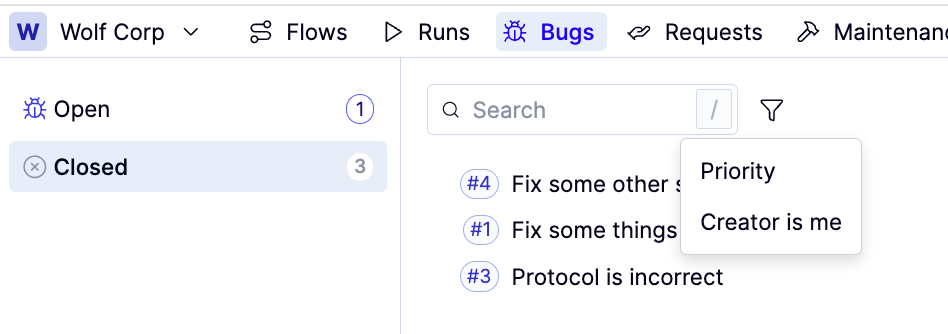
Use the Search bar to filter by report name. Use the icon to filter by report Priority or Creator is me.
How to: File a bug report
How to: File a bug report
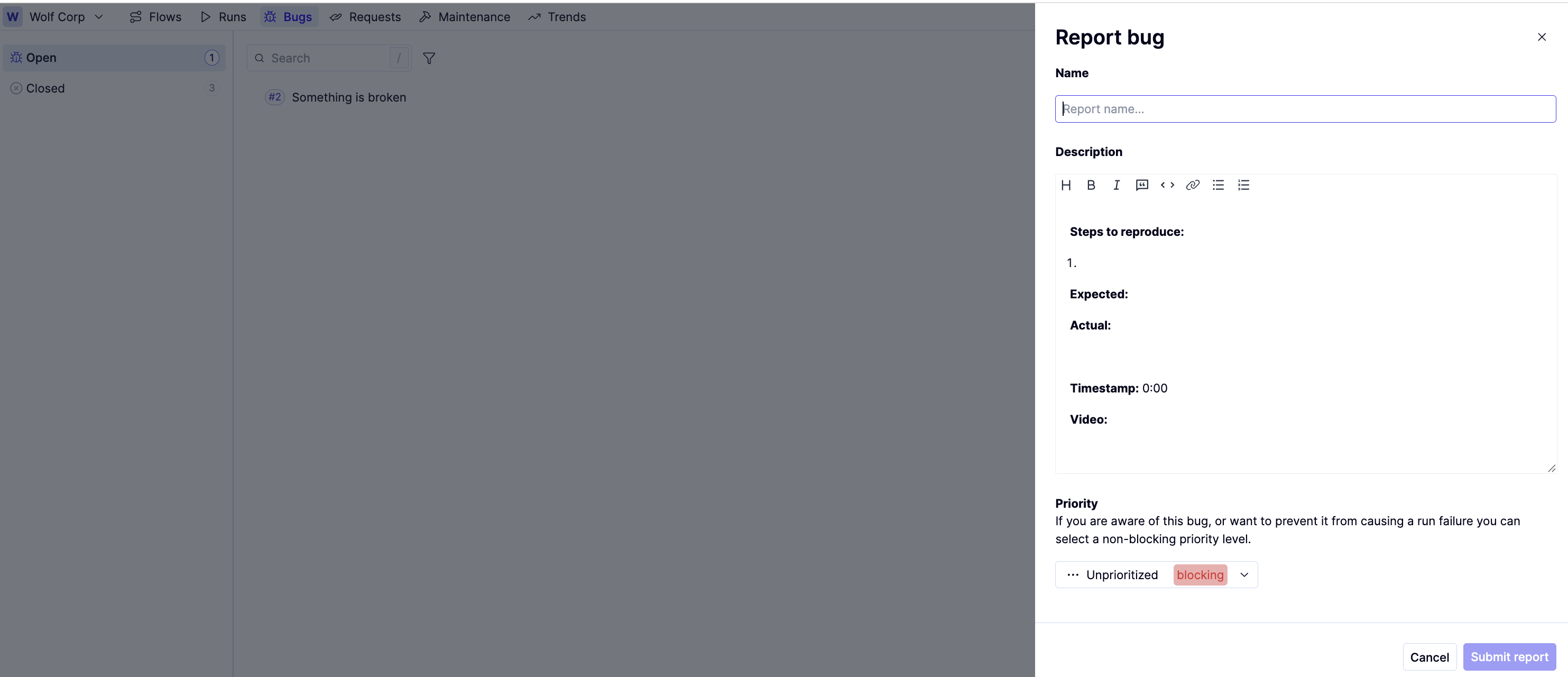
Click the Name field to open a dropdown of existing maintenance reports. As you type, the list autocompletes to help you find a match.a. If you need a new report, type its name and press Enter, or choose the top option in the dropdown.
After selecting a name, fill out the remaining form. The form contains the following fieldsa. Description: Provide a clear summary of the issue. This field includes a built-in template to help you capture the most important details—such as expected behavior, actual behavior, and steps to reproduce. You can also include a link to a cloud-hosted video (e.g., Loom) in the Video field to illustrate the problem.b. Priority: Set the bug’s urgency. Urgent and High represent blocking priorities and will affect the overall environment status.c. Environment (read-only): Indicates the environment where you observed the bug.d. Affected flows (read-only): Lists the flows impacted by this bug.
Flows with open bugs are still included in scheduled runs.
- If any bug associated with a flow has a blocking Priority (Urgent or High) and at least one flow in the run fails all three attempts, the run ends in a Failed status. The environment’s status will appear with the icon on both the Flows and Runs tabs.
- If the flow has only non-blocking bugs, and at least one flow in the run fails all three attempts, the run ends as Needs investigation. The environment’s status will appear with the icon on both the Flows and Runs tabs.
You can also file bug reports from the Bugs tab by clicking Report bug to open the form for filing a new bug. However, bugs you open from this method will not be associated with any flows. To associate this bug with flows, you must follow the Diagnose steps above.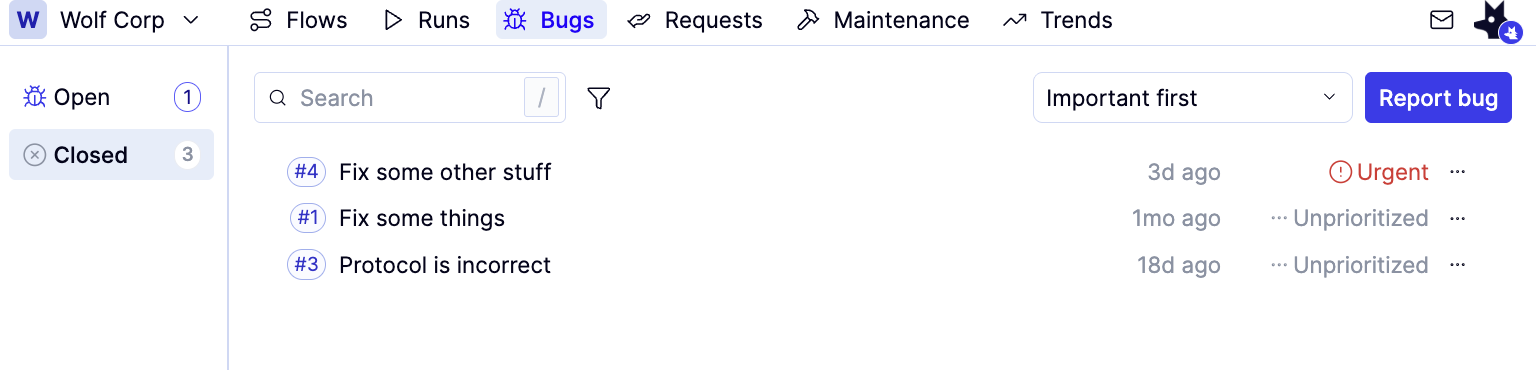
How to: Review or edit an existing bug report
How to: Review or edit an existing bug report
- From the Bugs tab, find the bug report you’d like to open and click on it.
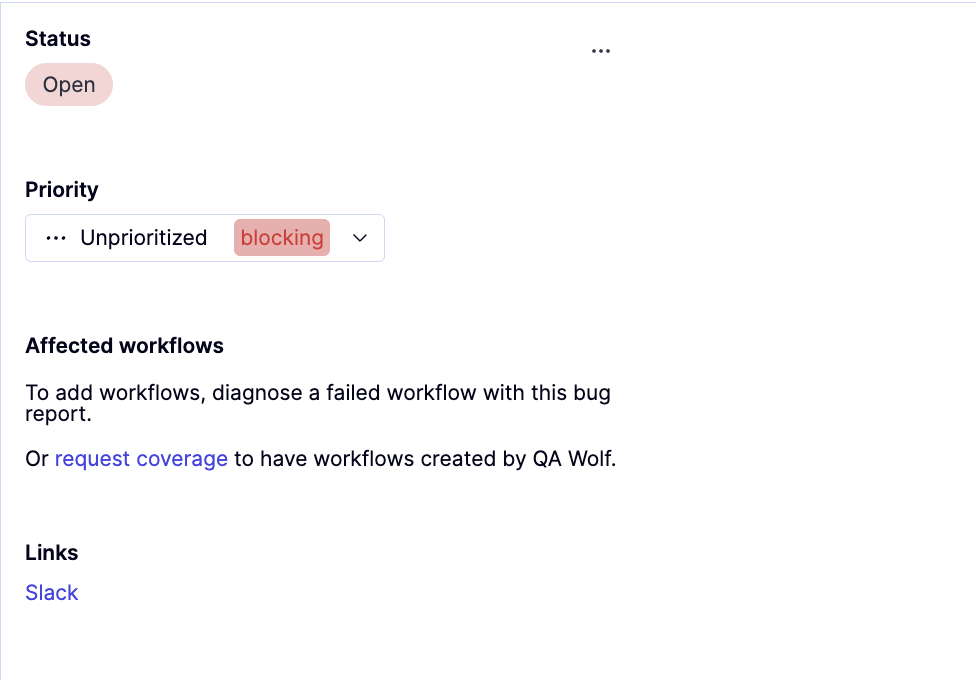
- The only field you can change here is the Priority field. All other fields are read-only.
How to: Clear bug reports
How to: Clear bug reports
A bug report should close automatically on the next scheduled run once you apply the fix. However, you can also manually run all flows associated with a given bug; if they pass, the bug report will close automatically.

How to: Update the diagnosis of a test failure
How to: Update the diagnosis of a test failure
Sometimes, a run will still fail after an application fix is deployed. This can happen when the original issue masked a different problem, or when the fix changes behavior in a way that affects the test.If this happens after a developer ships a fix:This keeps diagnoses accurate as failures evolve, without tying the new failure too closely to the original issue.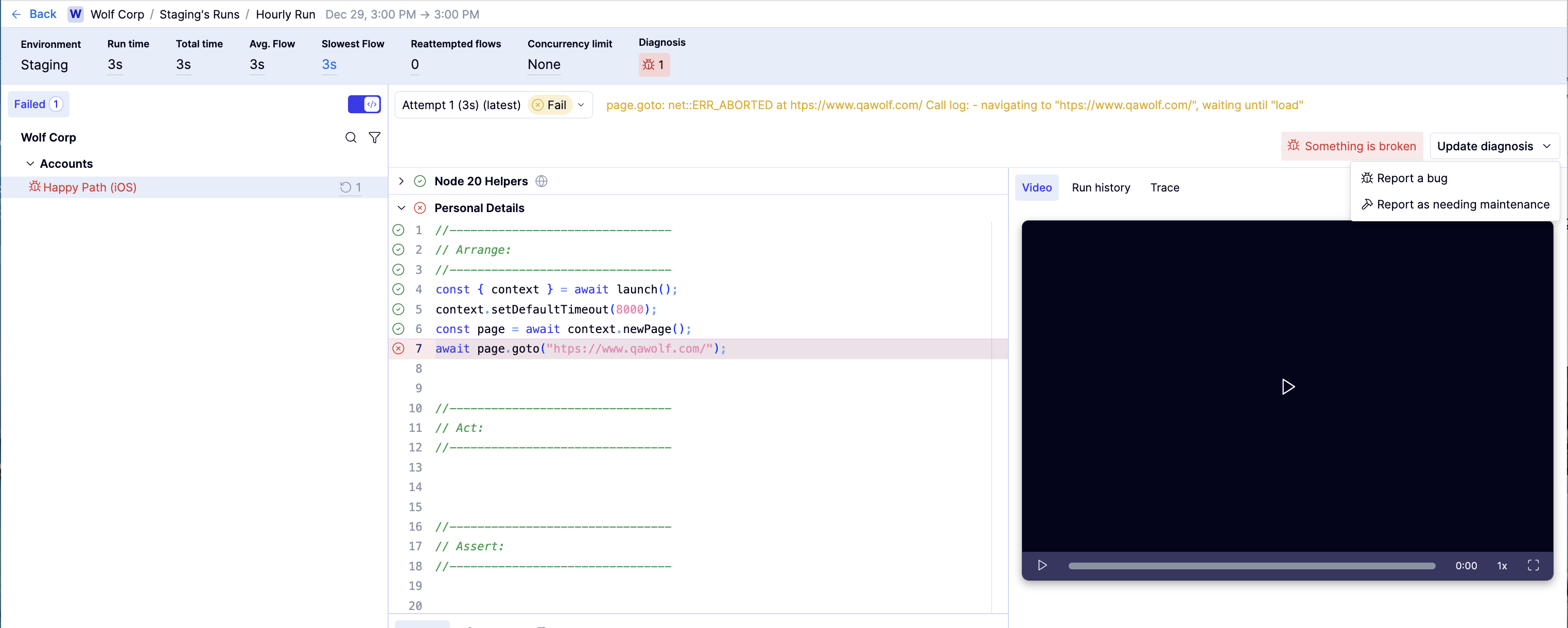
Review the failure evidence:
- If the flow already has a bug filed and the failure points to a new application issue upstream of the existing one, click Update diagnosis, then select Report a bug to file a new bug report.
- If the flow already has a bug filed but the failure now indicates the test needs to be updated, click Update diagnosis, then select Report as needing maintenance.