Overview: What is a Run
A run is an execution of one or more flows. Runs can be started manually or invoked automatically by a schedule. Each flow in a run is attempted up to three times in case a failure is the result of a temporary flake. At the end of a run, it will be marked as either:- Completed. Indicating that all flows in the run have passed or been marked Do Not Investigate.
- Needs Investigation. Indicating that flows in the run failed but have not been marked Do Not Investigate.
A flow needing investigation should be reviewed quickly and identified as either a bug (and filed in your issue tracker) or a broken test (and be updated accordingly).
- Canceled. Indicating that the run was cancelled mid-execution by a subsequent run matching the same branch and environment.
Flow orchestration logic
Runs orchestrate the execution order of flows and their multiple attempts, while the flows themselves report the results of each attempt (including logs and video artifacts).Attempt retry logic
Flows will be attempted up to three times to ensure a failure was not an accidental and temporary environment issue. All flows must report a result (pass or fail) before any of them are re-attempted. The concurrency of each wave of re-attempts decreases to further reduce the impact of environmental issues.- First attempt: Each flow in the run executes concurrently unless the user has configured run rules to specify an alternate order.
- Second attempt: Failed flows execute in batches of five.
- Final attempt: Remaining failing flows execute serially.
How to: Initiate a run
A run can be initiated three ways:- Creating a scheduled run.
- When a build is deployed—for example, from GitHub Actions or another CI/CD system.
- Manually by starting a run from the Runs tab.
How to: Identify environments that need attention
Environments move into investigation states when flows don’t pass:
- Needs Investigation: one or more flows failed all three attempts will be marked with the icon.
- Failed: a flow associated with a high-priority bug report failed (based on your settings) will be marked with icon,
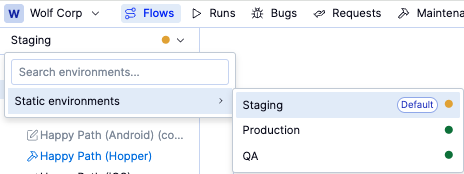
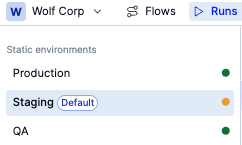
- On the Runs tab, under the
Typeenvironments list, each environment shows its status icon next to the name. (Type will be either Static or Preview)
- On the Flows tab, the
Environment namedropdown shows the status of the selected environment.