1
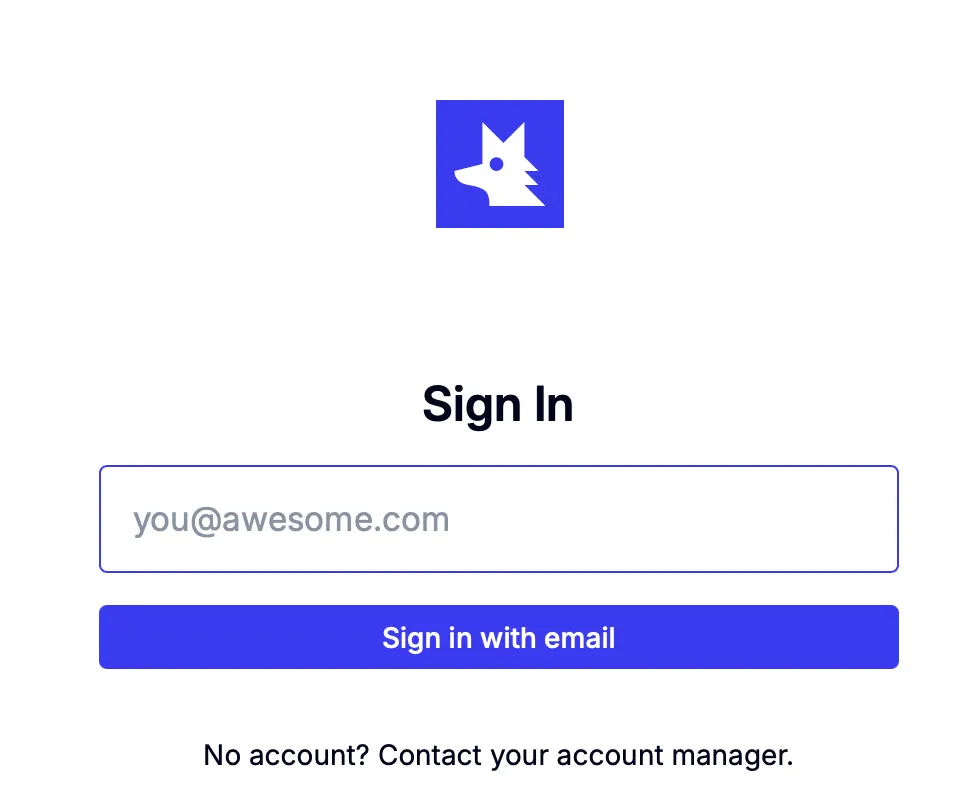
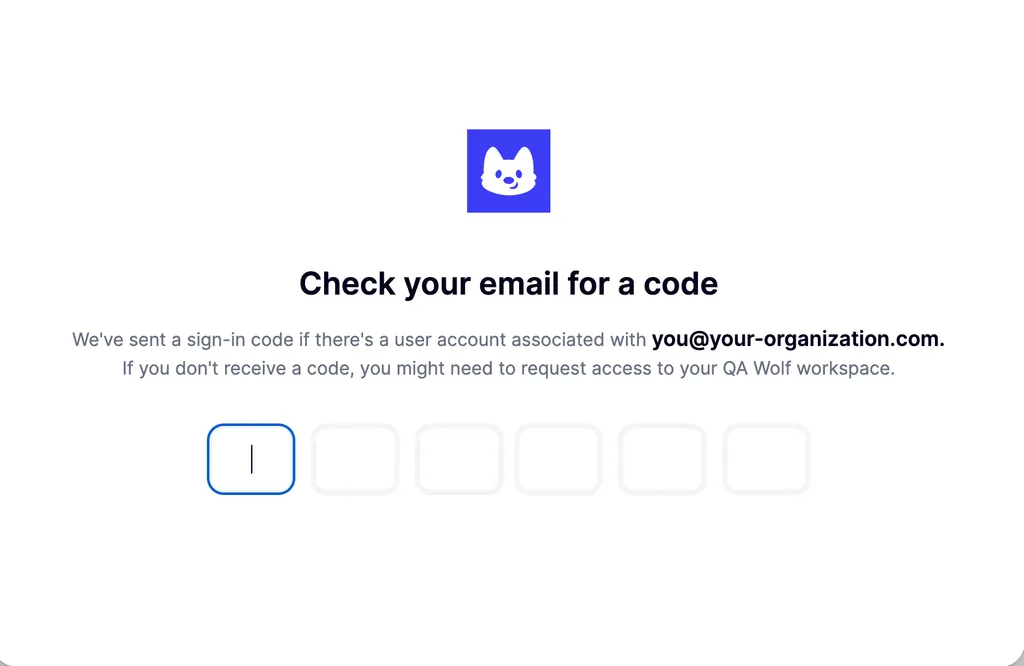
Go to app.qawolf.com and enter your email. You will receive a six-digit login code.
If you don’t receive the email within five minutes, contact your team’s QA Wolf representative to request access to your workspace.
Screenshot of the QA Wolf login page
2
Enter the code. You will be taken to the Flows tab.
Screenshot of the QA Wolf login page
Your avatar appears next to your name in Activity records.
1
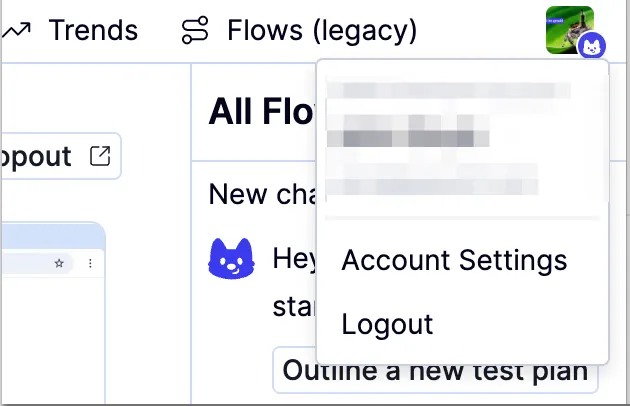
Click the icon in the upper right to open the profile menu.
Screenshot of the QA Wolf login page
2
Click Account Settings
3
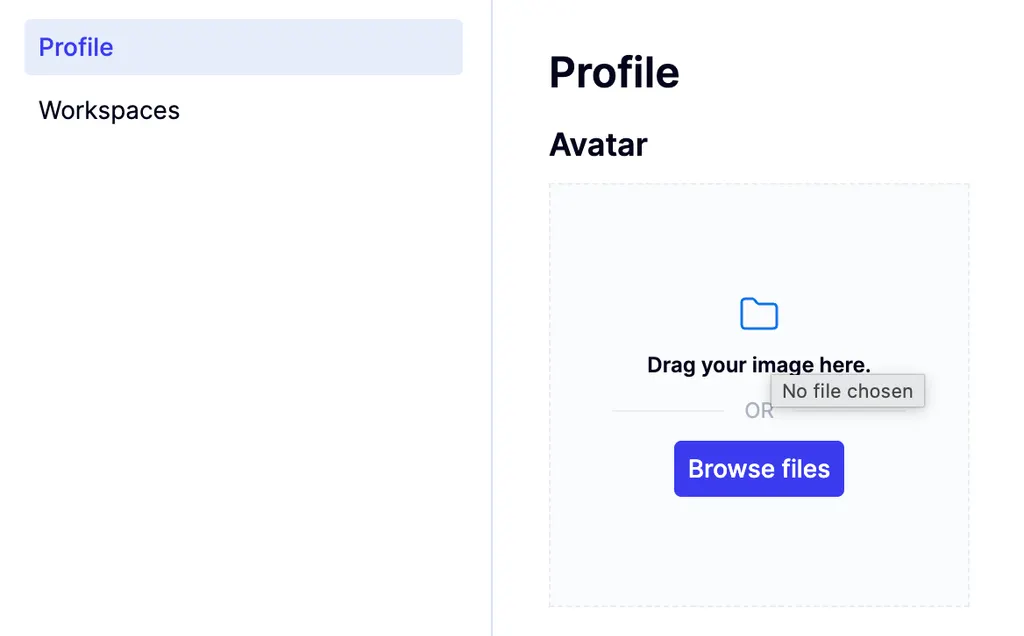
Go to Profile
4
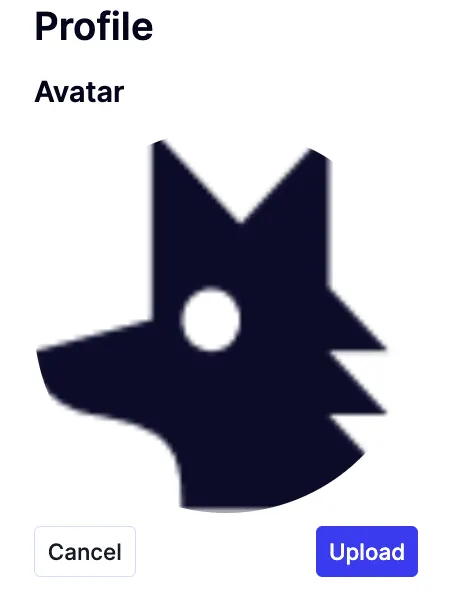
If you have no image set, select or drag a file, then click Upload.
Screenshot of the QA Wolf login page

Screenshot of the QA Wolf login page
This is only applicable if you have been invited to more than one workspace.
1
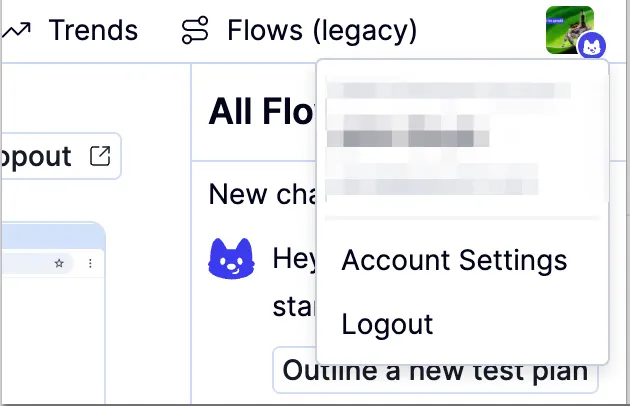
Click the icon in the upper right to view your Account Settings, which holds your name, email, avatar, and, if application, your default workspace setting.
Screenshot of the QA Wolf login page
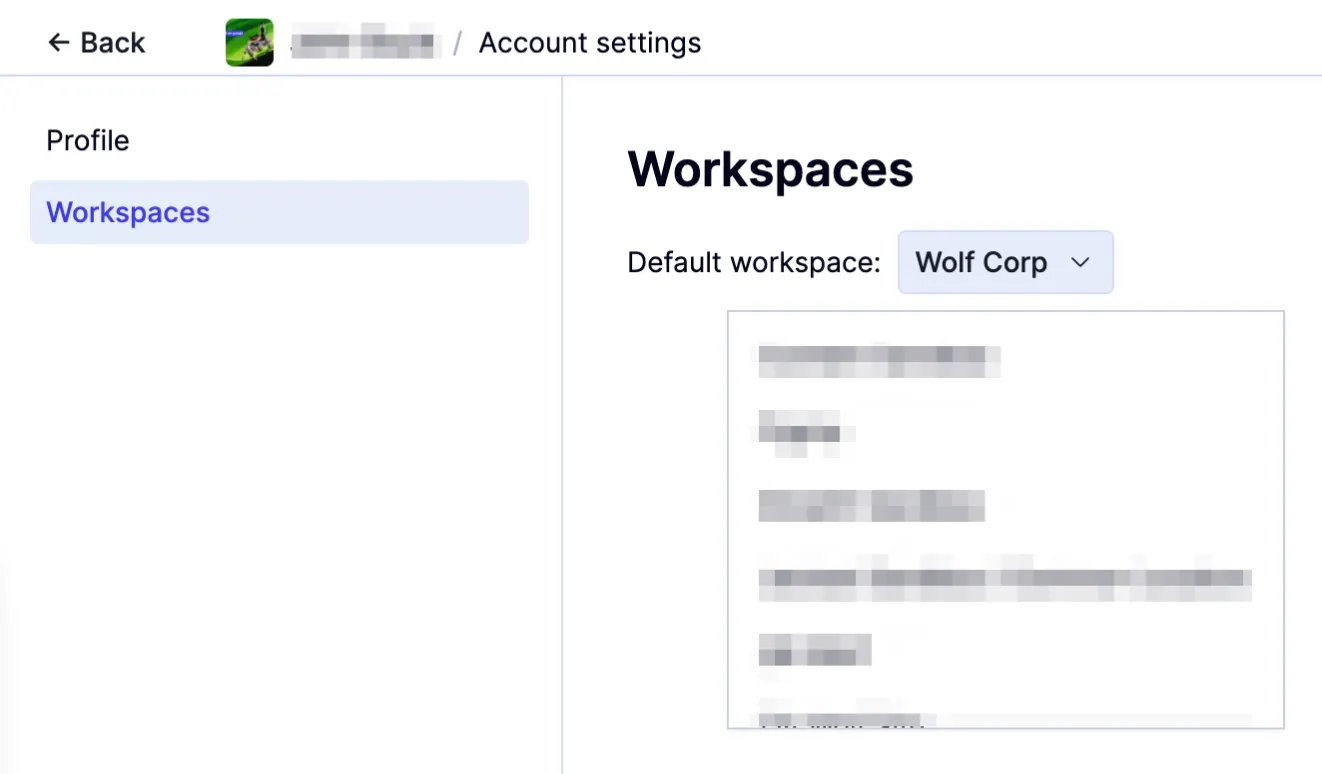
2
Choose a new default from the Default workspace dropdown.
Screenshot of the QA Wolf login page
Last modified on February 9, 2026