1
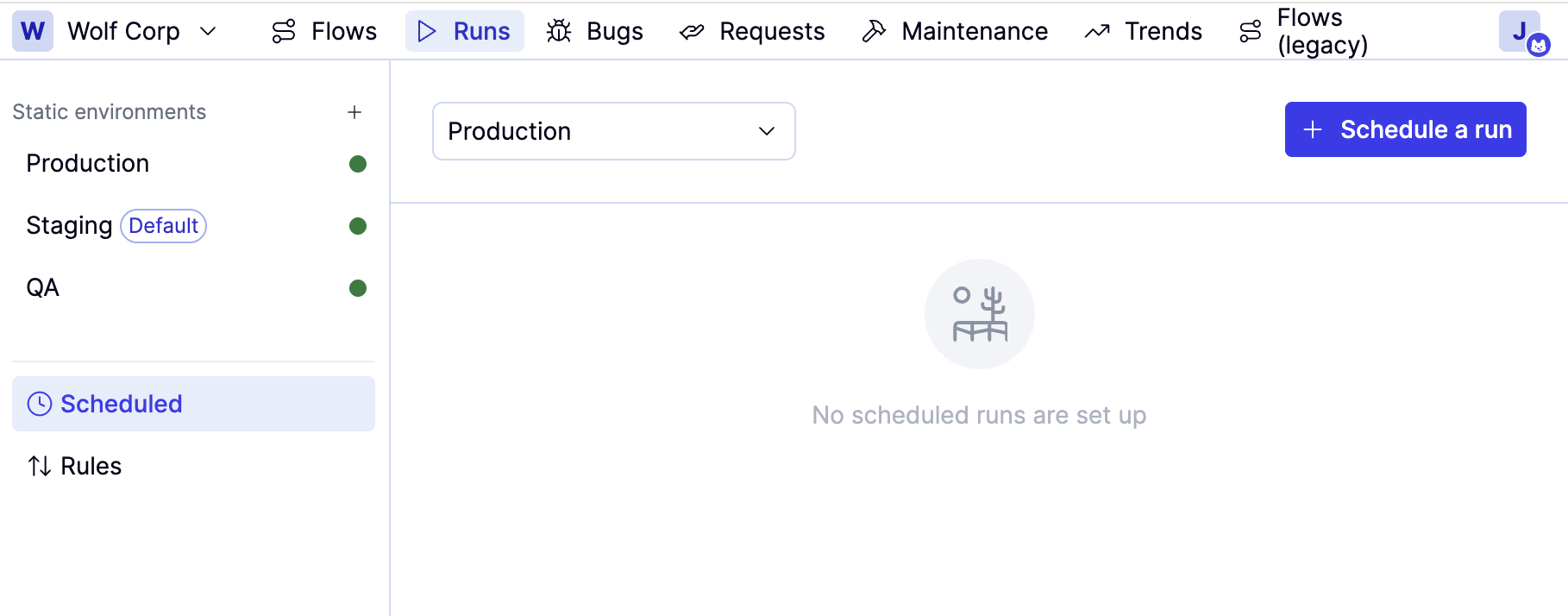
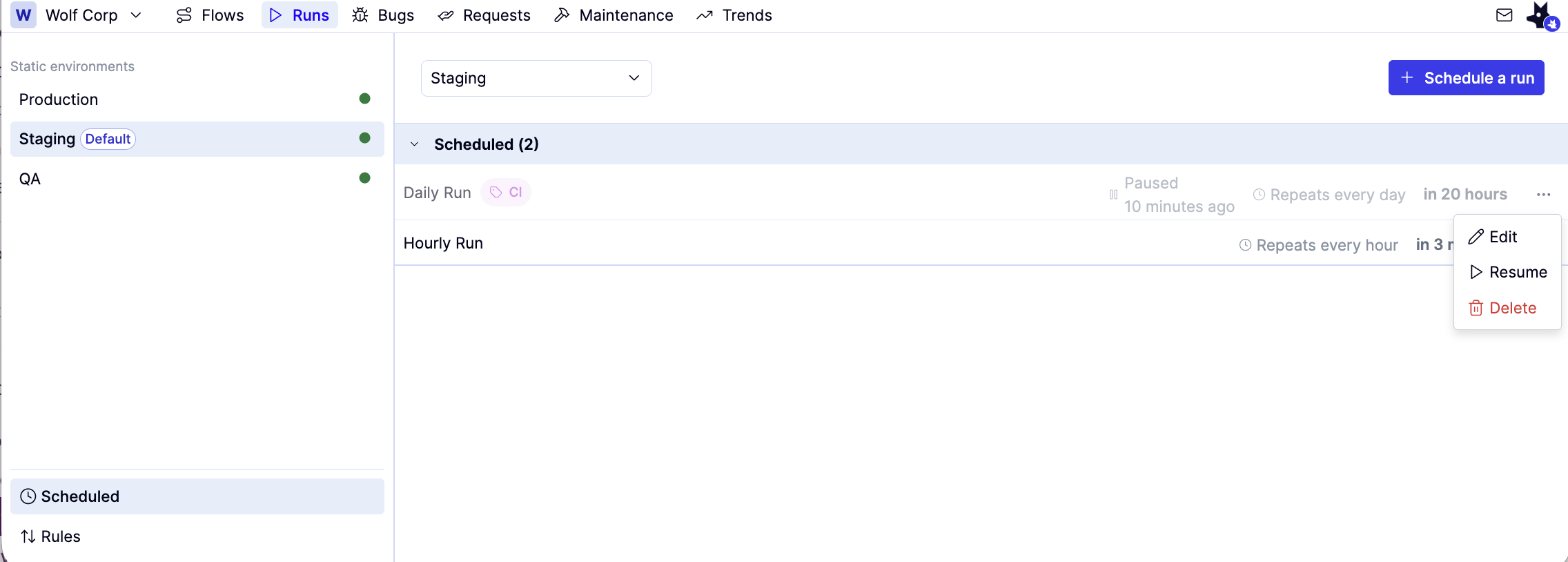
In the Runs tab, choose the environment for your scheduled run from the list on the left.
2
Click Scheduled, then Schedule a run on the right.
3
A drawer opens where you can configure your schedule:
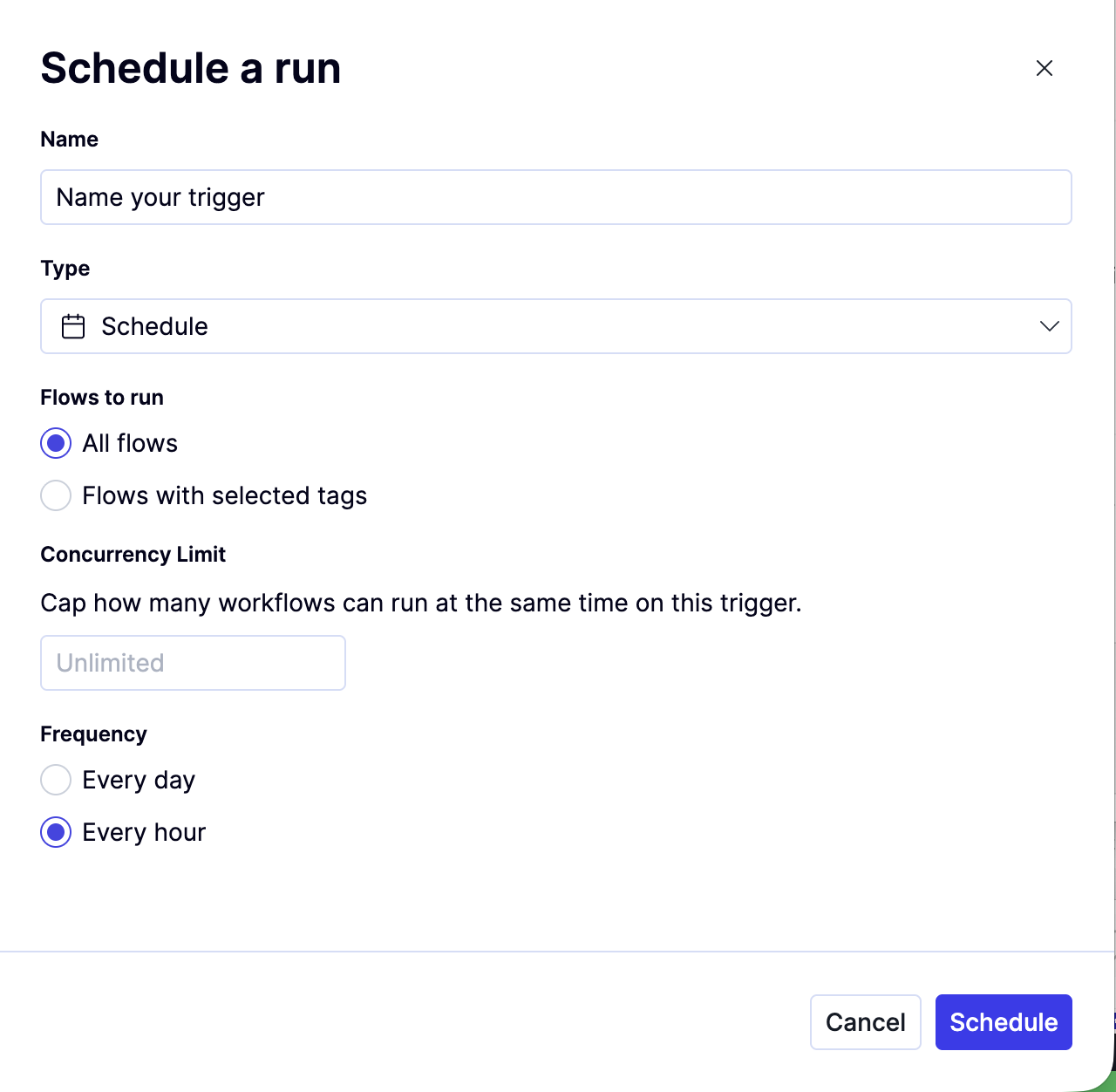
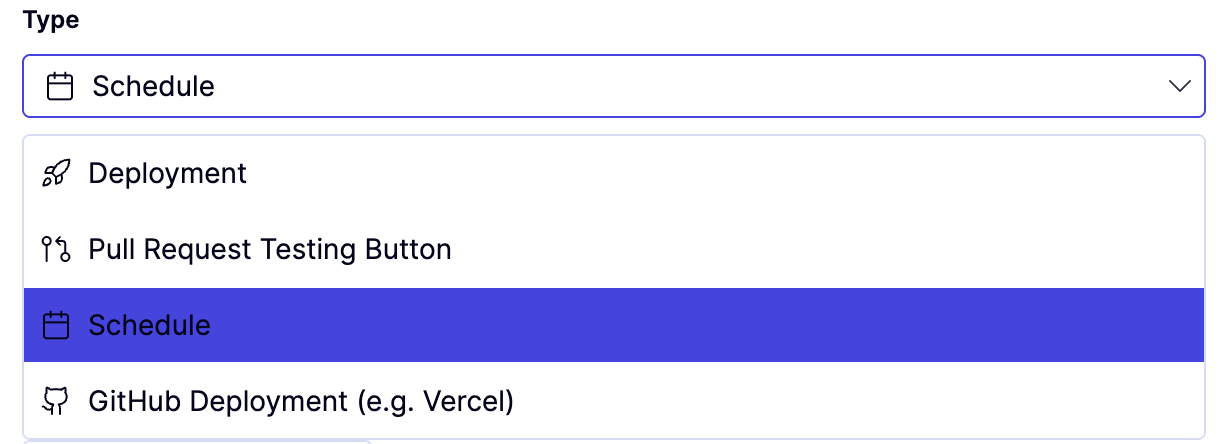
a. Name lets you give your schedule a descriptive name.b. Set the Type to Scheduled
The other three options require some setup from QA Wolf. These are :
  • Deployment – Triggers a run from a version control system (VCS) deployment hook.
  • Pull Request Testing Button – Triggers a run from a custom button configured in your VCS.
  • GitHub Deployment – Available for teams using GitHub-based deployments specifically.
c. Flows to run lets you run All flows or Flows with selected tagsd. Concurrency limit lets you set a maximum number of concurrent flows to control load on your system.
By setting the concurrency limit here, you will override the value in Workspace name → Workspace settings → Environment
e. Frequency lets you choose to schedule runs Every day or Every hour.
Once you’ve set up schedules for an environment, runs will appear in the Scheduled tab as soon as they are started.
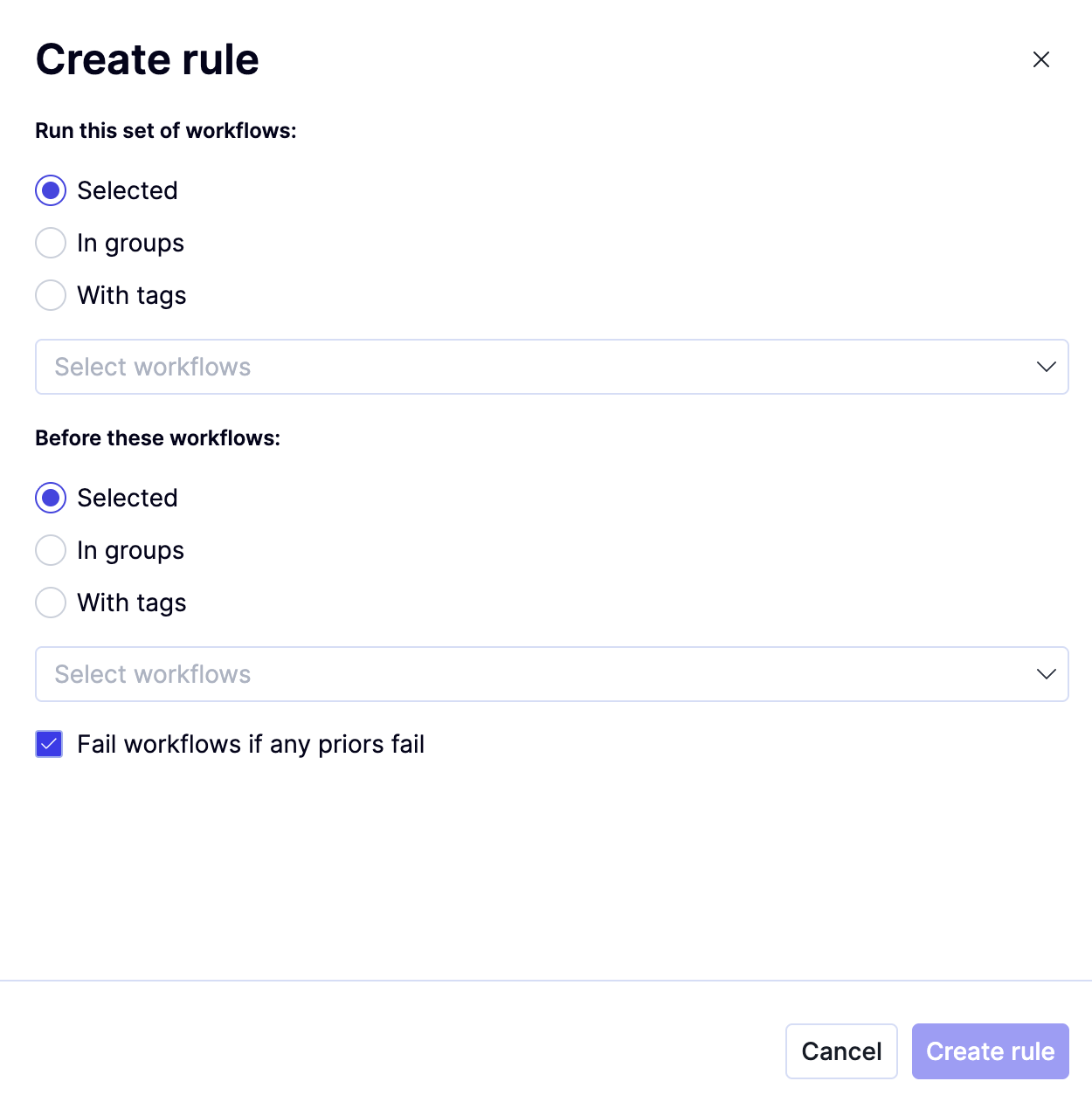
The order that flows run in doesn’t always matter, but when it does — for example, when you want to run quick sanity checks before longer or more complex flows — you can set that sequence with Run Rules.Each Run Rule defines one before set and one after set of flows. You can choose which flows belong in each set — either pick them by name or include them using their groups or tags.
1
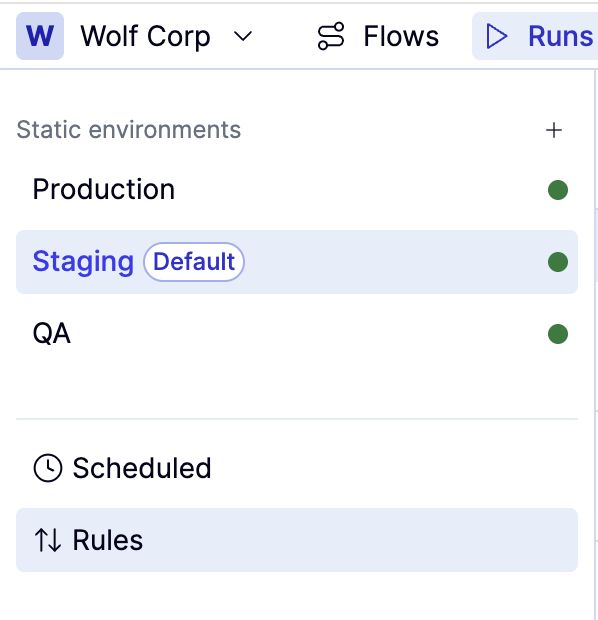
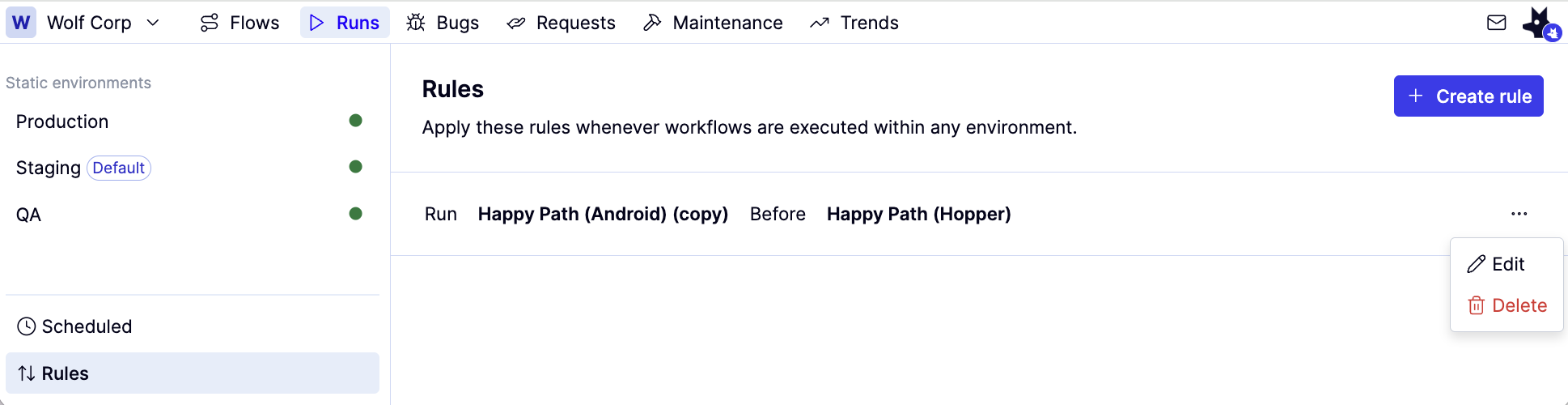
From the Runs tab, click Rules (under Scheduled).
2
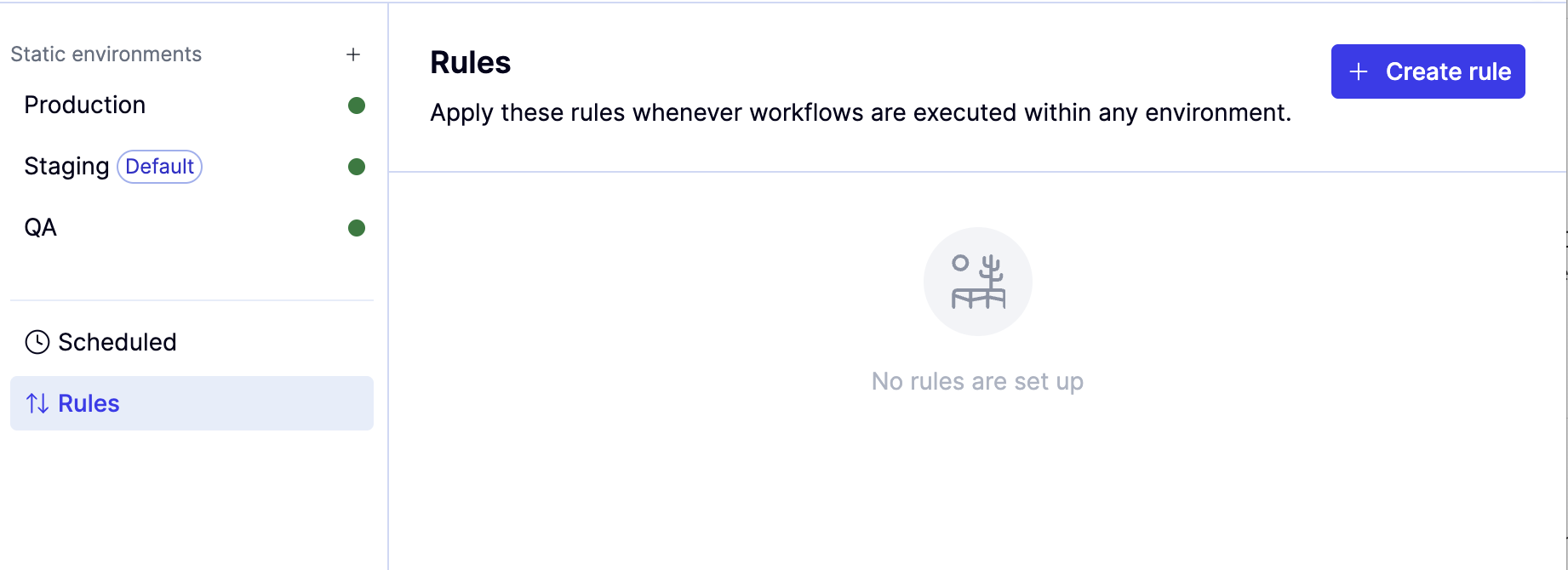
You’ll see a list of existing rules for your workspace.
3
Click Create Rule to open a drawer where you will define the rule.
4
Click Create Rule to define which flows, groups, or tags should run before and after the others.
5
Click the Fail workflows if any priors fail to automatically skip downstream flows when an earlier flow fails. This option is enabled by default.
Use Fail workflows if any priors fail when failures in an earlier set of tests (for example, sanity tests) make later tests likely to fail for the same reason. Skipping those later tests reduces noise, shortens run time, and keeps the failure list focused on the root cause.
Only active flows execute in a run. Drafts are ignored even if they’re part of a rule.
Create as many rules as you need. For example, if you want flows to run A → B → C, create two rules:
  • Run A before B
  • Run B before C
The UI prevents most circular setups, but it’s still good practice to double-check your before/after sets.

To see all the schedules you have created:

1
Open the Runs tab and click Scheduled from the lower left.

To pause a schedule:

1
Click the icon to the right of the schedule, then click Pause. Paused jobs will appear in grey text with a status of Paused.

To edit a schedule:

1
Click the icon to the right of the schedule, then click Edit. A drawer opens where you can edit your schedule:

To see all the rules you have created:

1
Open the Runs tab and click Rules from the lower left.

To edit a run rule:

1
Click the icon to the right of the rule, then click Edit. A drawer opens where you can edit your rule:
Last modified on February 9, 2026