

Overview: The different reasons flows fail
When a flow fails, the next step is to determine why. Identifying the cause determines the appropriate resolution path and helps avoid unnecessary fixes or retries. Failures generally fall into one of the following categories:- Flakes Failures caused by infrastructure outages, network instability, or failed dependent services. These issues often resolve without changes to the flow or the application.
- Bugs Failures that reveal incorrect or unexpected behavior in the application under test. These indicate a product issue rather than a problem with the flow itself.
- Broken tests Failures caused by flow logic, bad selectors, incorrect assertions, or assumptions that no longer match the application. These may be simple to correct or may require more substantial maintenance.
How to: Use the Investigation view to diagnose a failure
How to: Use the Investigation view to diagnose a failure
The Investigation view is where you diagnose flows that failed during a scheduled or event-based run. It brings together everything you need to understand what happened in a single run and decide what to do next.You reach the Investigation view by opening a run from the Runs tab when that run is in Investigating or Failed status. The view opens with the most relevant information already selected, so you can start reviewing immediately.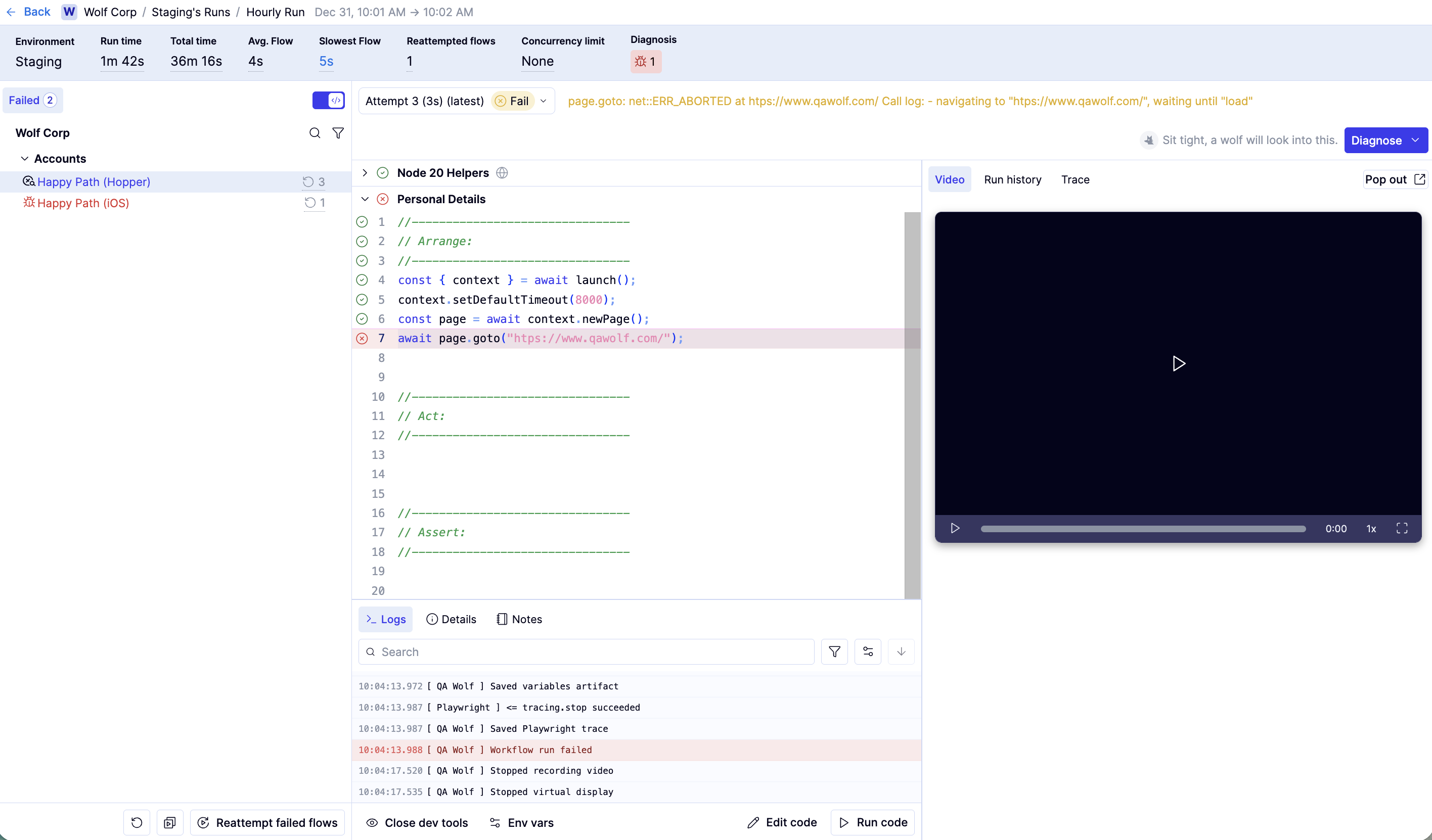
To find failing flows:
Navigate to the Investigations view. The left panel of the Investigations view separates Failed, Running, and Passed flows.
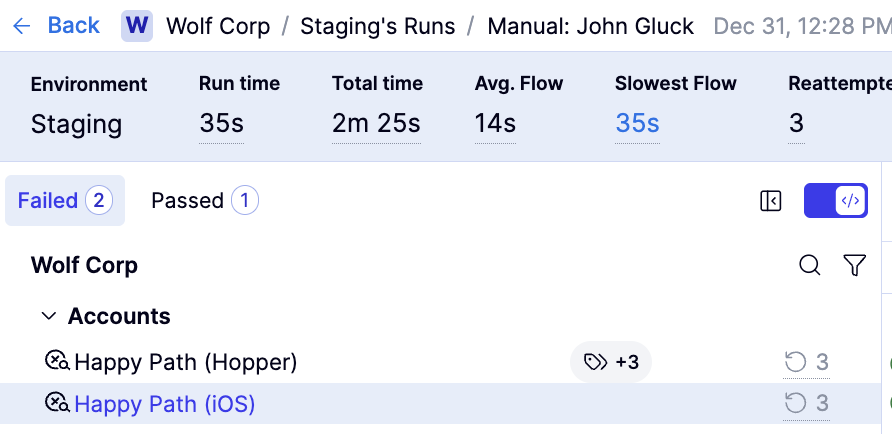
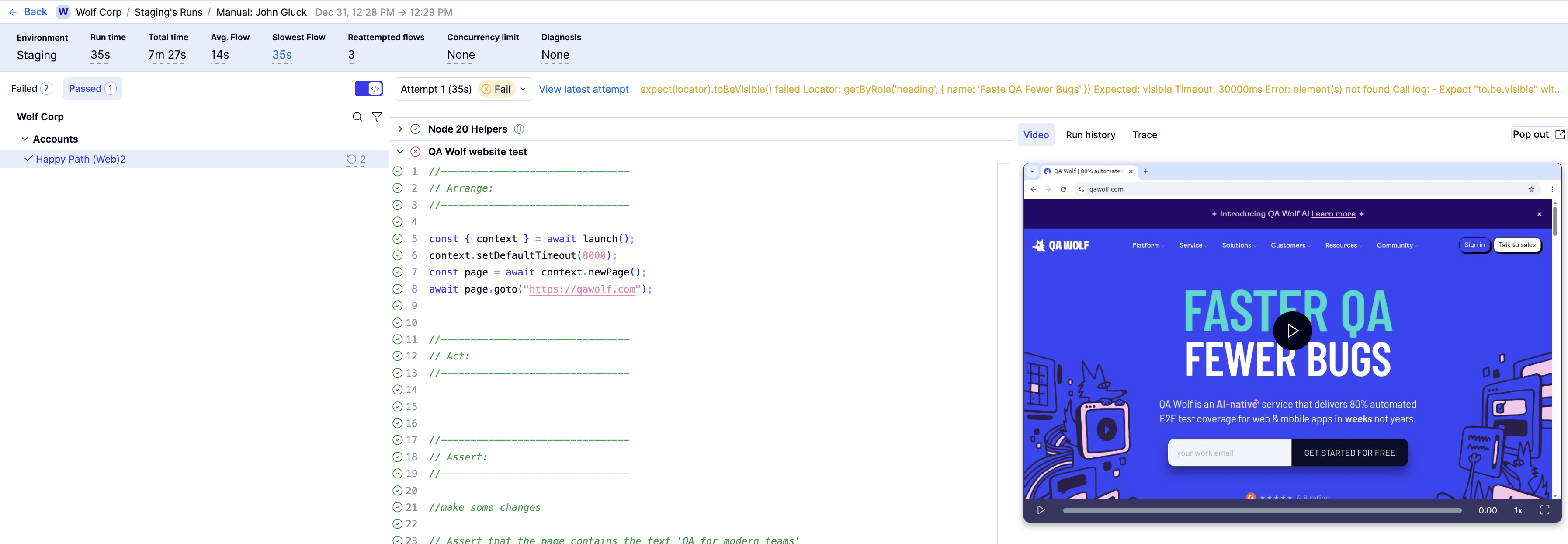
To identify the failing line of code:
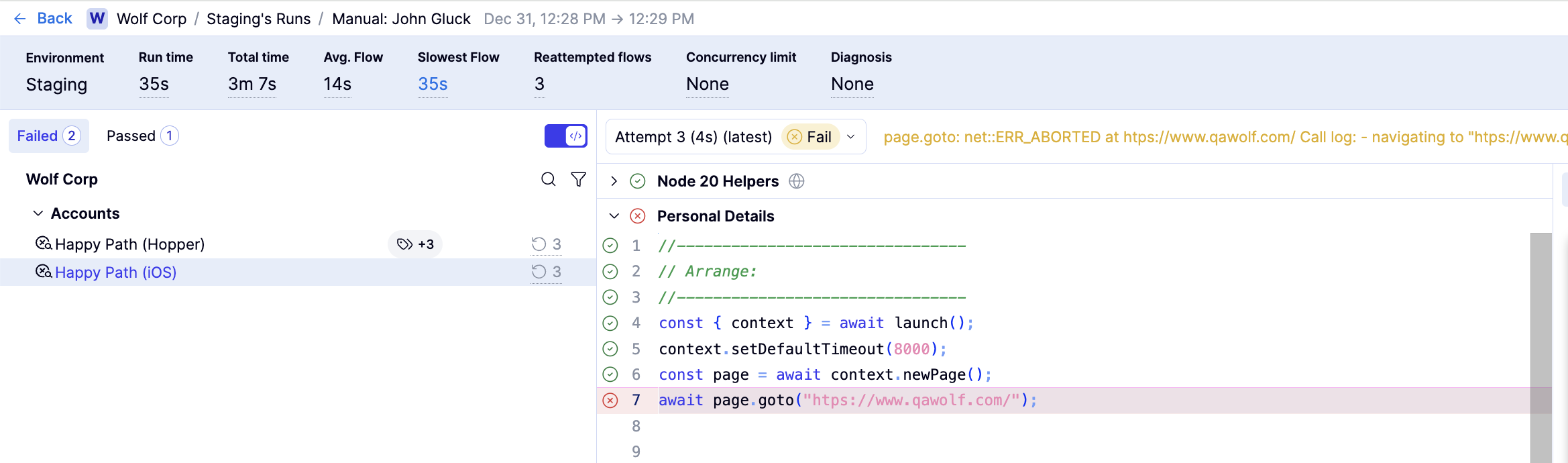
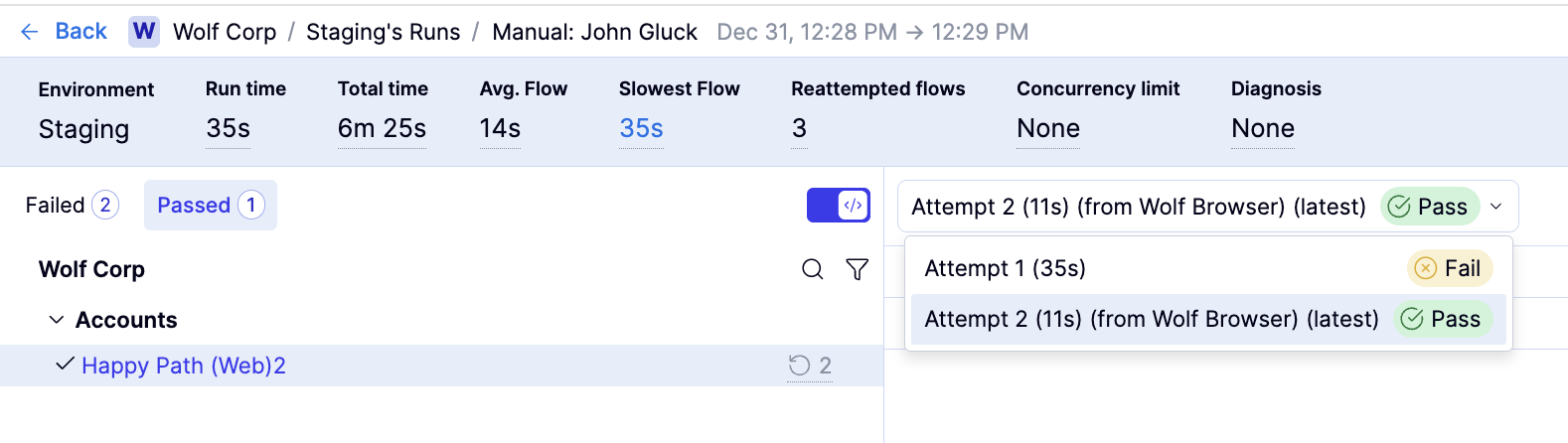
To compare attempts in a single run:
If a flow was retried multiple times during a run, you can switch between attempts to determine whether the failure was consistent or occurred only under certain conditions.To review what happened in the browser during the most recent run:
Recorded video shows exactly what happened in the browser during the selected attempt, which is often the fastest way to understand unexpected behavior.To compare previous runs:
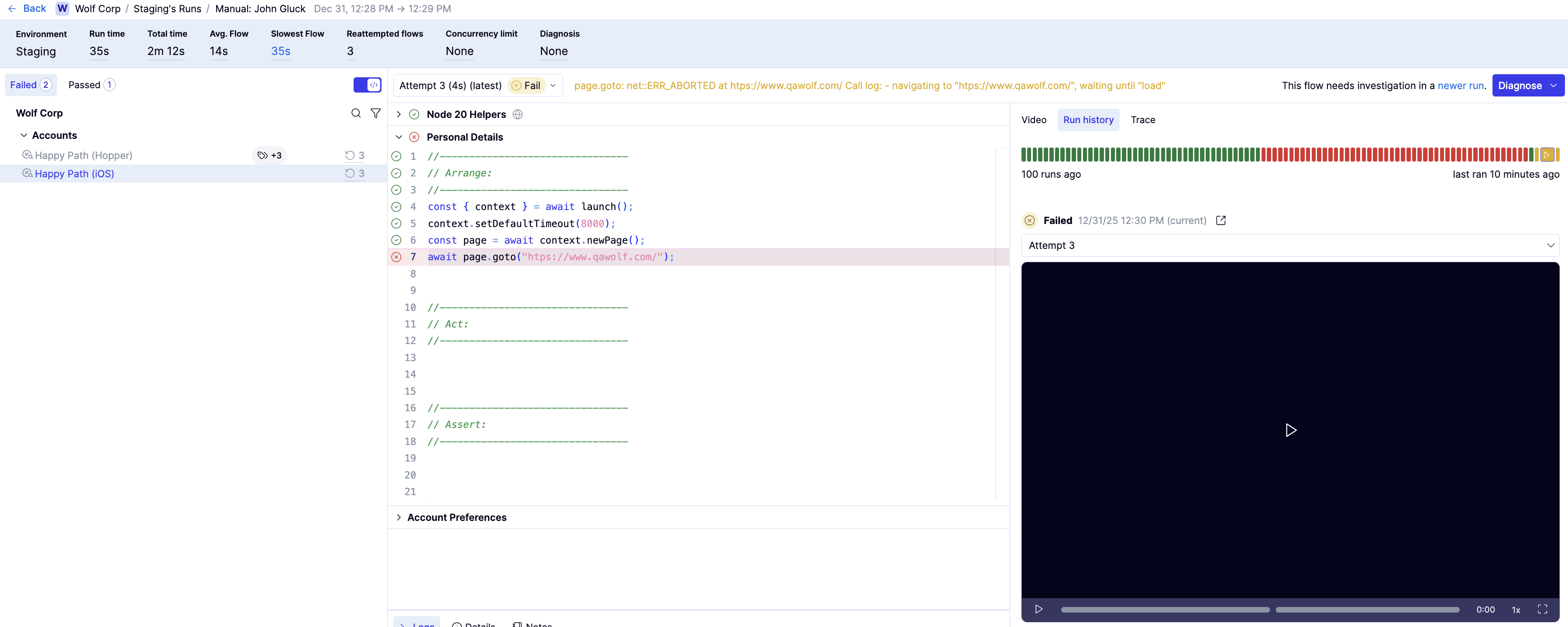
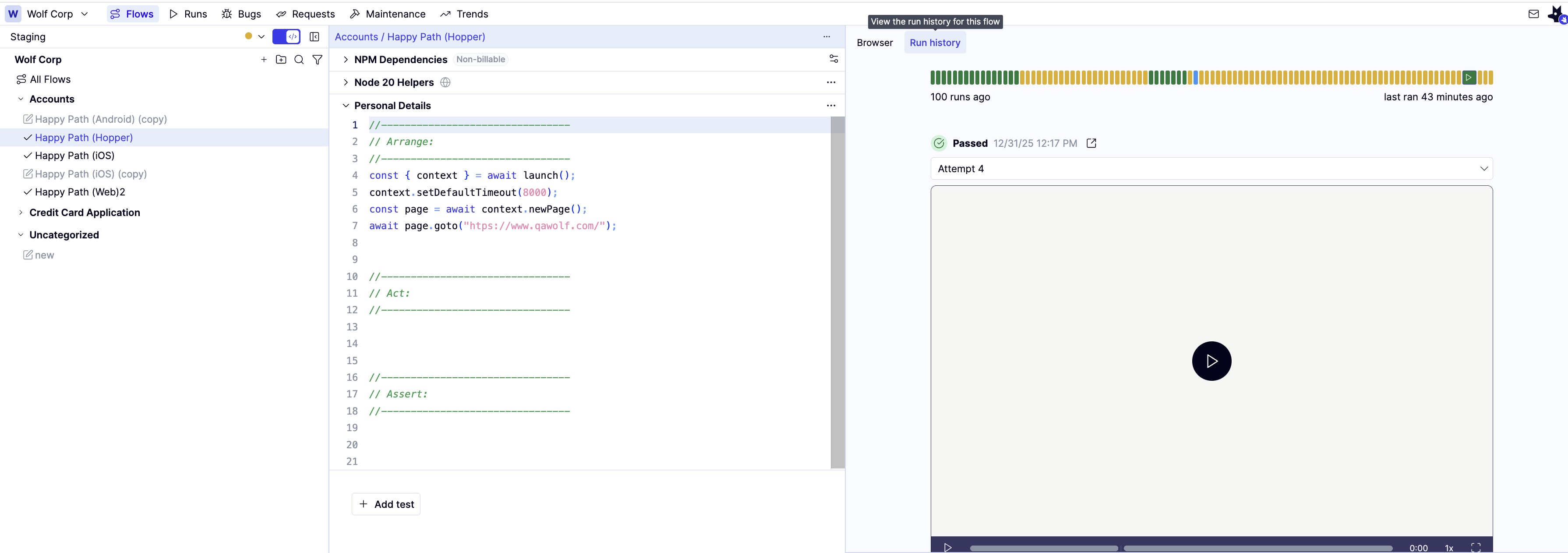
To review video of up to the last 100 runs of a flow, including all attempts, use the flow’s Run History tab.To get access to Playwright traces:
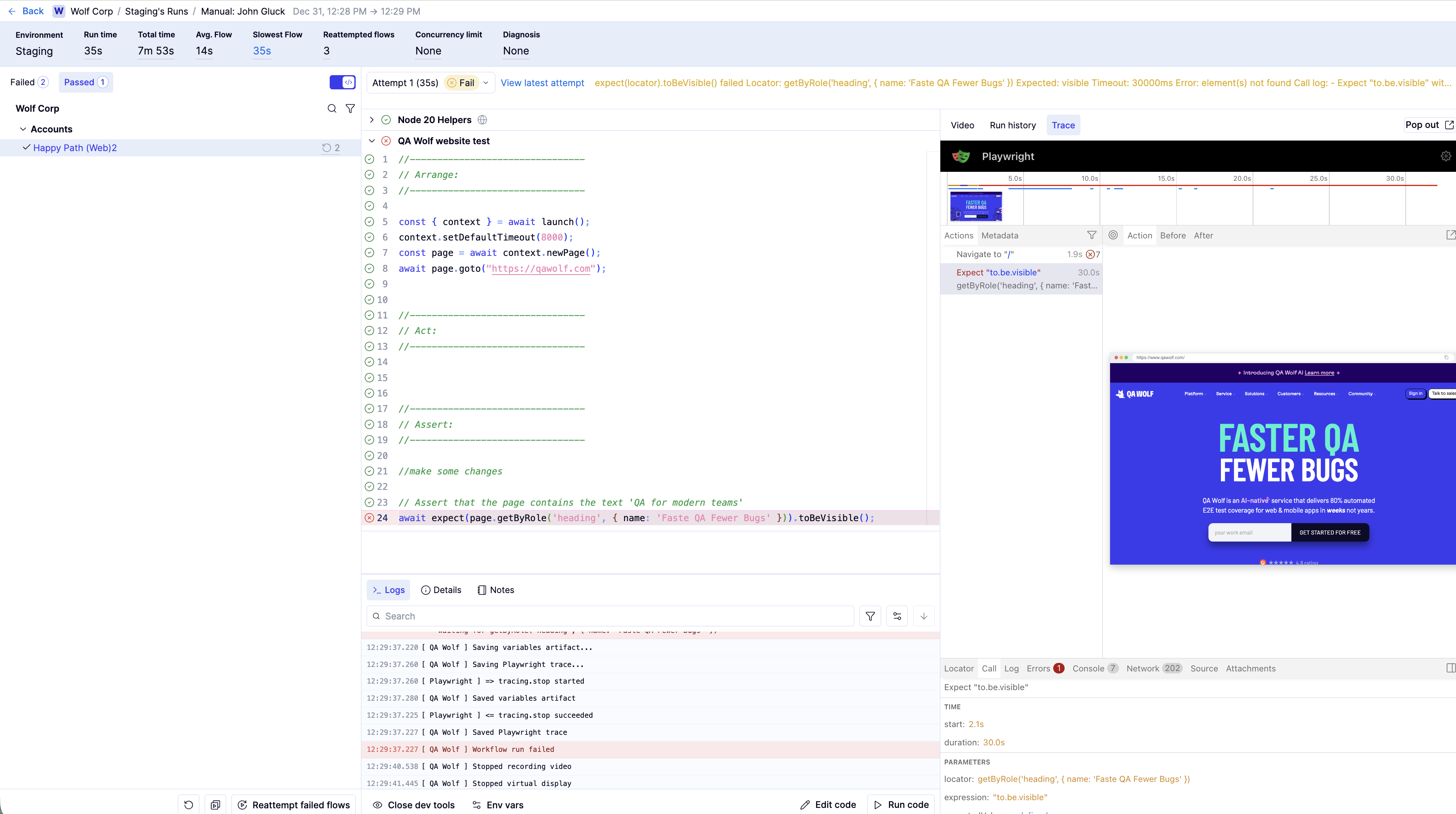
How to: Use the run history, activity, and notes to diagnose failures
How to: Use the run history, activity, and notes to diagnose failures
Some issues only become clear when you look beyond a single run. Run History shows the last 100 runs for a flow, including each attempt. Reviewing this history helps you spot patterns such as intermittent failures, regressions after changes, or flows that consistently fail in the same place.You’ll typically access these tools from the Flows tab in No-code Mode, where they’re most useful during flow creation and ongoing maintenance.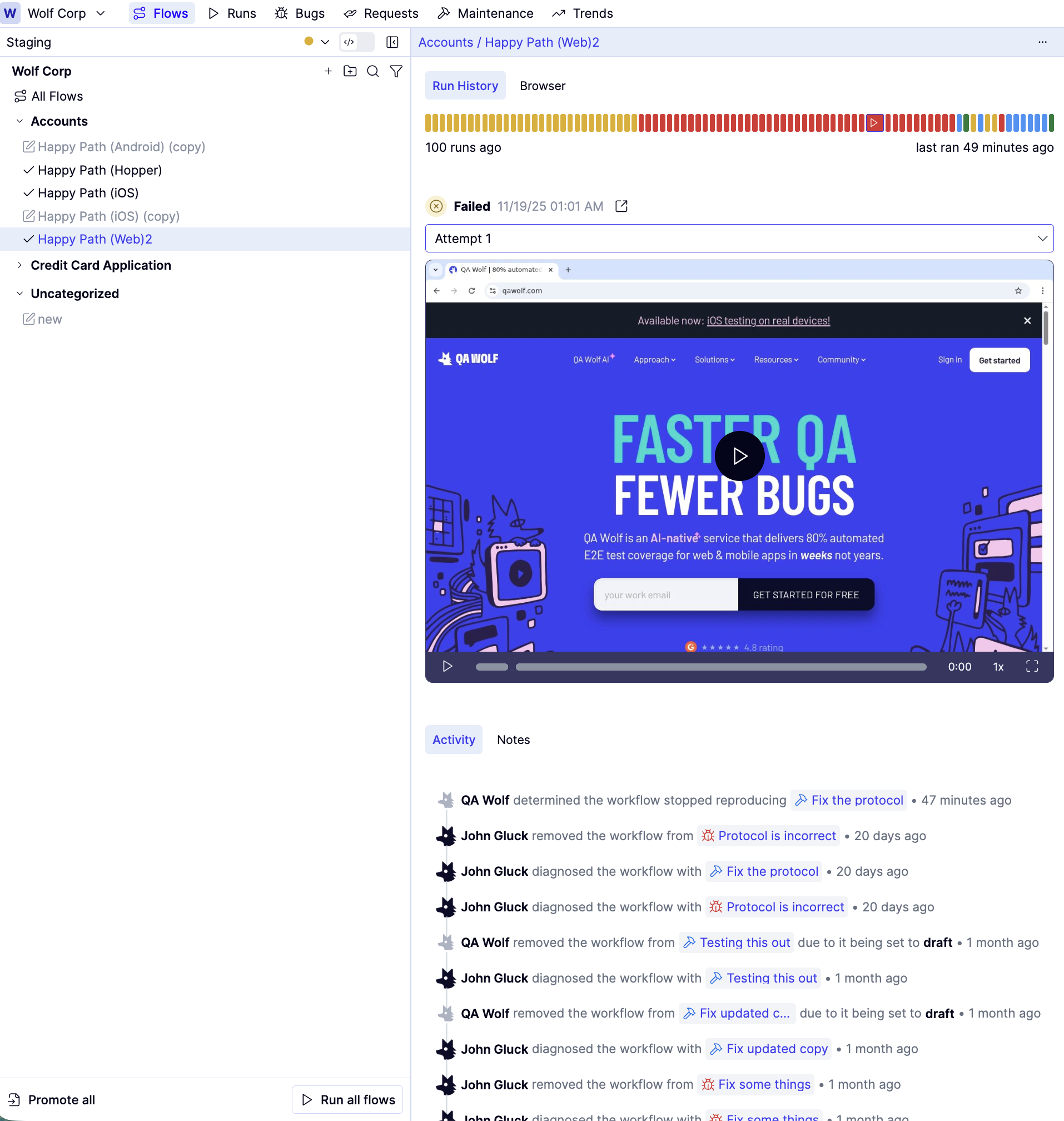
You can also review Run History in Code Mode. Select the flow you want to debug, then click the Run History tab in the right panel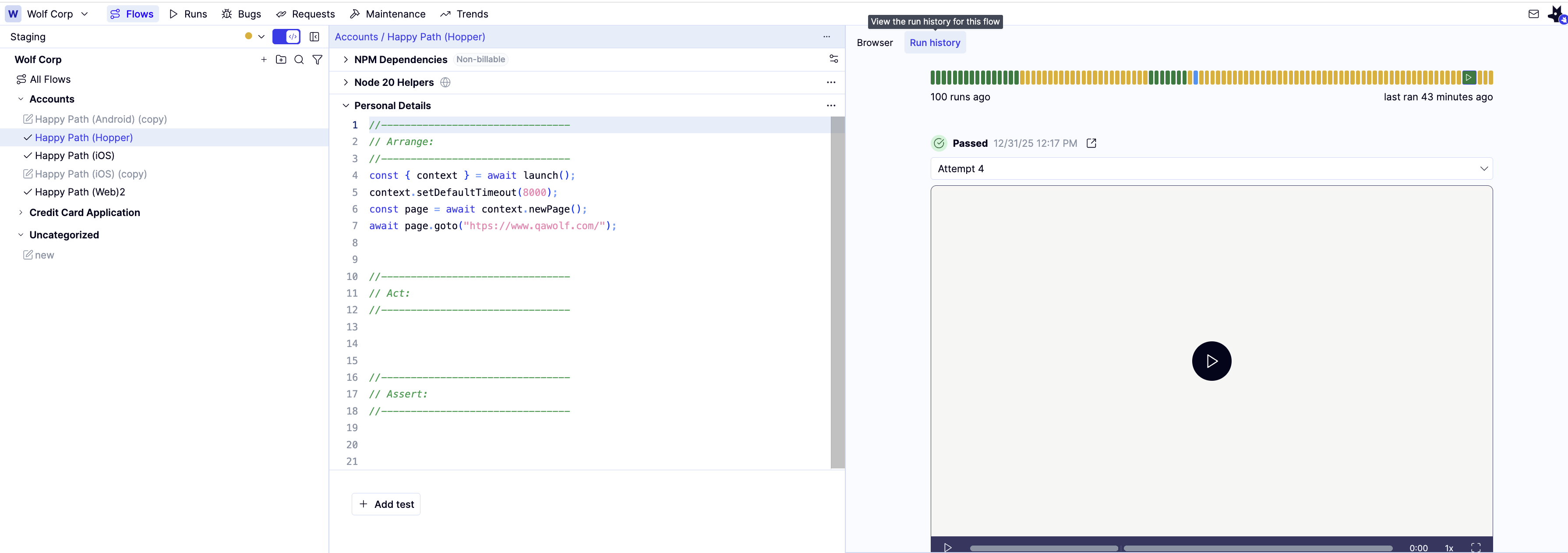
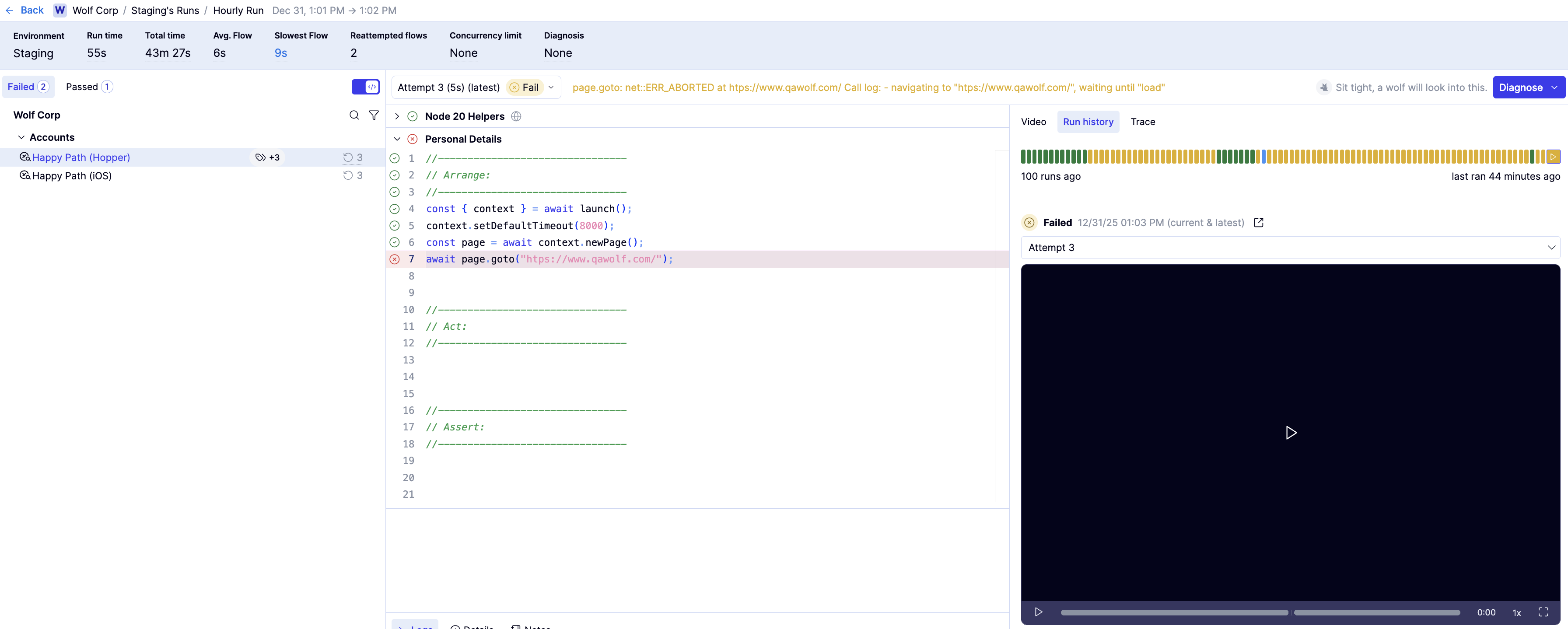
To focus on a specific flow:
As you move across the bars, the selected bar expands to show the icon, and the timestamp below the timeline updates to match that run.

To review change history:
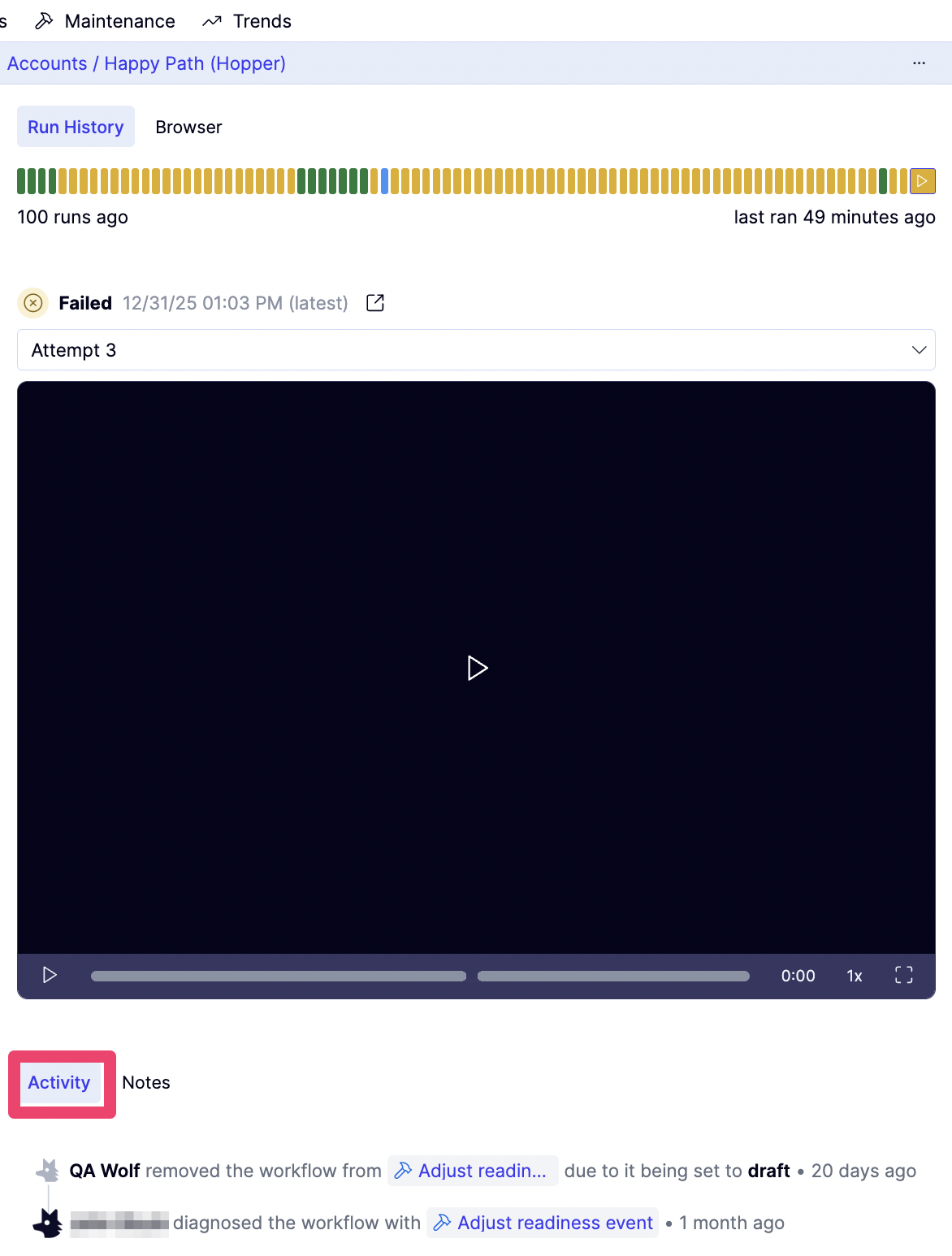
The Activity tab shows changes made to a flow over time, including Readiness updates and maintenance reports. This helps explain when a flow was modified or temporarily removed from runs and why.To record and review notes specific to the flow:
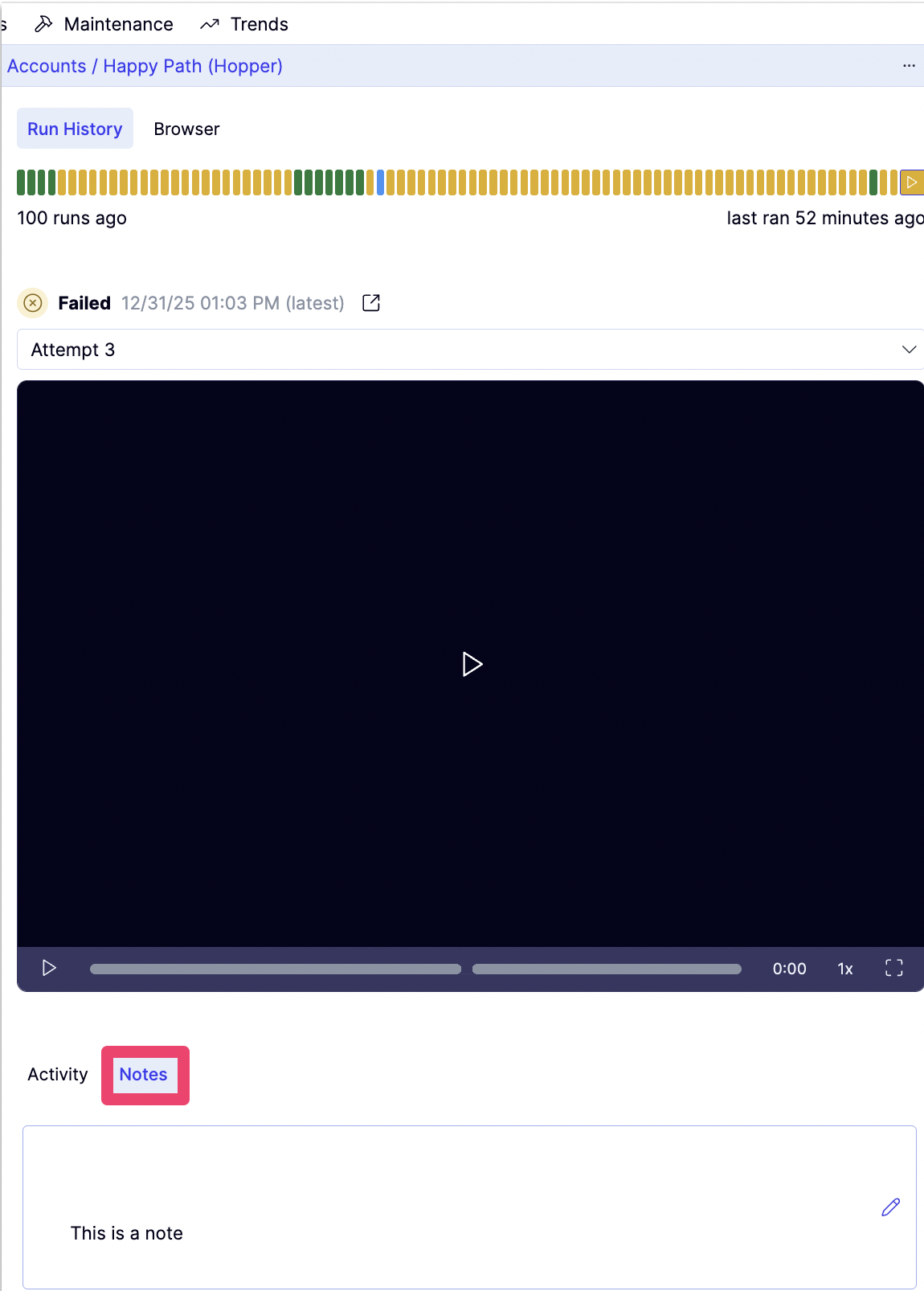
The Notes tab lets you record context about a flow, such as known issues, edge cases, or investigation findings. Notes are saved per flow and can help guide future diagnosis and maintenance.