Overview: Promoting flows
Promoting a flow means copying it from one environment to another. This allows the same test logic to be reused across environments without rewriting the flow. QA engineers typically promote a flow to validate the same behavior at different stages of delivery—for example, confirming that a critical path behaves the same in a preview environment as it does in a later environment. The goal is consistency: ensuring that a trusted flow continues to deliver value as the application progresses.Not every flow needs to run in every environment. Promoting flows indiscriminately can introduce noise, increase maintenance, and cause failures unrelated to the environment’s purposeBefore promoting a flow, consider whether it adds a meaningful signal in the target environment. Promotion is most effective when it is intentional and aligned with a clear testing goal.
How to: Promote a flow
Promote all flows
Click the Promote all button at the bottom of the Flow list. The Promote Changes dialog will appear.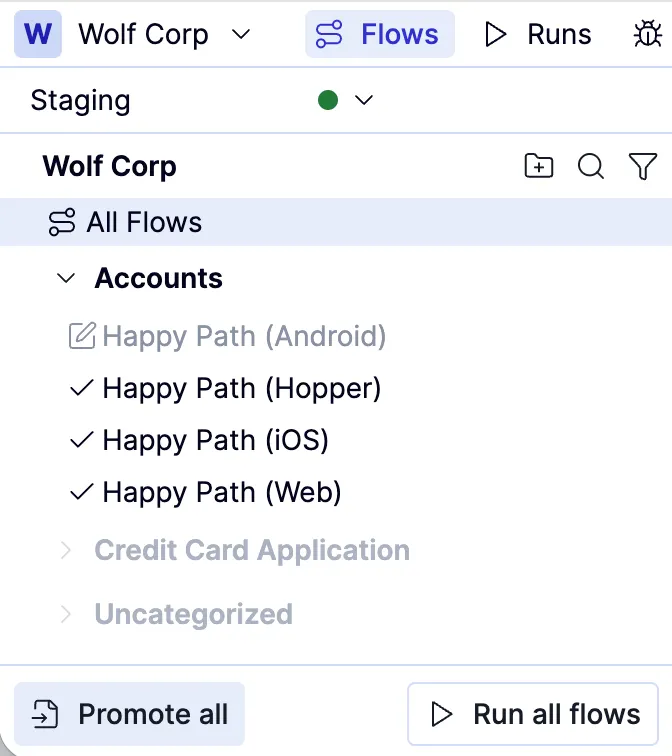
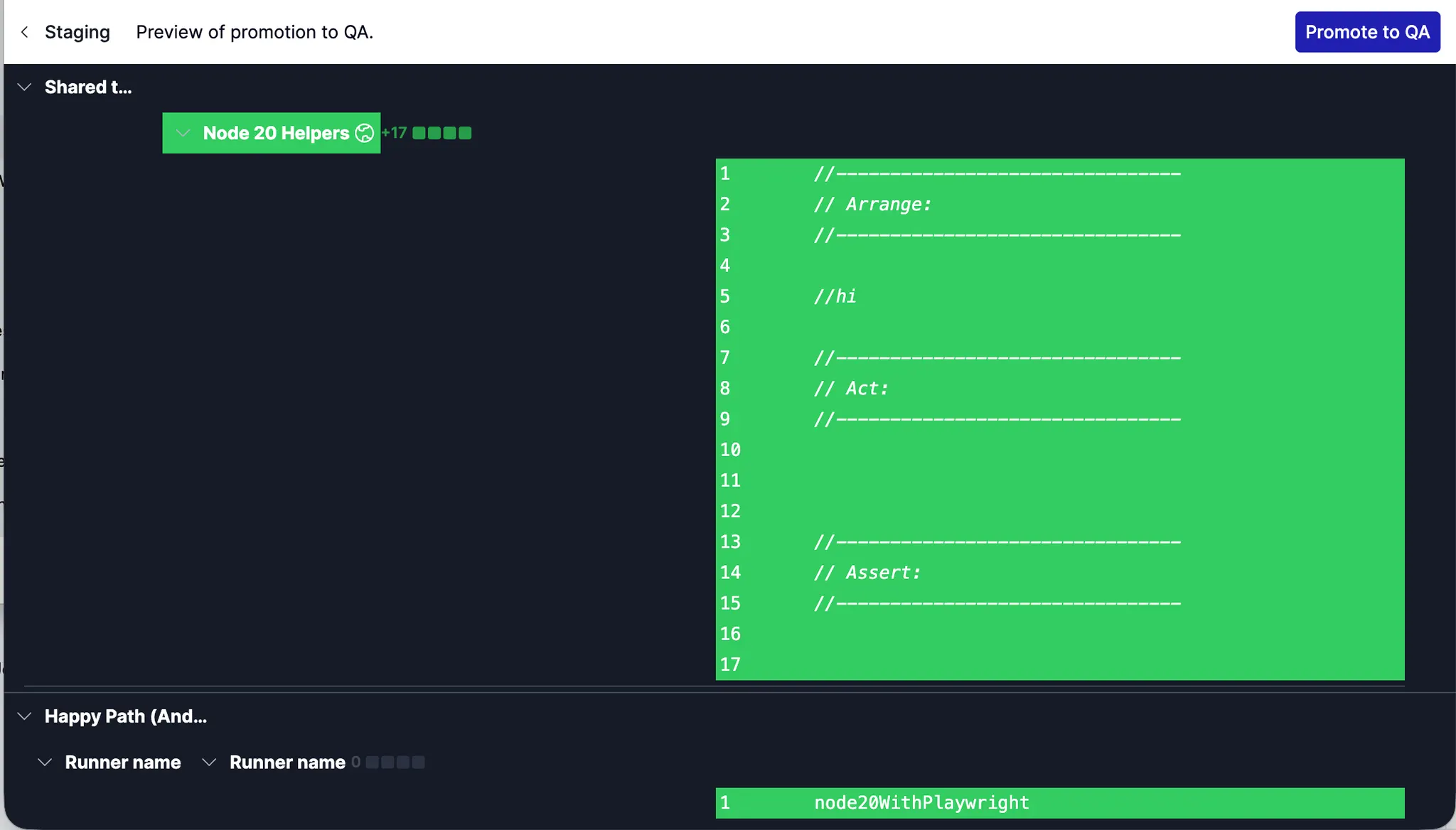
Click Preview promotion. The review displays code differences for each promoted workflow.If you promote a workflow to an environment where it doesn’t yet exist, the left side will be empty, and the right side will show the workflow’s complete code.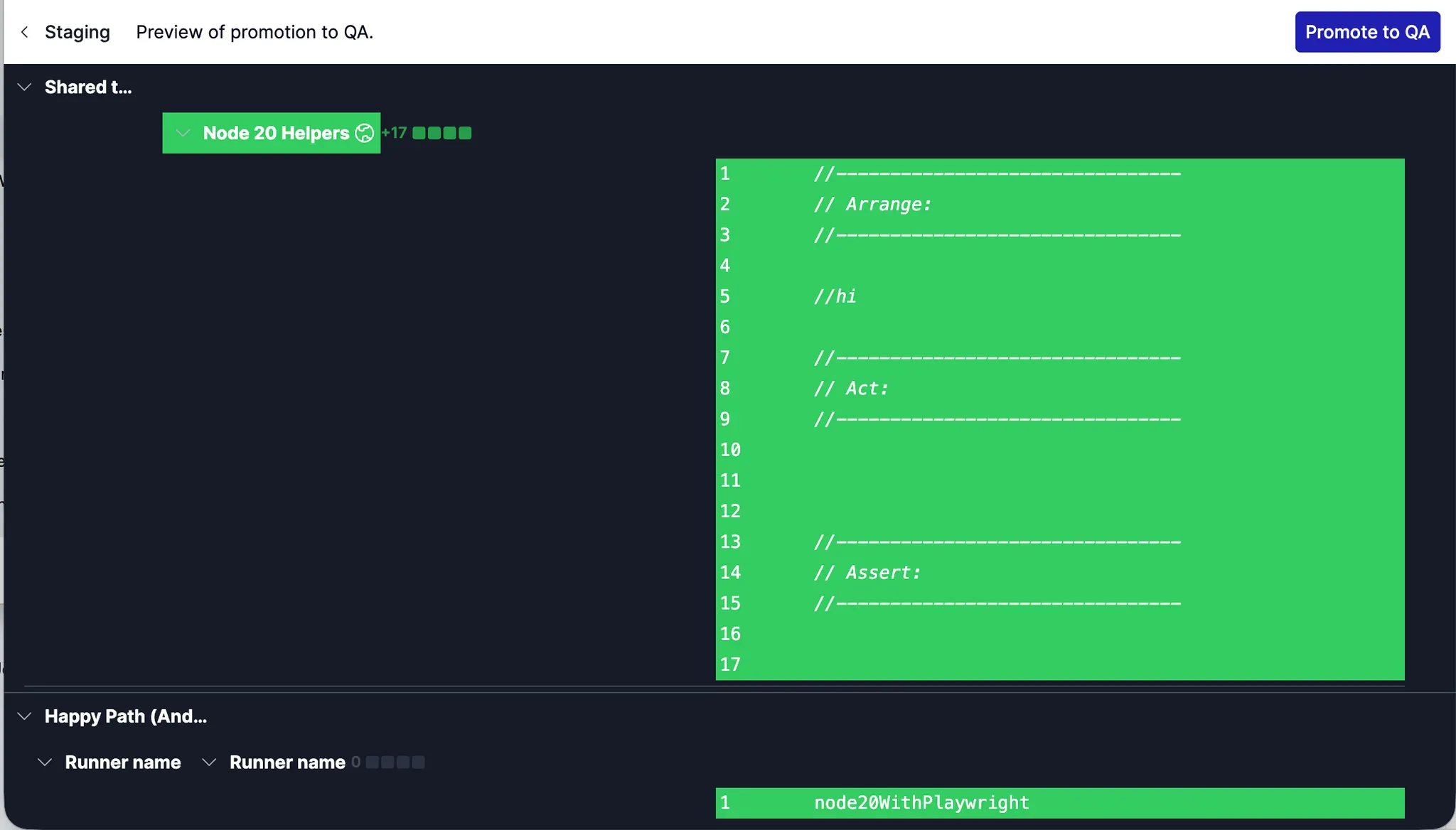
Promote selected flows
Click the Promote selected button at the bottom of the Flow list. The Promote Changes dialog will appear.
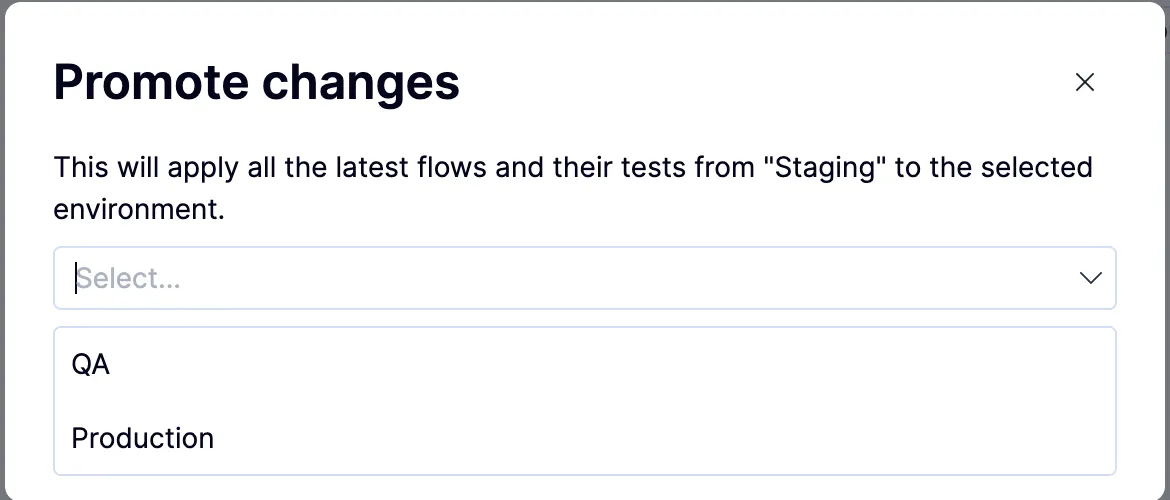
Click Preview promotion. The review displays code differences for each promoted workflow.If you promote a workflow to an environment where it doesn’t yet exist, the left side will be empty, and the right side will show the workflow’s complete code.