

Overview: Email addresses and inboxes
When your app sends confirmation links, password resets, or invitation emails, you can test those flows directly inside QA Wolf using the built-in getInbox function.getInbox gives you an email inbox you can send to, wait on, and read from — all inside your test runner. It can also generate unique email addresses, so every test run uses a fresh inbox.
In addition, it includes helper functions to:
- Send messages from that address
- Wait for one message to arrive
- Wait for multiple messages over a period of time
The Email Allowlist
The Email Allowlist
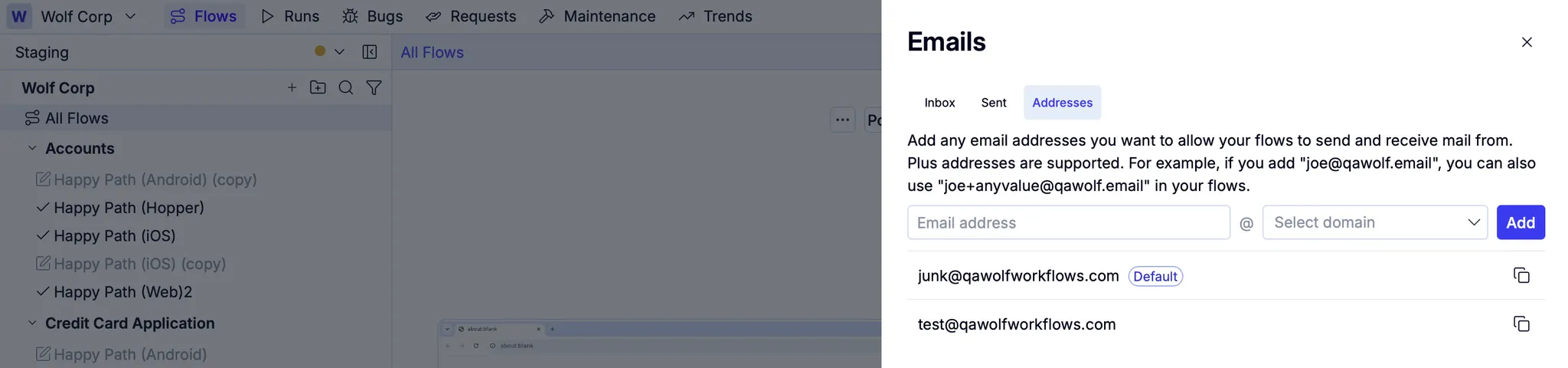
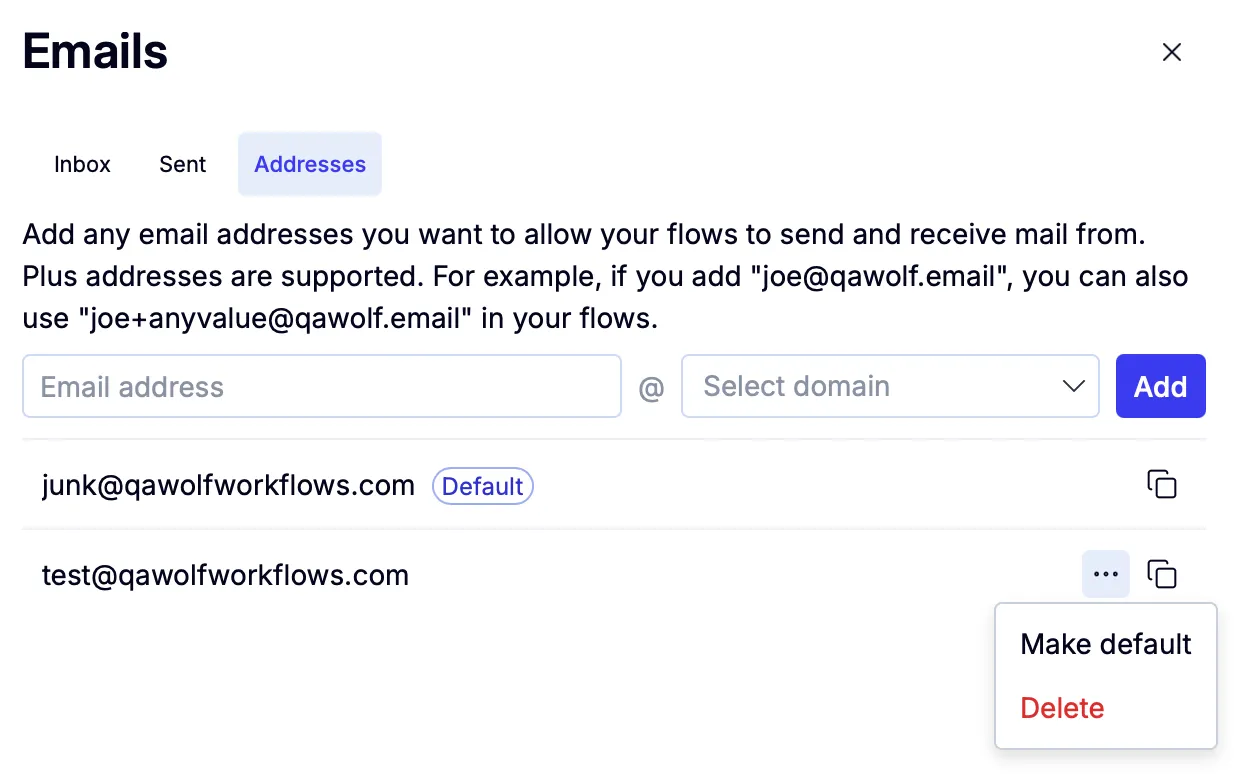
Our platform includes an Email Allowlist to ensure test emails are delivered only to approved addresses or domains. The allowlist prevents unintended delivery and keeps your testing environments secure and controlled. You must add any email address you use in a flow to the allowlist.QA Wolf provides internal email domains—qawolf.email and qawolfworkflows.com—for email testing. We recommend using these instead of public email services because we control the servers, which allows us to stabilize tests that rely on email interactions and prevent the sporadic failures that can occur when using external providers.Our platform sets an automatic default. You cannot delete the default.
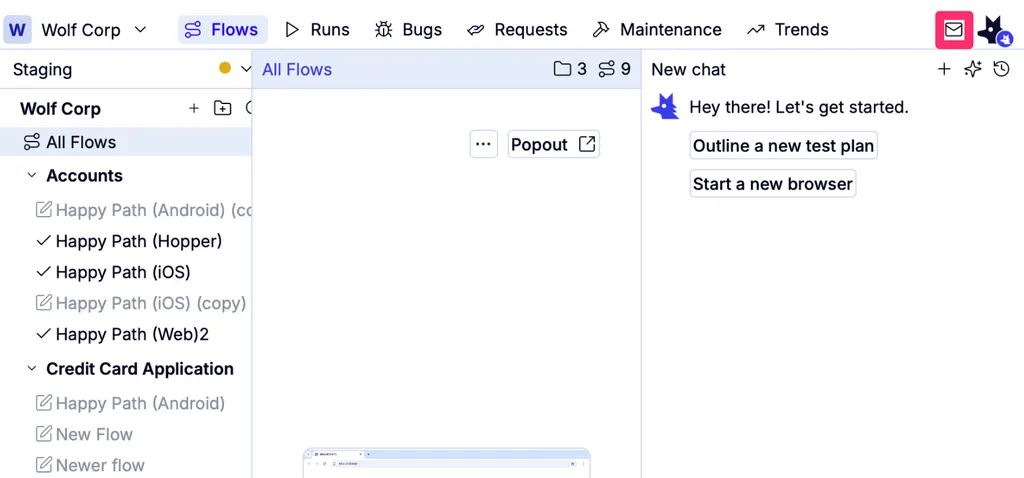
How to: Change the default email
How to: Change the default email
When you set a default email address, any test or helper that accepts an email can omit the address and will fall back to the default. You can still override per test by specifying a different address.
How to: Get the contents of an email inbox
The simplest way to access your test inbox is to add this line to your flow:getInbox, QA Wolf uses your team’s default email address, which you can find by going to the Flows tab, selecting Workspace settings from the Workspace name dropdown, choosing Flows from the left navigation, and finding the email address marked as default under the Email Allowlist
If you need to access a specific allow-listed email address:
new: true.
How to: Wait for an email in a test
Often, you want your test to wait for a specific email to arrive and then verify its content. This approach is ideal for verifying signup confirmations or password reset links.How to: Send an email from a test
Our platform includes thesendMessage helper for the less common case where your application receives or reacts to incoming emails. You can use it to simulate an external sender and verify how your app processes inbound messages (like replies, support emails, or automated triggers).