1
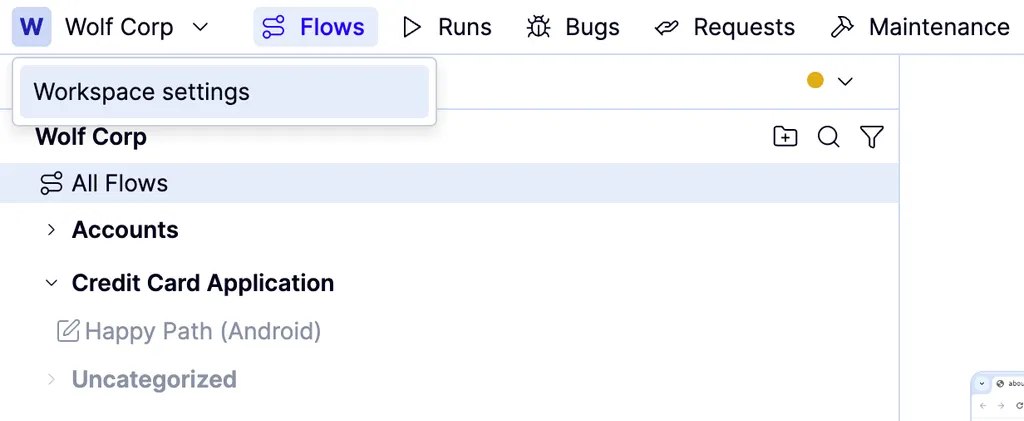
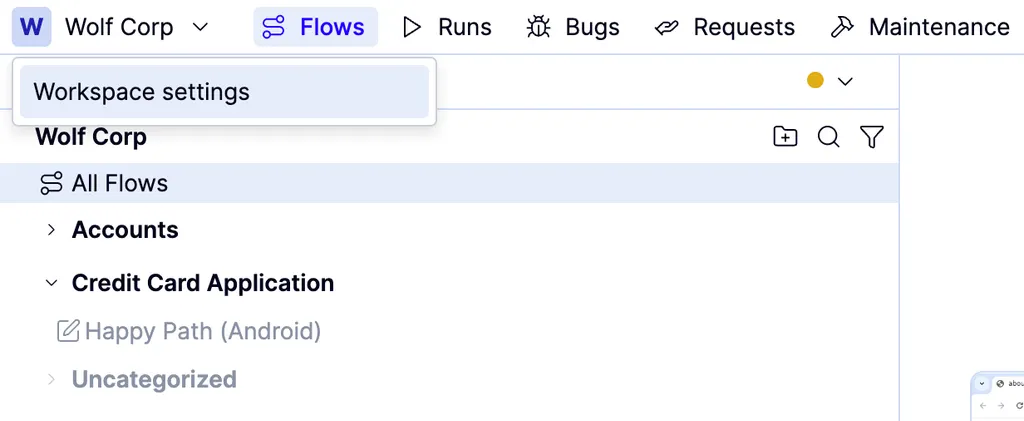
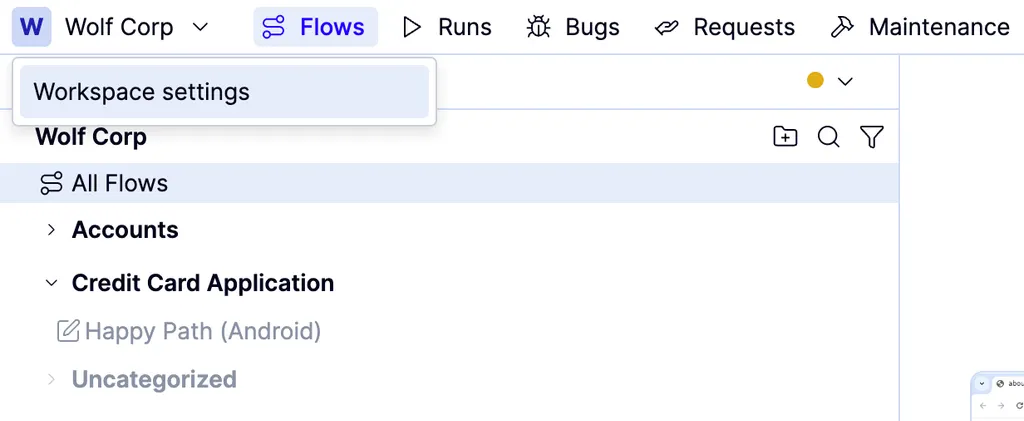
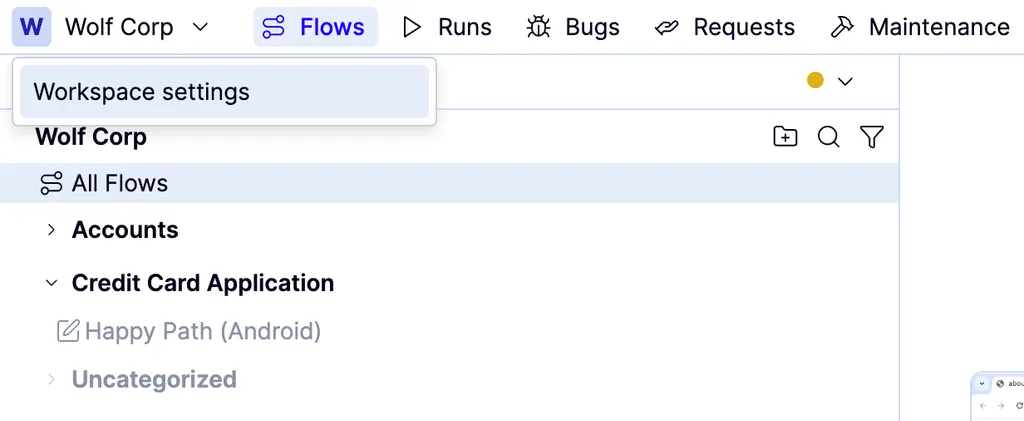
Choose Workspace settings from the Workspace name dropdown above the flows list.
2
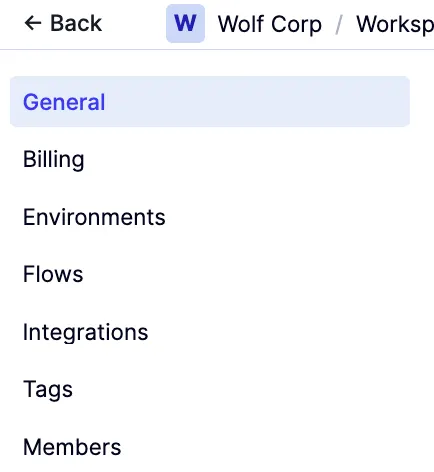
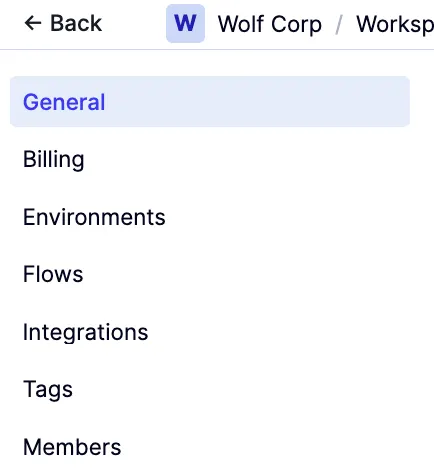
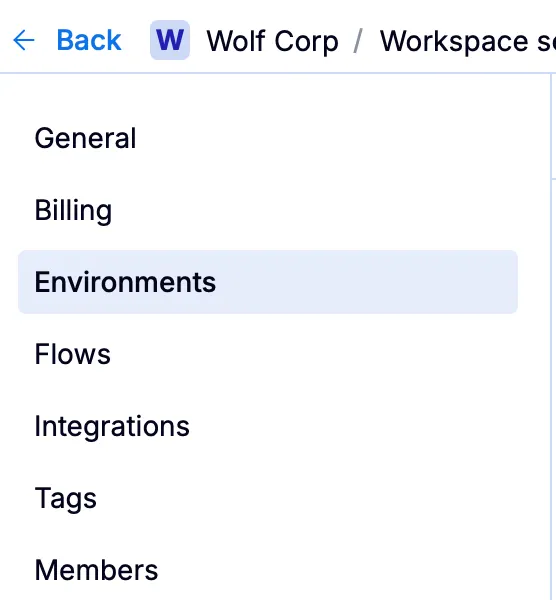
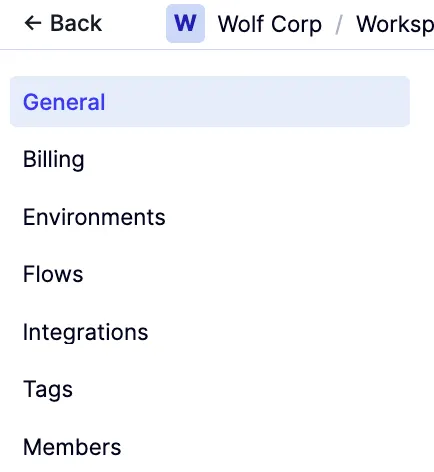
Click General in the left navigation bar; it will be selected by default.
3
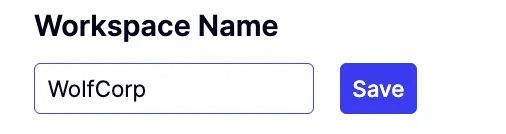
Enter your new Workspace Name in the field and click Save.
1
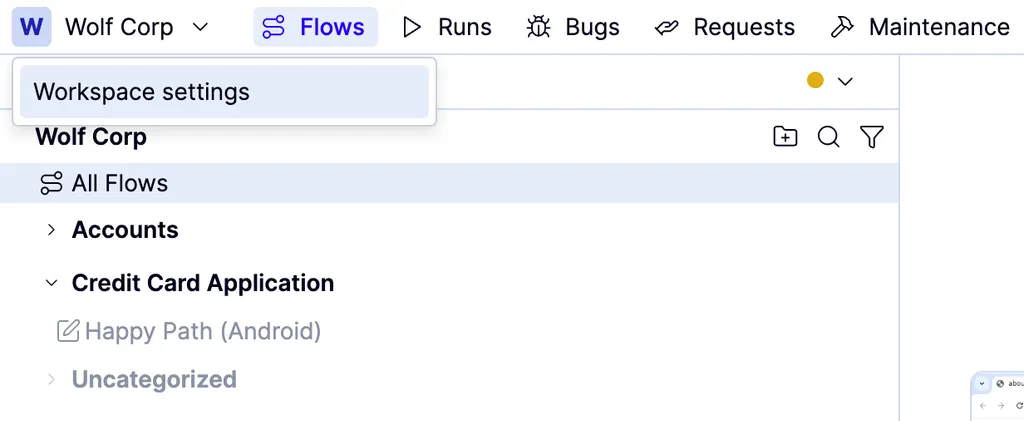
Open the Workspace name dropdown and click Workspace settings.
2
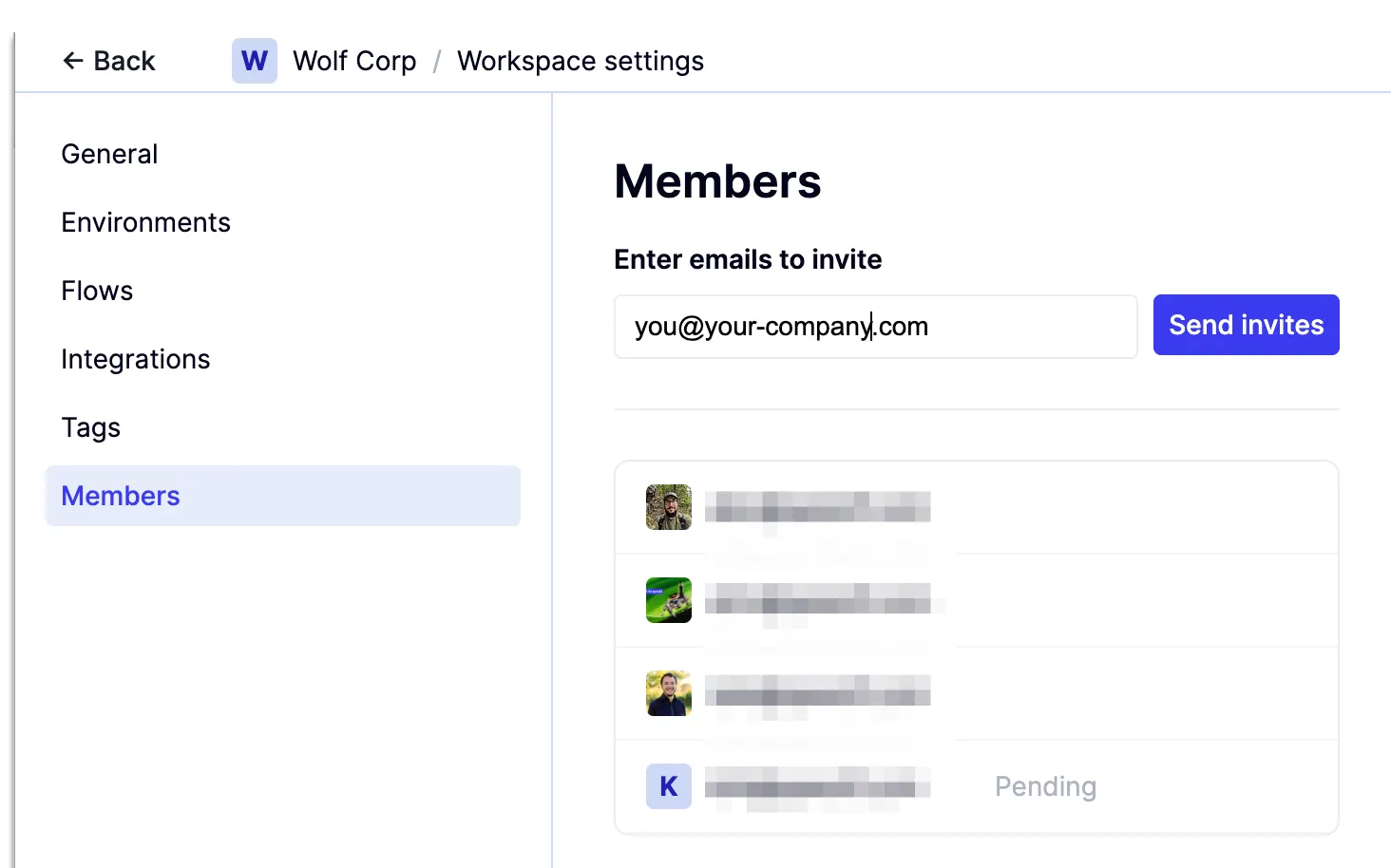
Click Members in the left navigation bar.
3
In the Enter emails to invite field, type the email address of the team members you want to grant access to.
You can type multiple addresses, separated by commas.
4
Click Send Invite. The invited user(s) will receive an email containing a login link to the site.
A workspace can include multiple environments.Environments can be static or ephemeral (preview). The default environment is called My Environment. We recommended that you create a new environment to match the testing environment in your pipeline and delete My Environment. Create additional environments if you test at multiple stages of a release.

To create a new environment:

1
Open the Workspace name dropdown and click Workspace settings.
2
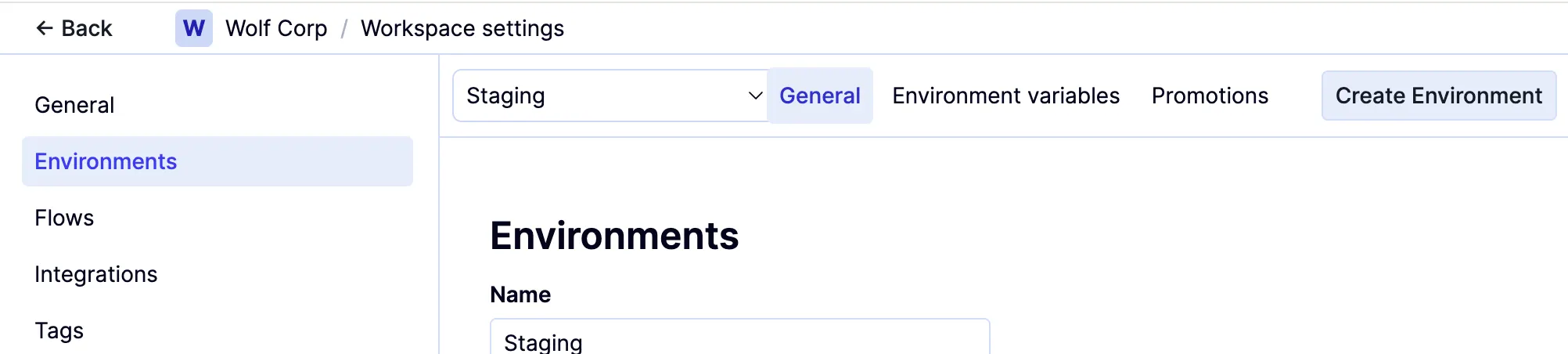
Click Environments in the left navigation bar.
3
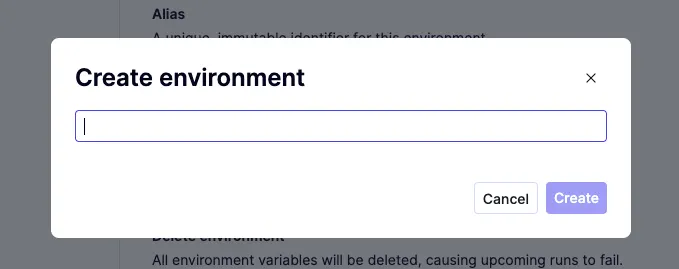
Click Create environment in the upper-right corner. Give it a unique name and click Create.

To rename an environment:

1
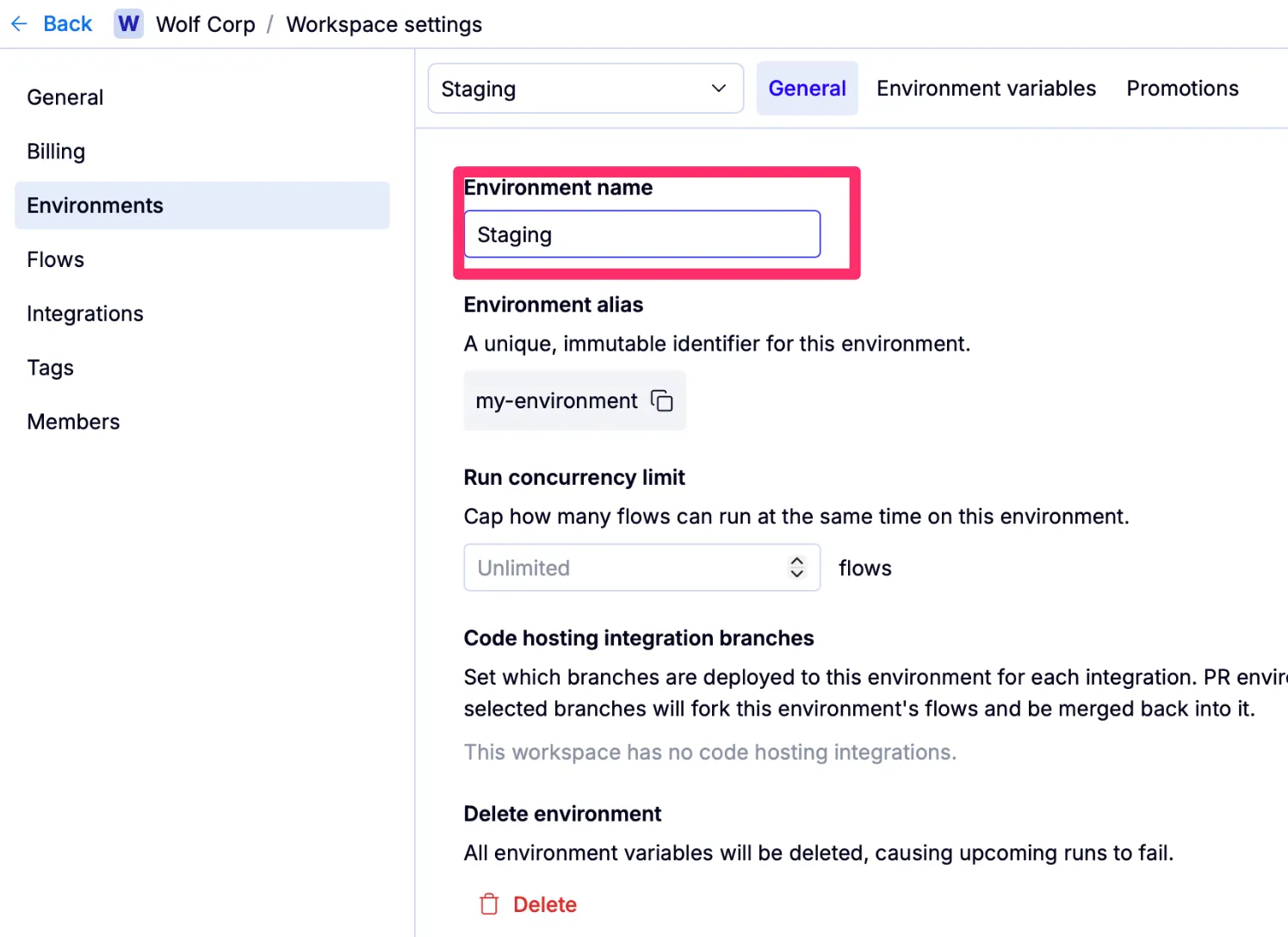
Click inside the Environment Name text box, then type the new name and press Enter.

To delete an environment:

1
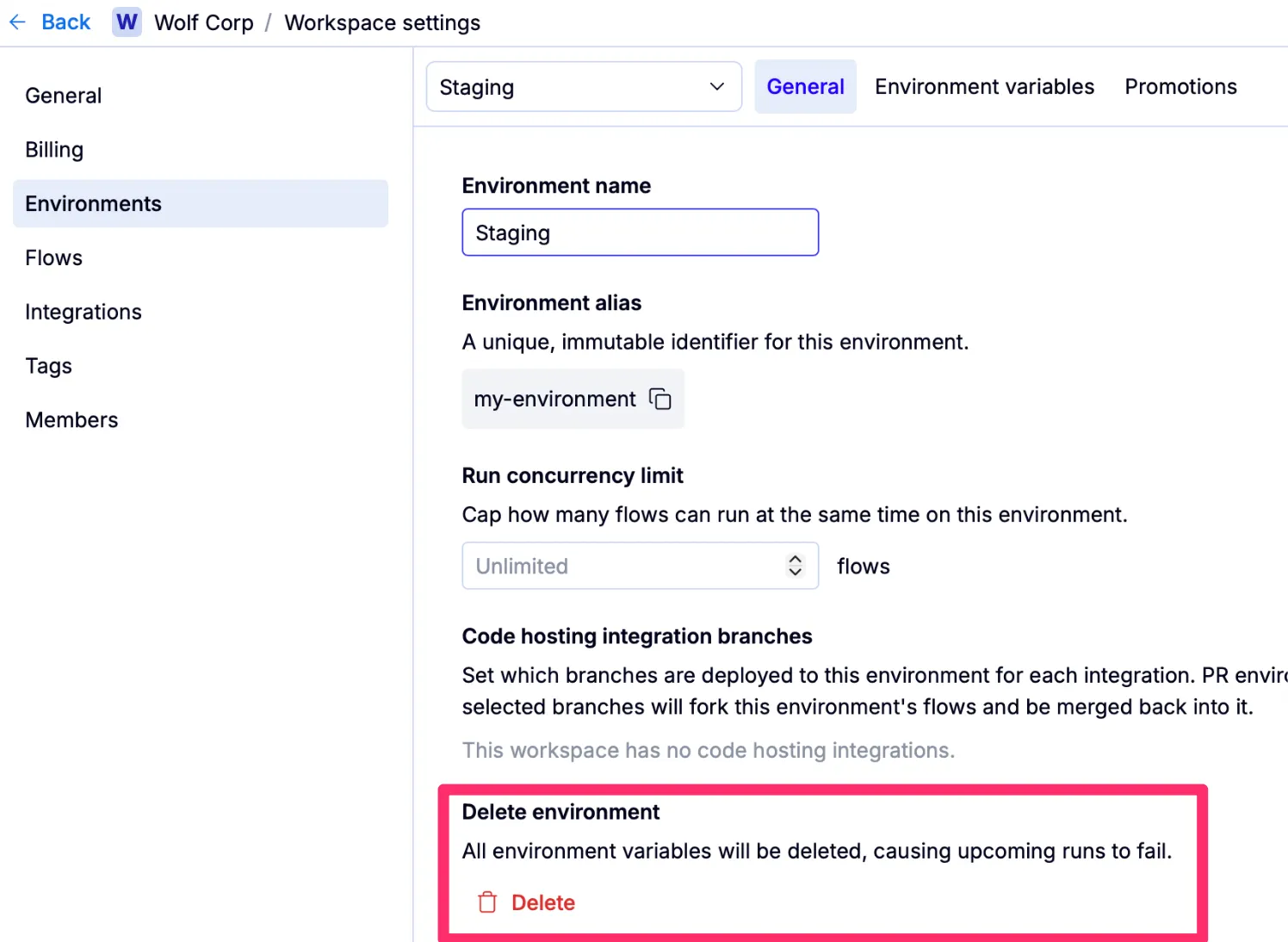
Navigate to the environment settings and click the red Delete button.
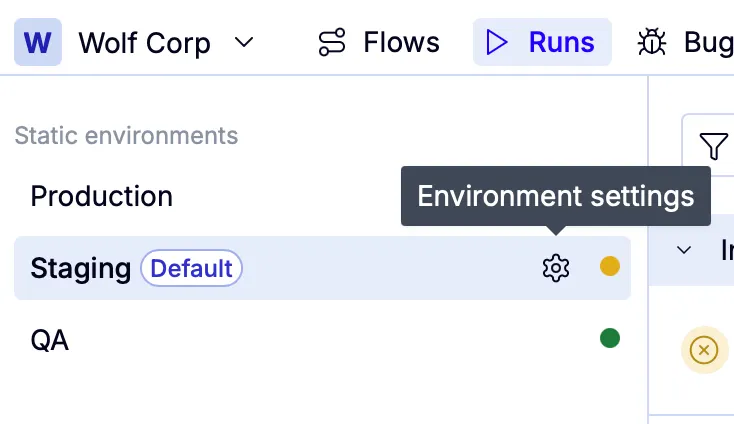
You can also access Environment settings from the Runs tab by hovering over any environment listed under Type environments to show the icon, then clicking it.
Both the Flows and Runs tabs require a default environment. Set this to the environment you use most often for running and debugging tests.
1
Open the Workspace name dropdown and click Workspace settings.
2
Click General in the left navigation bar; it will be selected by default.
3
Scroll to Default environment and select one from the drop down. This will set the default for any Flow or Run that doesn’t have another environment specified. environment you want the Flows and Runs tabs to use by default from the Default team environment dropdown.
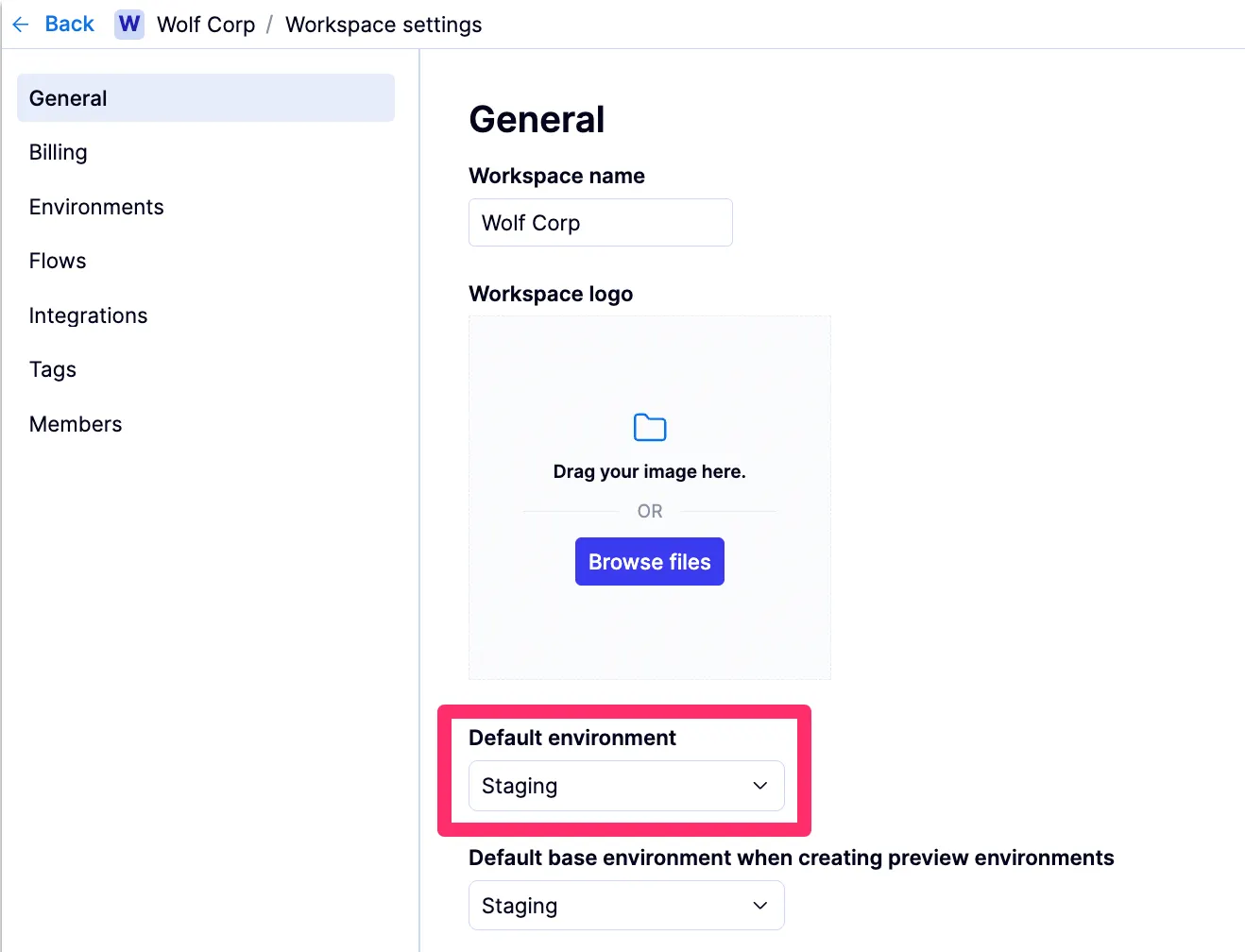
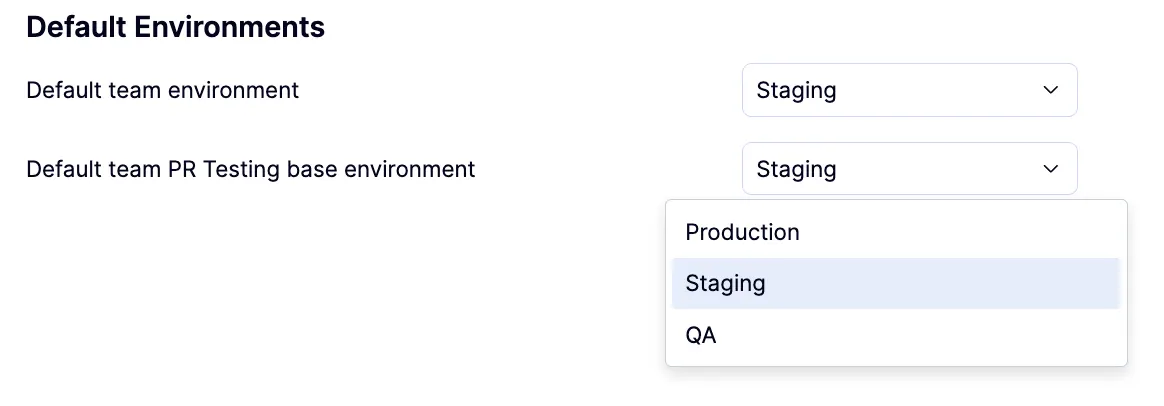
If your team is using PR testing environments, select the default environment from the dropdown labeled Default team PR Testing base environment.
Contact your QA Wolf Customer Success Manager to assist with PR testing configuration.
Node 20 with Playwright is the default runner.
1
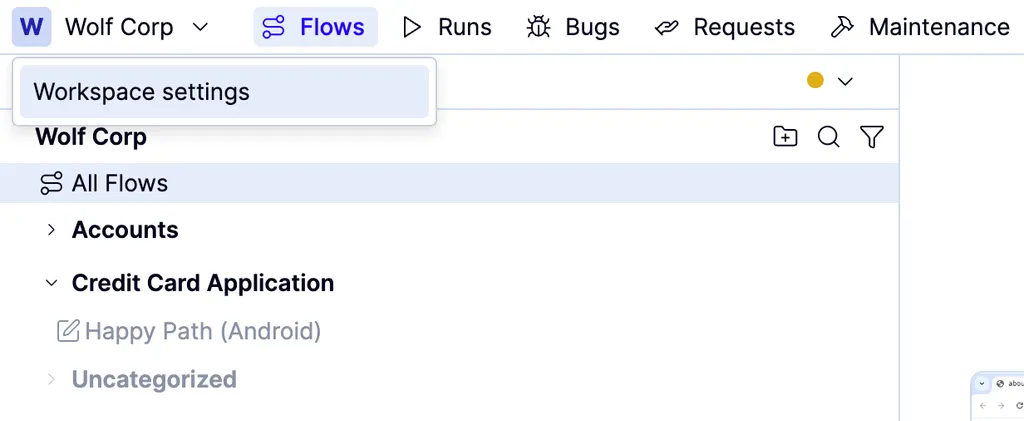
Open the Workspace name dropdown and click Workspace settings.
2
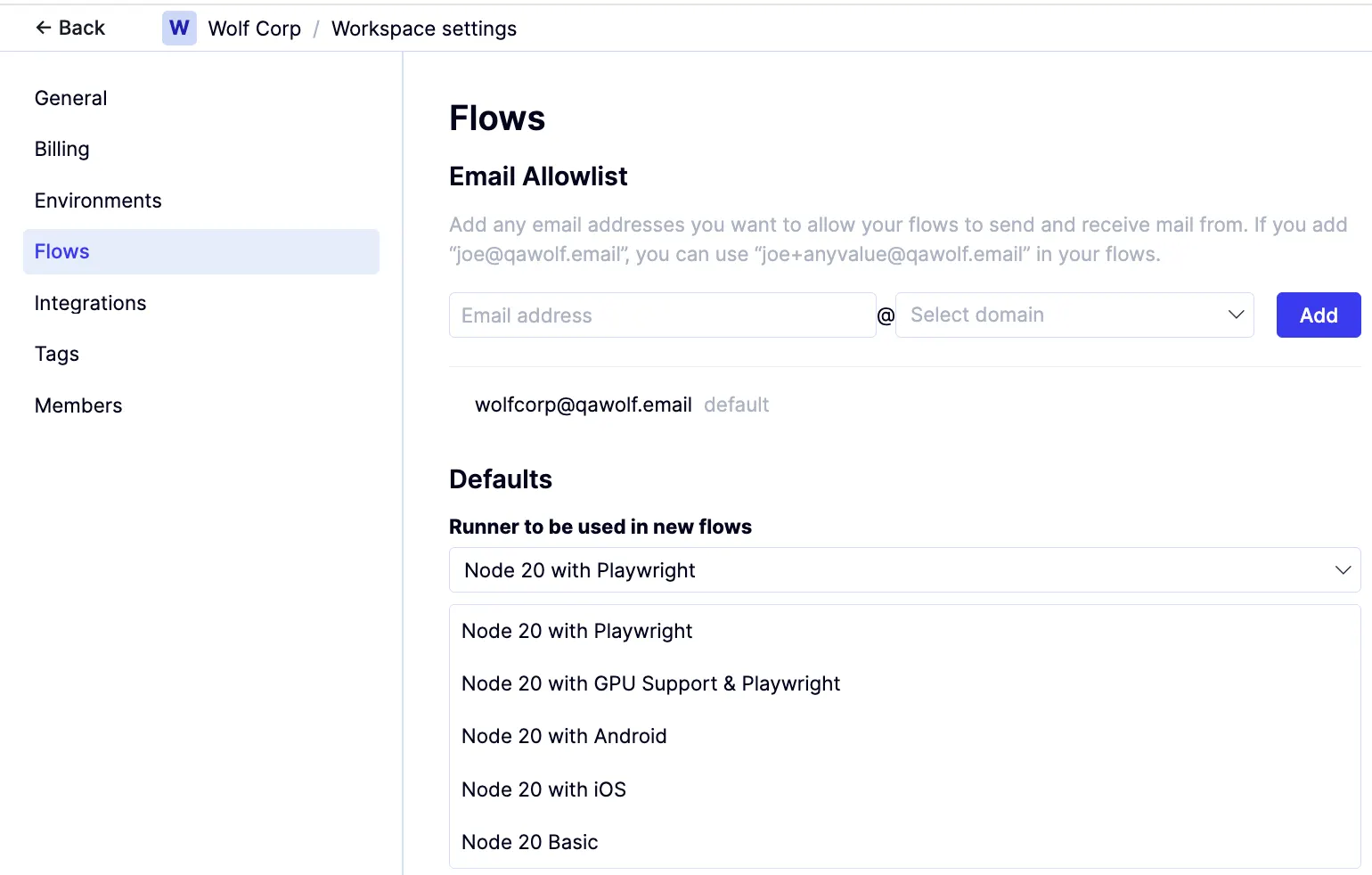
Click Flows from the left navigation bar.
3
Under Defaults, use the Runner to be used in new flows dropdown to choose a new default runner.
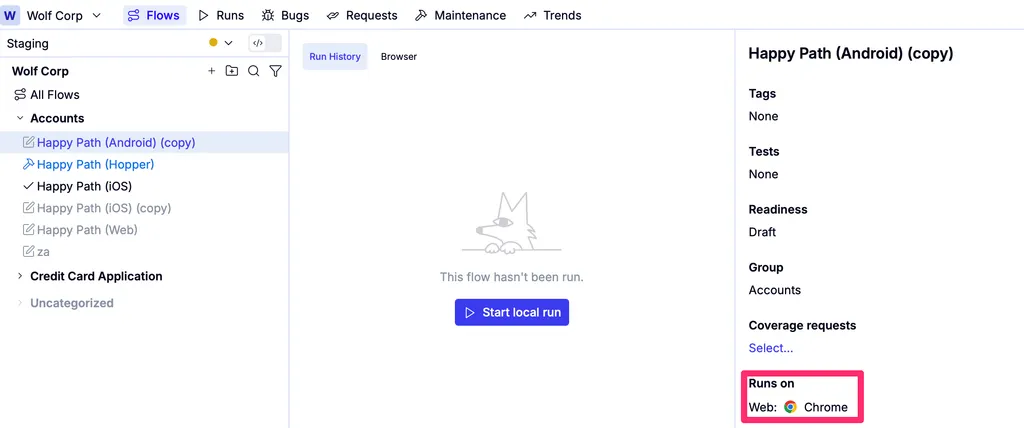
The default runner can be overwritten for an individual flow in one of two ways:When you create a flow, a pop-up allows you to select the runner for the flow.When you select a flow from the Flows list on the Flows tab in No-code mode, the right panel gives you the ability to modify the runner using the Runs on field.
Overview: Understanding tags

In the QA Wolf platform, tags serve two purposes:
  1. They aggregate flows for scheduled runs, so that all flows with the same tag run together.
  2. Tags are also used by run rules to control execution order.
How to: Create and edit tags

1
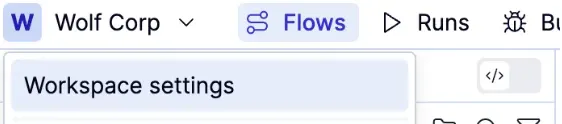
Open the Workspace name dropdown and click Workspace settings.
2
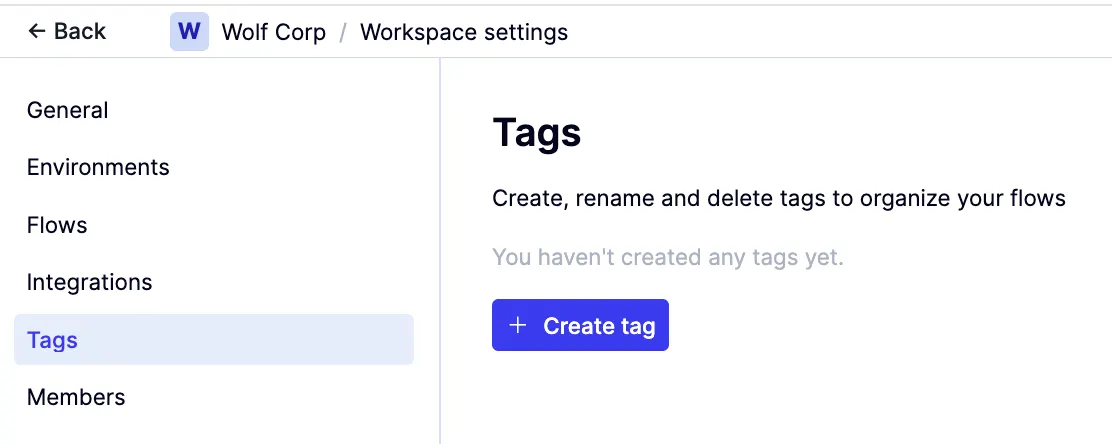
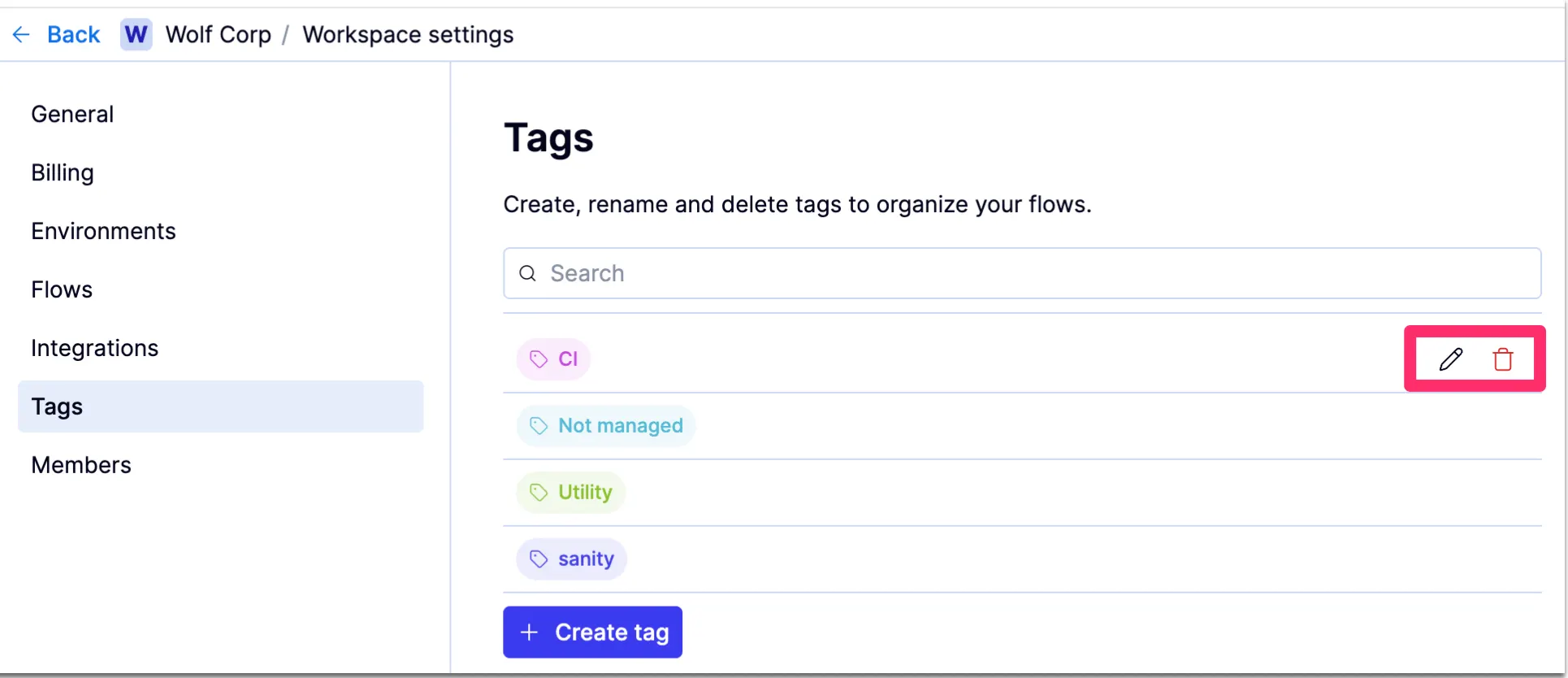
Select Tags from the left menu

Create a tag

1
To create a new tag, click Create Tag in the lower left. A text box will appear. Enter the tag name you want to create, then click Save.

Edit a tag

1
Click the  icon next to its name.

Delete a tag

1
Click the icon next to its name.
Tags can also be accessed by:
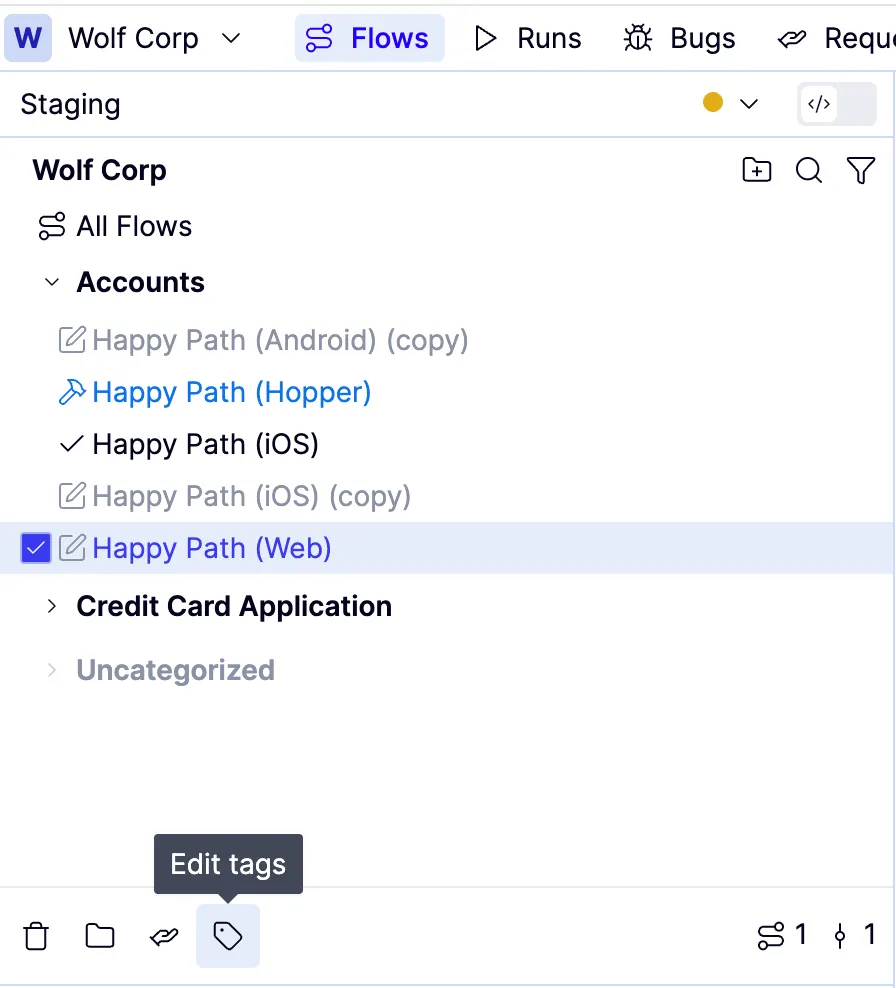
  1. Selecting a Flow and clicking Edit tags
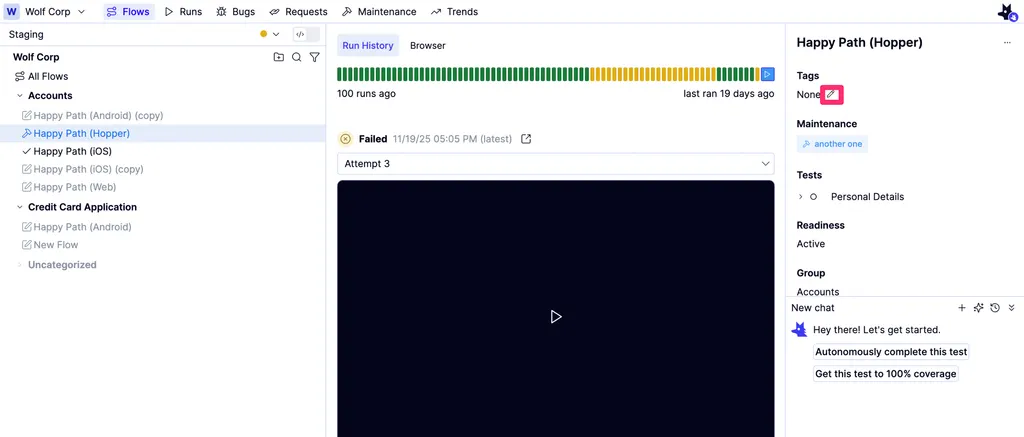
  1. Selecting a flow and clicking the icon in the right panel.
Last modified on February 9, 2026