Overview: What the integration does
-
Automatic issue handling. Creates Jira issues automatically when new bug reports are generated in QA Wolf, keeping Jira up to date without manual entry.
Context added in Jira is not written back to QA Wolf.
-
Synchronization. Closing a bug report in QA Wolf will close the linked Jira ticket. QA Wolf also performs regular bug revalidations to ensure accuracy.
Closing a Jira ticket should automatically update QA Wolf. Contact us if that doesn’t happen so we can help you troubleshoot.
- Test creation requests. Add a QA Wolf label to a Jira ticket to automatically create a coverage request in QA Wolf.
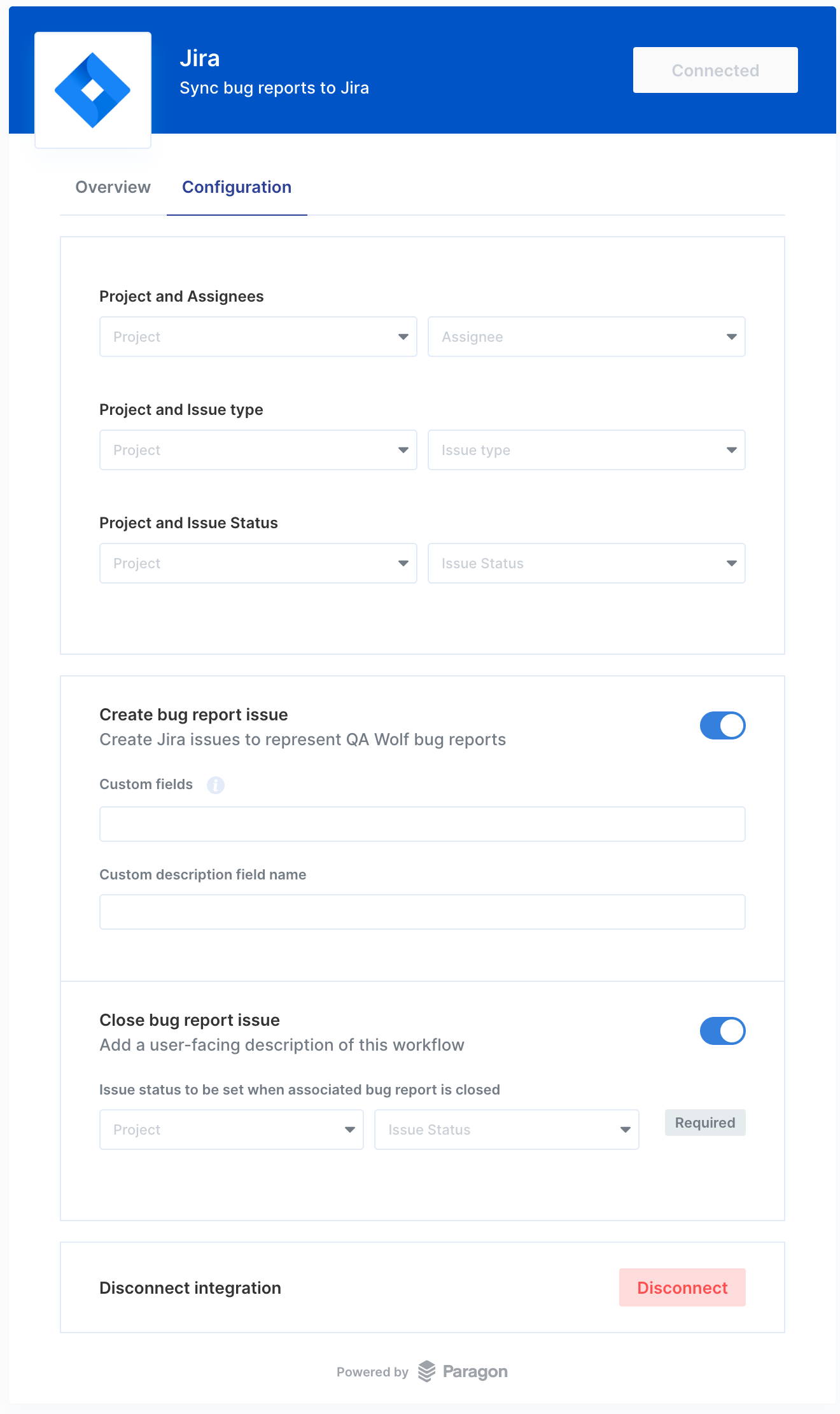
- Custom configuration. Specify the project, assignee, and issue status. Currently, each integration setup supports one project, one assignee, and one status type.
- Custom fields. Add custom Jira fields to bug reports if your Jira project uses them. Custom fields apply globally across all tickets created through QA Wolf, not per workflow.
How to: Set up the integration
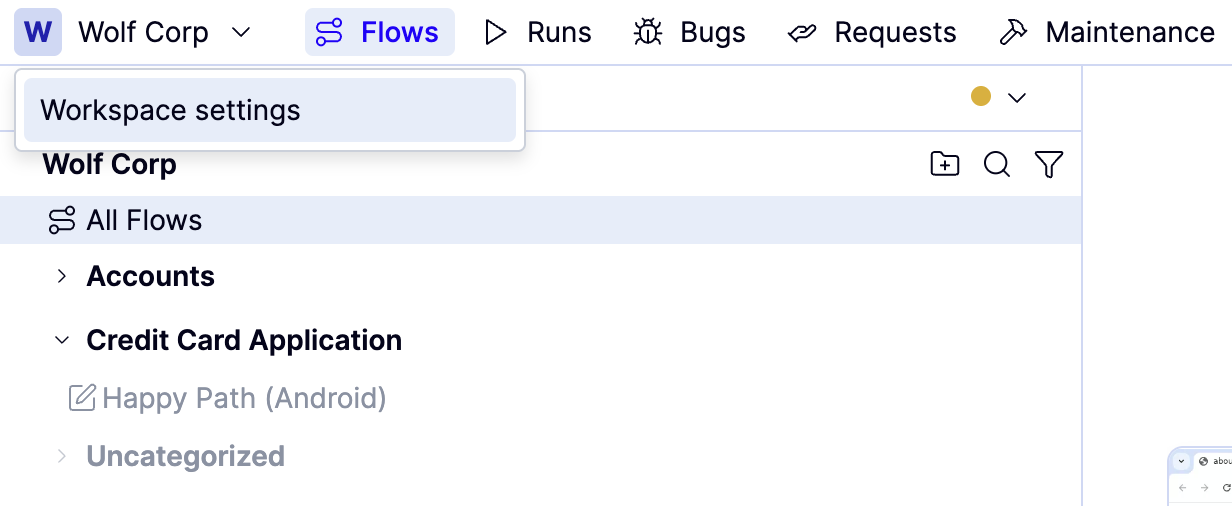
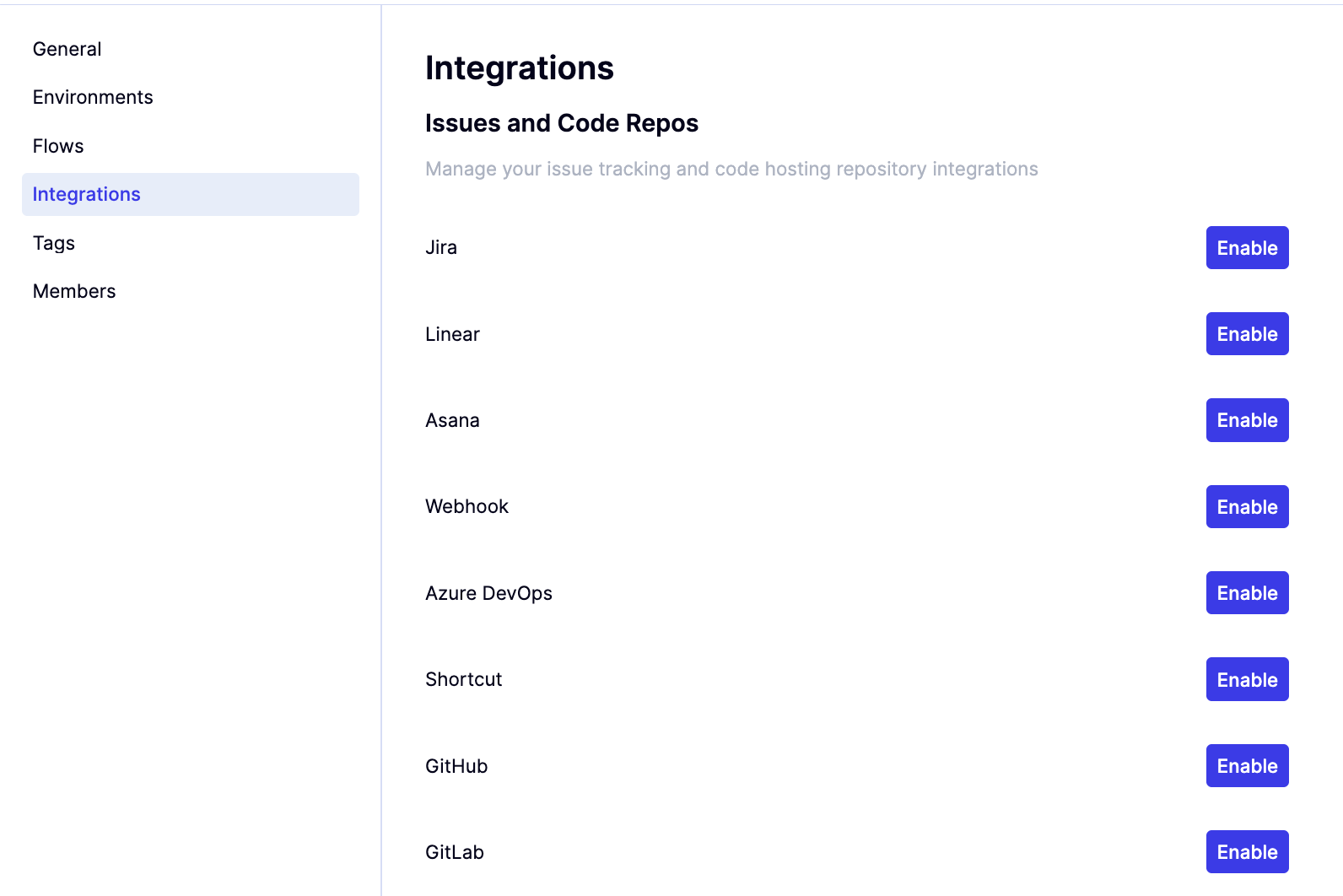
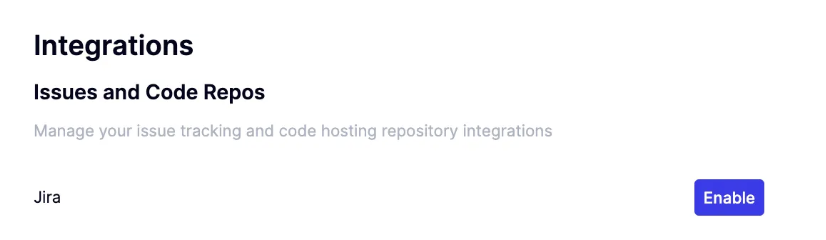
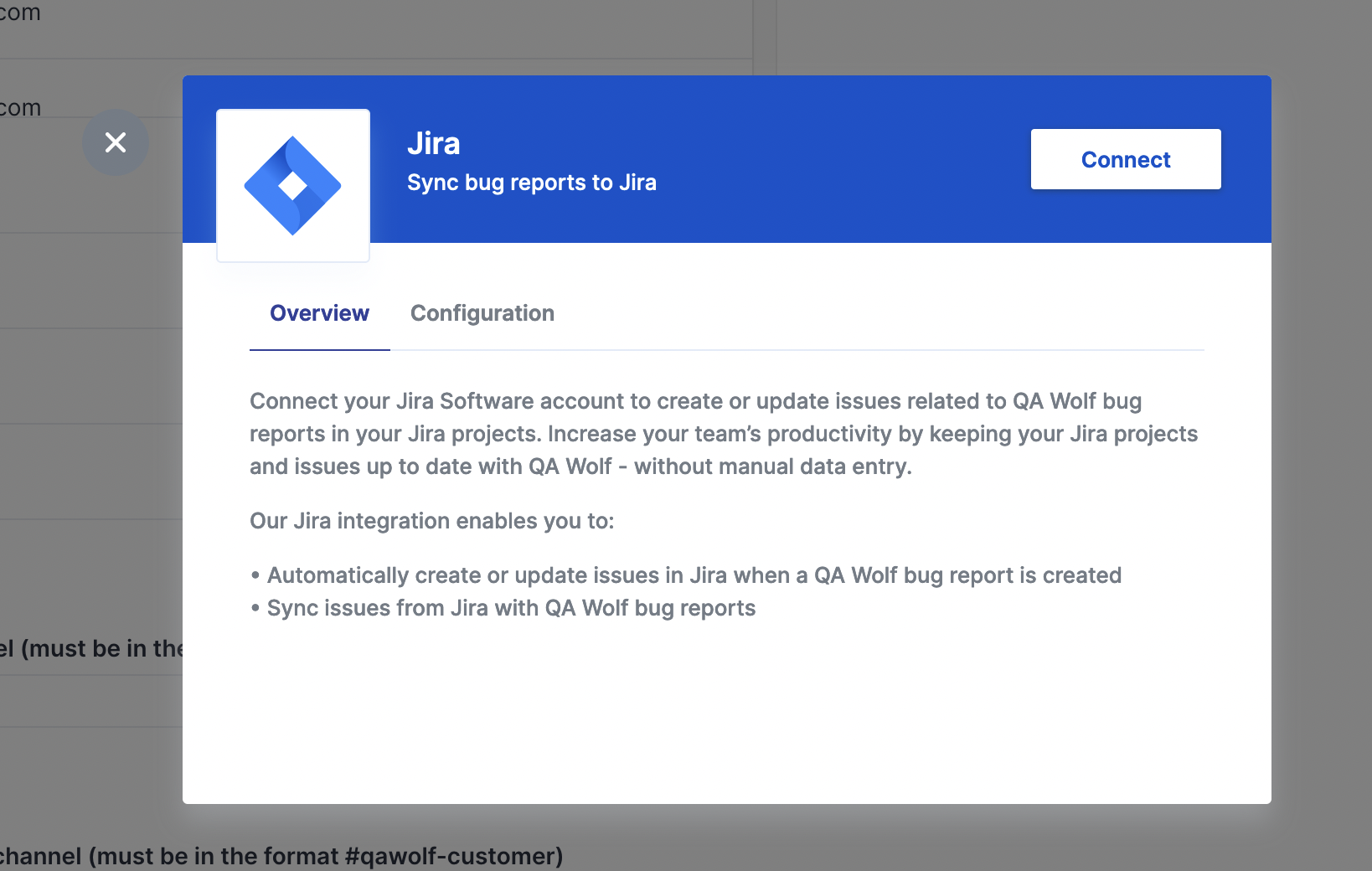
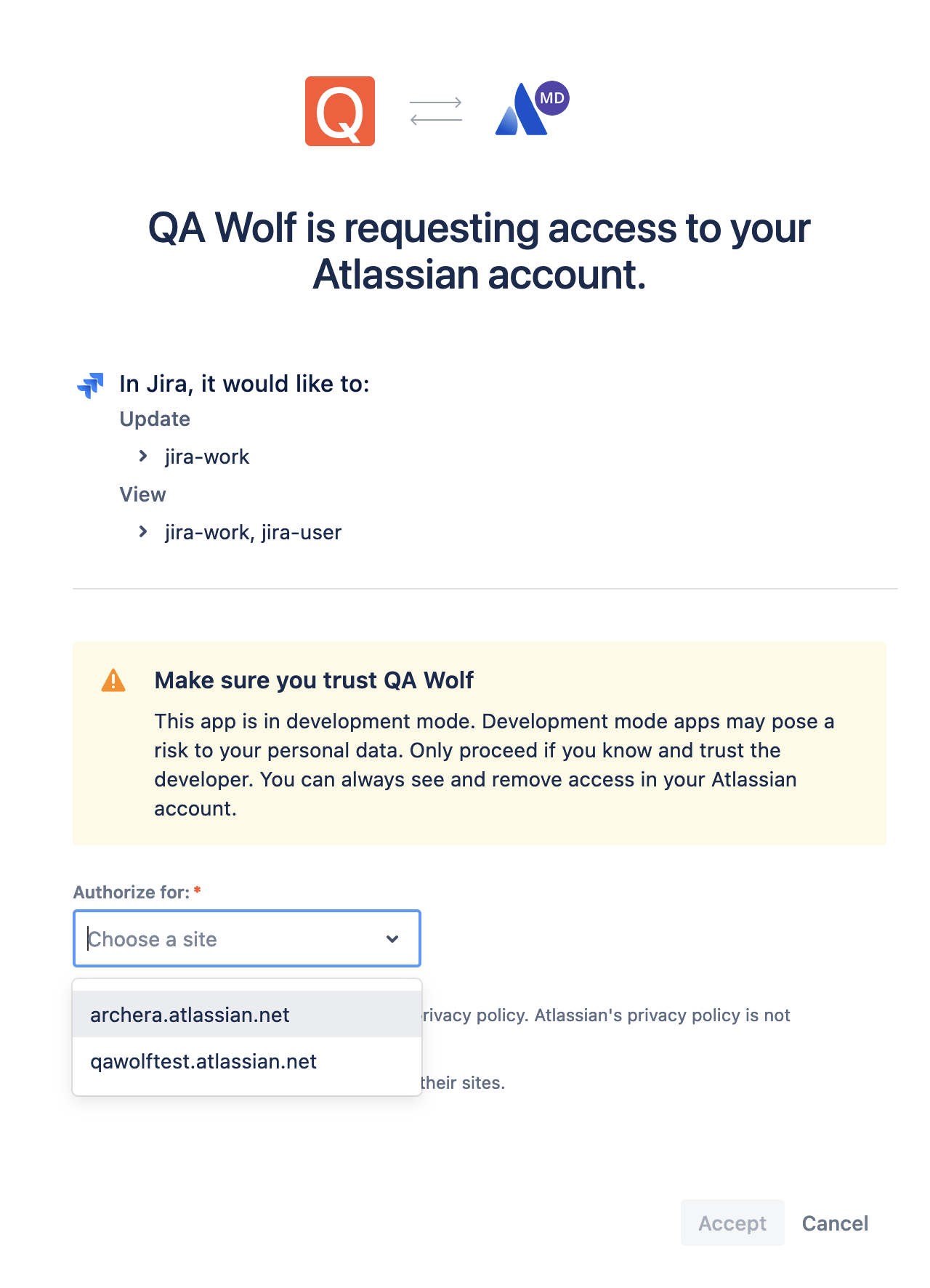
Select the Jira team you want to link to your QA Wolf team and click Accept to authorize the connection.