This page covers web only, including mobile web using Playwright emulators.
toHaveScreenshot.
name— string used to identify and store the baseline imageoptions— optional object controlling comparison behavior, see Key options below
Examples
Assert a canvas element:When to use
- Your test needs to assert the content or appearance of a
canvaselement — canvas is not part of the DOM and cannot be targeted with locators. - You want to catch layout or style regressions after a redesign or component change.
- No selector or functional assertion can verify the visual state you need.
- Your app has pixel-perfect design requirements, and you want automated enforcement.
toHaveScreenshot when the area contains timestamps, live data, animations, or other frequently-changing content — these cause false failures. Use a functional assertion instead.
Key options
Notes
- On the first run, no baseline exists yet — the screenshot is saved automatically as the expected image. See the instructions below to review it before relying on the test.
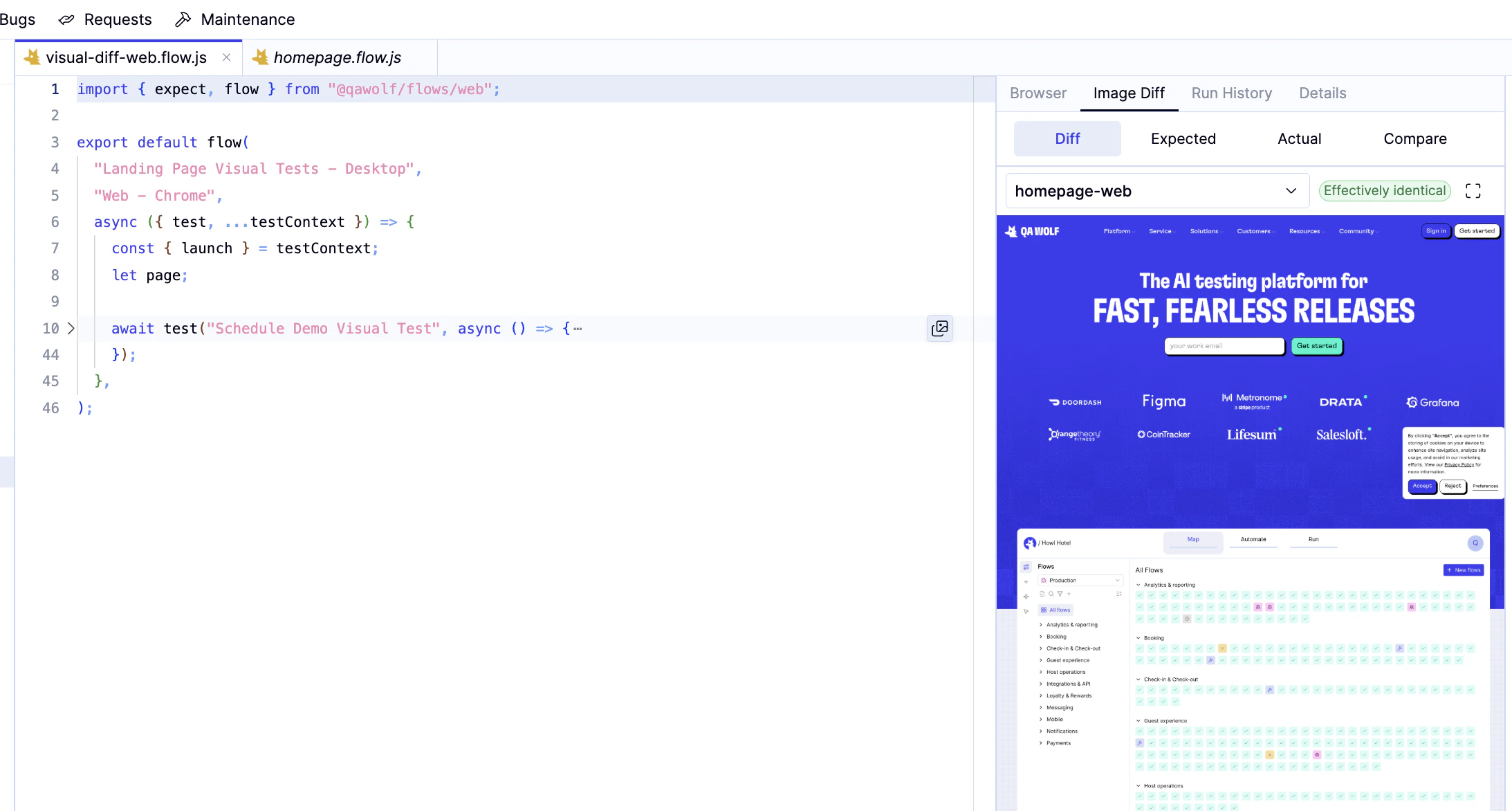
- To inspect a visual diff result in the editor, collapse the test block — an icon will appear in the right gutter of that line. Click it to open the Image Diff panel, where you can view the Diff, Expected, Actual, and Compare tabs for each named snapshot.
- On subsequent runs, a new screenshot is compared pixel-by-pixel to the baseline. If the difference exceeds the threshold, the test fails, and a diff image is saved showing exactly which pixels changed.
- If a UI change is intentional, promote the new screenshot as the updated baseline in the QA Wolf editor. Future runs will compare against the new image.