

Open Automate jobs
From the Flows tab, click the icon in the left sidebar.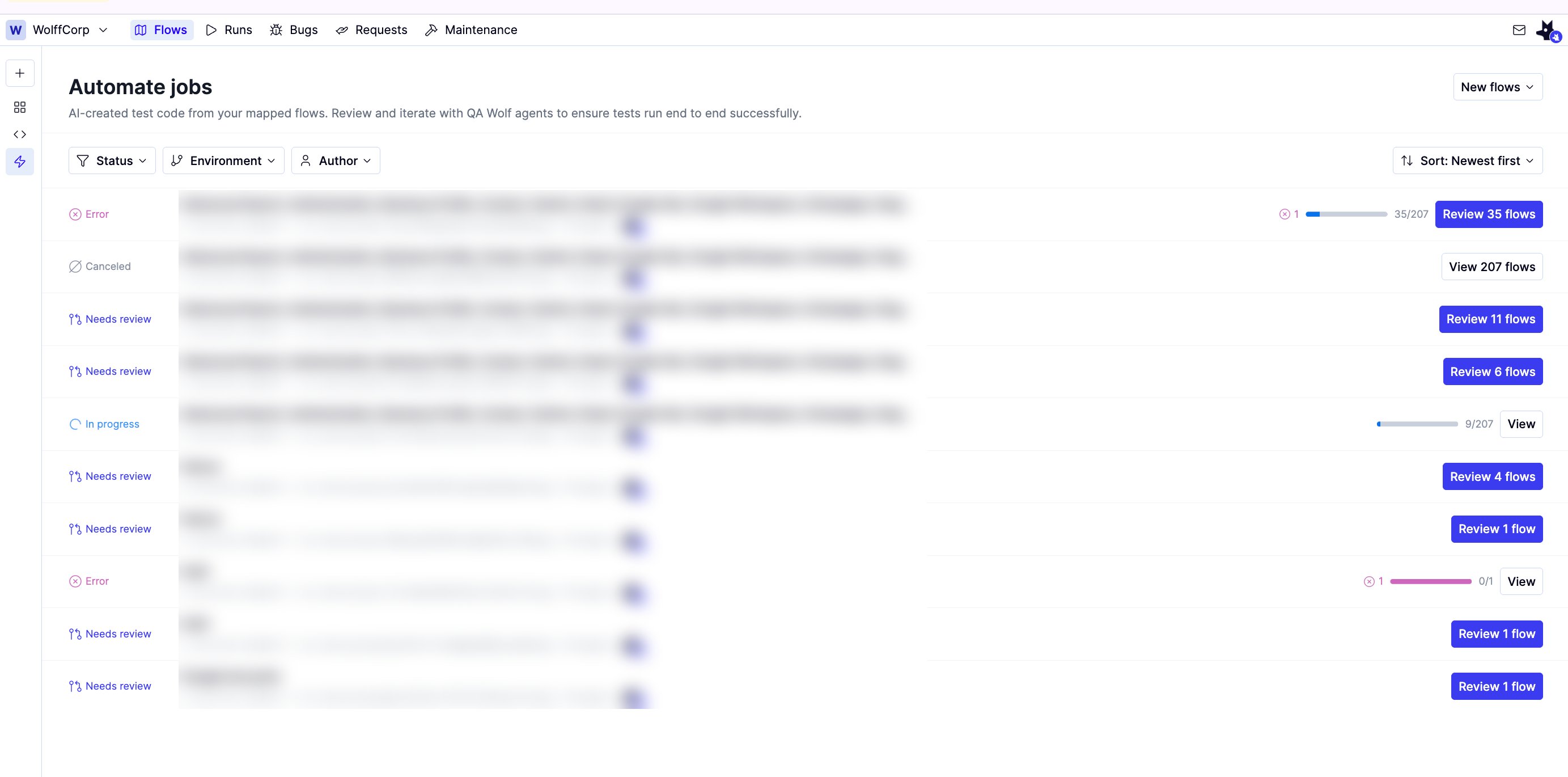
Filter the list
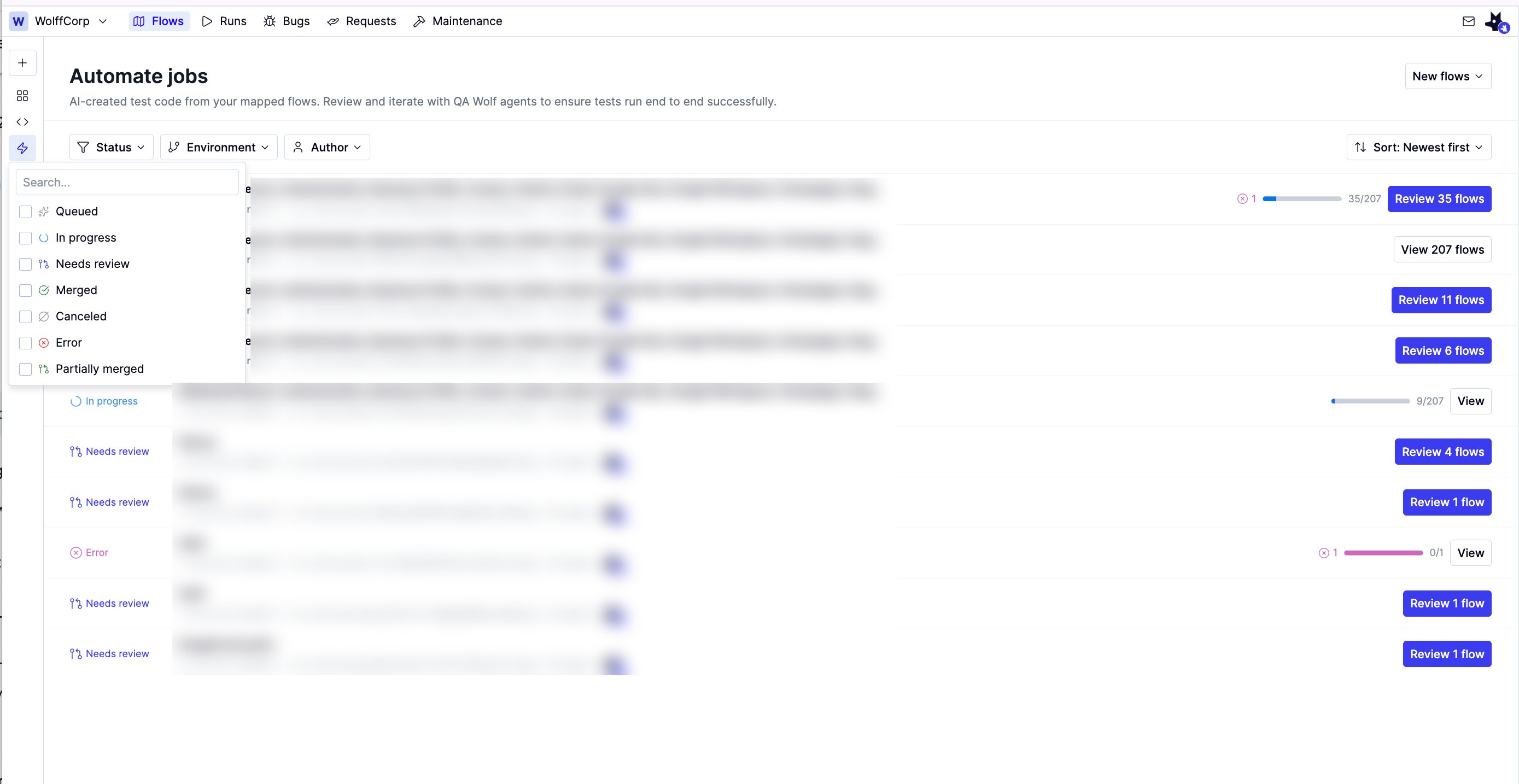
Three filters narrow the list, and they combine:- Status — one or more of Queued, In progress, Needs review, Merged, Partially merged, Canceled, and Error
- Environment — jobs from a single environment
- Author — jobs started by one person
Review a job
1
Click Review on the job you want to inspect. The button names the number of flows waiting on you.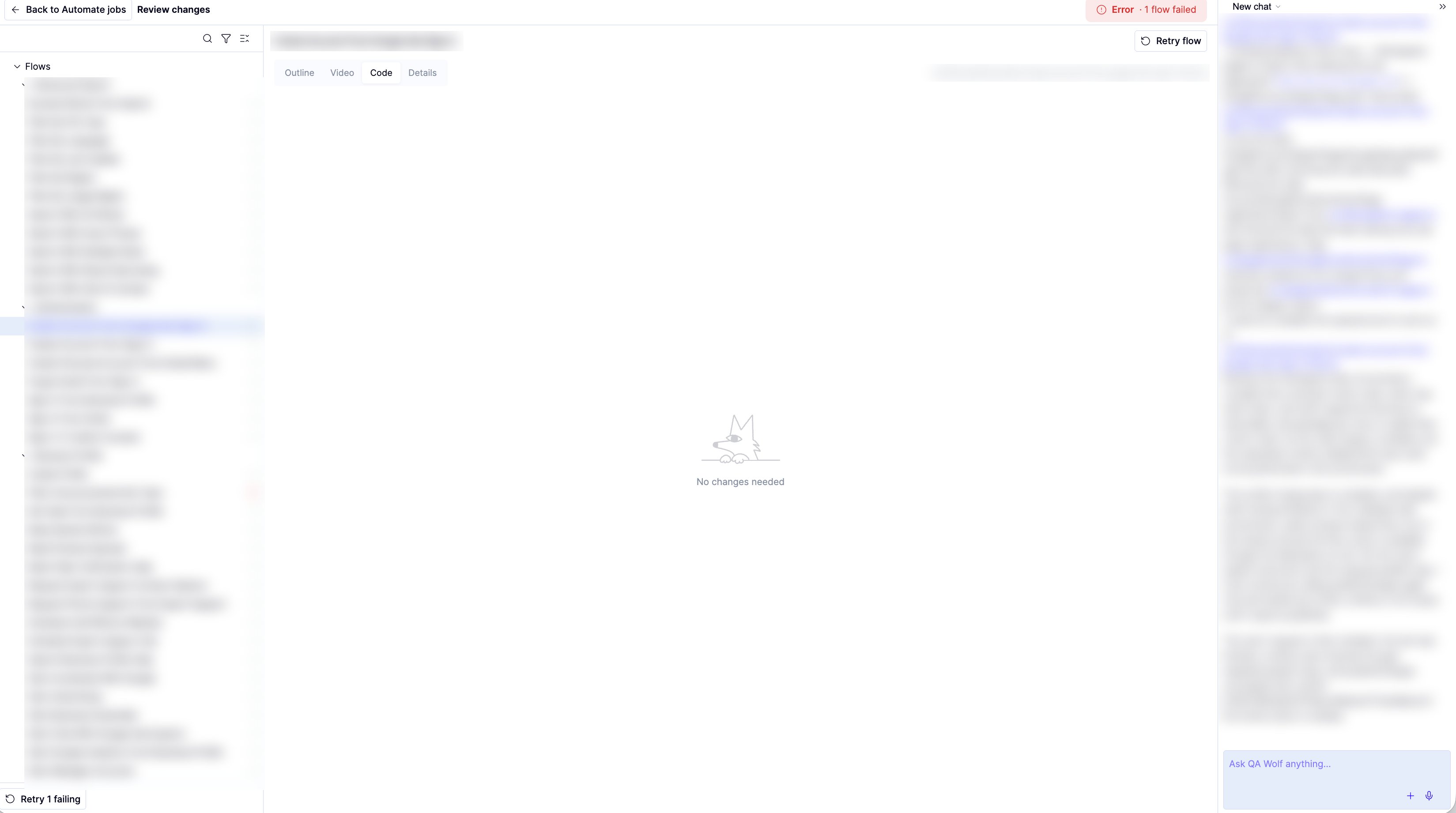
2
Select a flow in the left panel.
3
Inspect the flow with the tabs above it:a. Outline — what the flow covers
b. Video — a recording of the run
c. Code — the test code the agent wrote, whether it passed, and a control to run it again
d. Details — the run’s metadata
b. Video — a recording of the run
c. Code — the test code the agent wrote, whether it passed, and a control to run it again
d. Details — the run’s metadata
Retry a failure
Open the flow’s Code tab to see whether it passed and run it again. To retry everything that failed in the job at once, click Retry failing at the bottom of the flow list. For prompting practices that cut down on failures in the first place, see Get the most out of AI flow creation.Work with your published flows
Once published, your flows appear in All flows, the coverage map for the environment. From there, you can:- Review run status across all flows — see Reviewing run results
- Run flows manually — see How runs work
- Apply tags and manage readiness — see Use tags effectively
- Open a flow in the editor to write or edit code — see Create flows in the IDE