

Send us your Microsoft Entra tenant ID and domain name so we can configure our side. Both are on the Microsoft Entra dashboard.QA Wolf’s tenant ID is
3d41cc11-5772-457c-aad2-16b3924b22d0.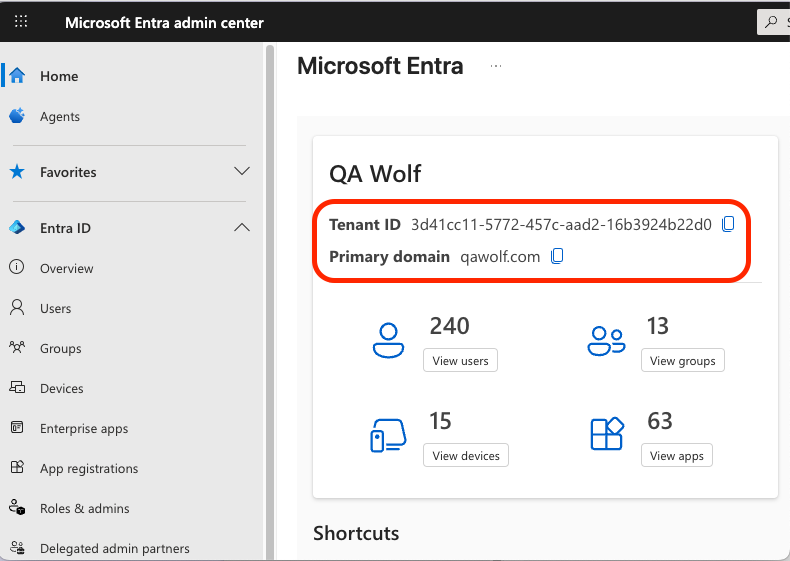
Before you start
Shared channels depend on guest sharing being on for SharePoint and Microsoft 365 Groups, even though no guest account is created. These are on by default — confirm them only if your organization has changed them.- Microsoft 365 Groups — both sharing settings enabled.
- SharePoint — organization-level and site-level sharing allow guests, and QA Wolf’s domain is not on a blocked list.
Allow your users to join external shared channels
Shared channels are enabled by default in Teams. This policy controls whether your users may take part in a channel that another organization hosts, which is what QA Wolf’s channel is.1
In the Teams admin center, expand Teams and select Teams policies. In the new admin center experience, go to Settings & policies → Custom Policies for users and groups → Teams.
2
Select the policy assigned to the people who will use the channel, then select Edit.
3
Turn Join external shared channels on, then select Apply.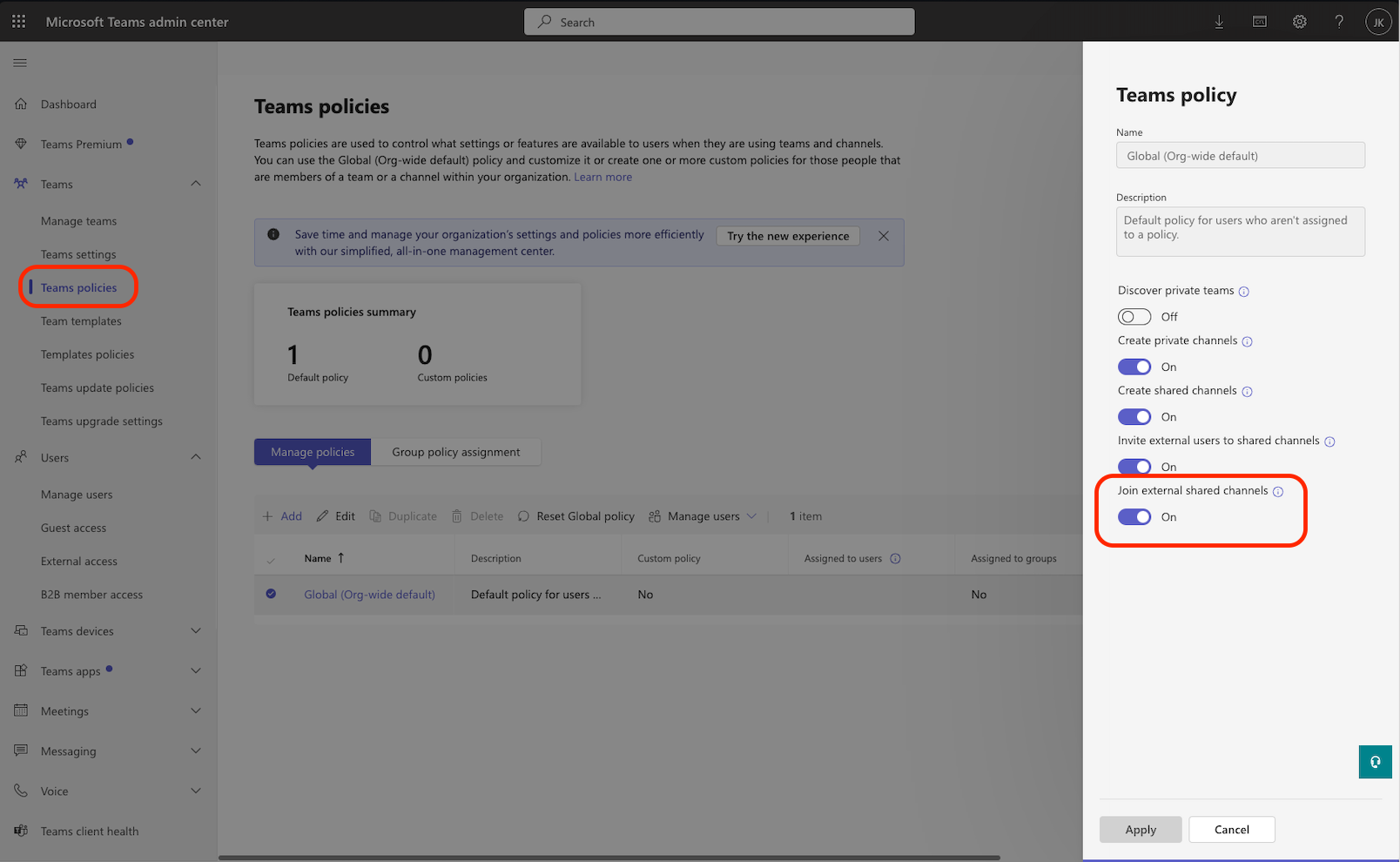
Teams policy changes can take up to 24 hours to take effect.
Allow QA Wolf in cross-tenant access settings
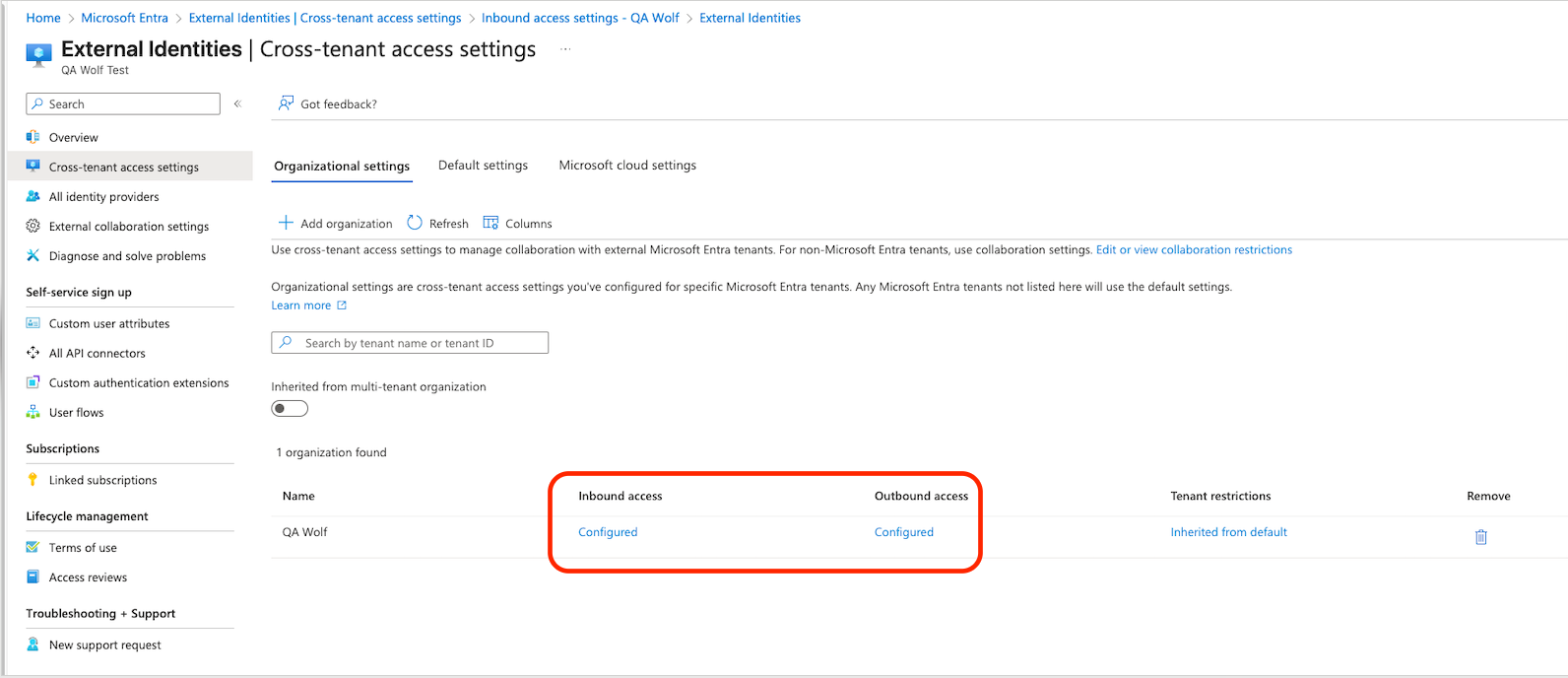
B2B direct connect is blocked by default in both directions, so this step is always required. Add QA Wolf as an organization, then allow both directions: outbound lets your users reach our channel, and inbound lets our users reach yours.1
Sign in to the Microsoft Entra admin center as a Security Administrator, then go to External Identities → Cross-tenant access settings → Organizational settings.
2
Select Add organization, enter QA Wolf’s tenant ID 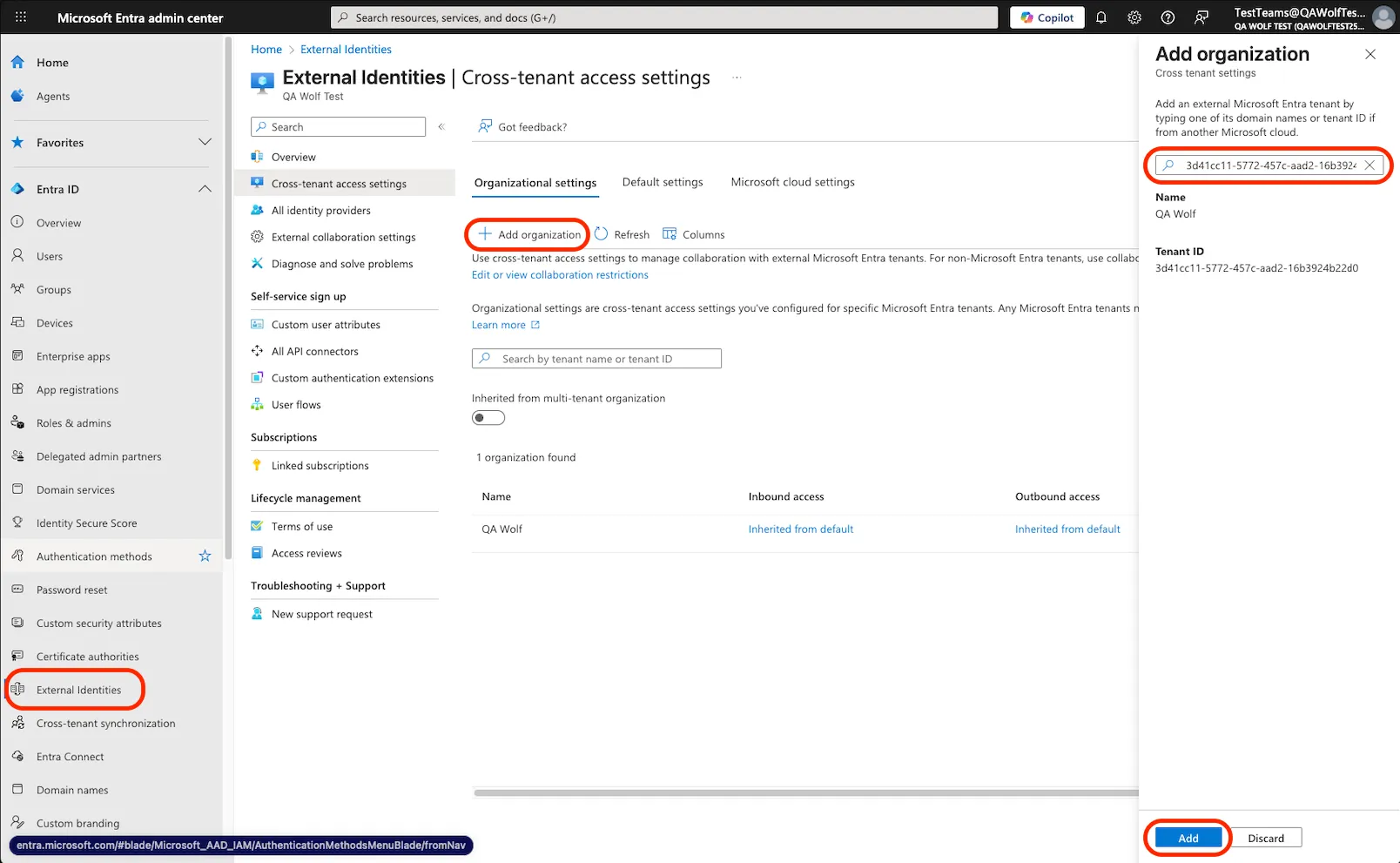
3d41cc11-5772-457c-aad2-16b3924b22d0, and select Add. QA Wolf now appears in the organizations list, inheriting your default settings.3
Select the link in the Outbound access column for QA Wolf. On the B2B direct connect tab, choose Customize settings.
- On External users and groups, choose Allow access, applied to all your users.
- On External applications, choose Allow access and Select external applications, then Add Microsoft applications and select Office 365.
4
Select the link in the Inbound access column and repeat with Customize settings.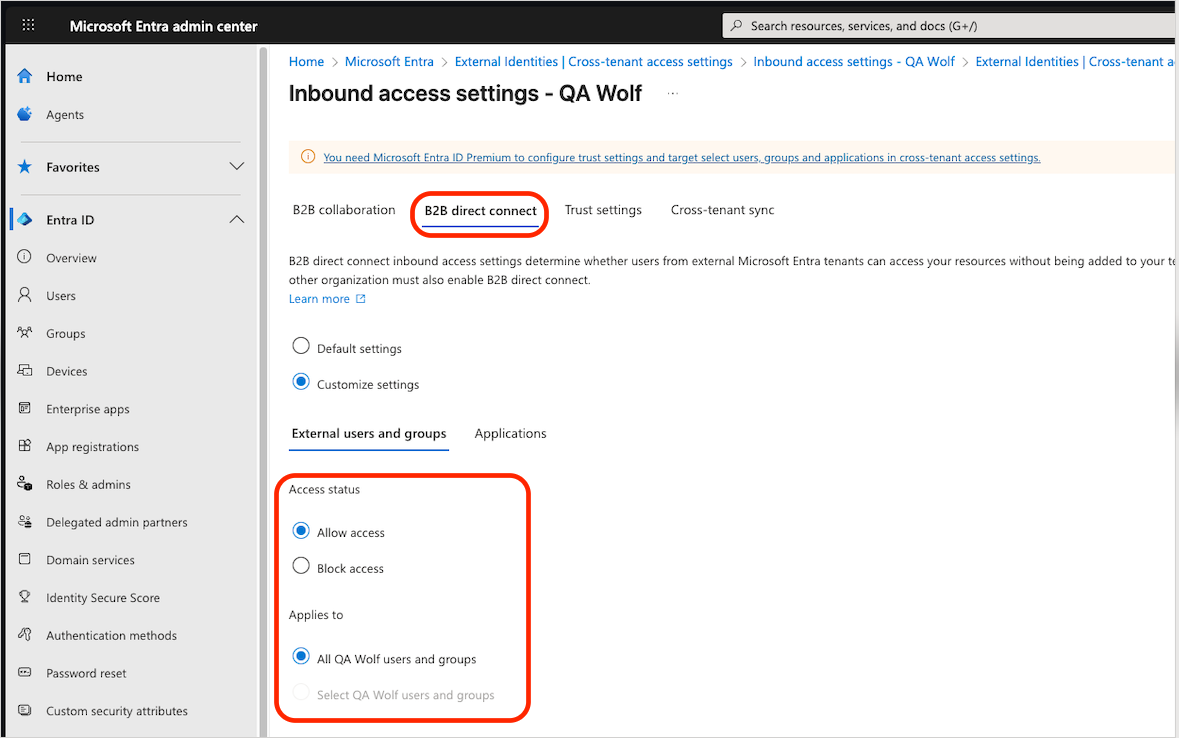
- On External users and groups, choose Allow access and All external users and groups.
- On Applications, choose Allow access and Select applications, then Add Microsoft applications and select Office 365.
Cross-tenant access changes can take up to six hours to take effect.
Enable external access
External access is optional. The shared channel works without it, but your team won’t see QA Wolf members’ presence in the channel, and QA Wolf members can’t join your Teams meetings.1
In the Teams admin center, expand Users and select External access.
2
Under Teams and Skype for Business users in external organizations, make sure QA Wolf is not blocked.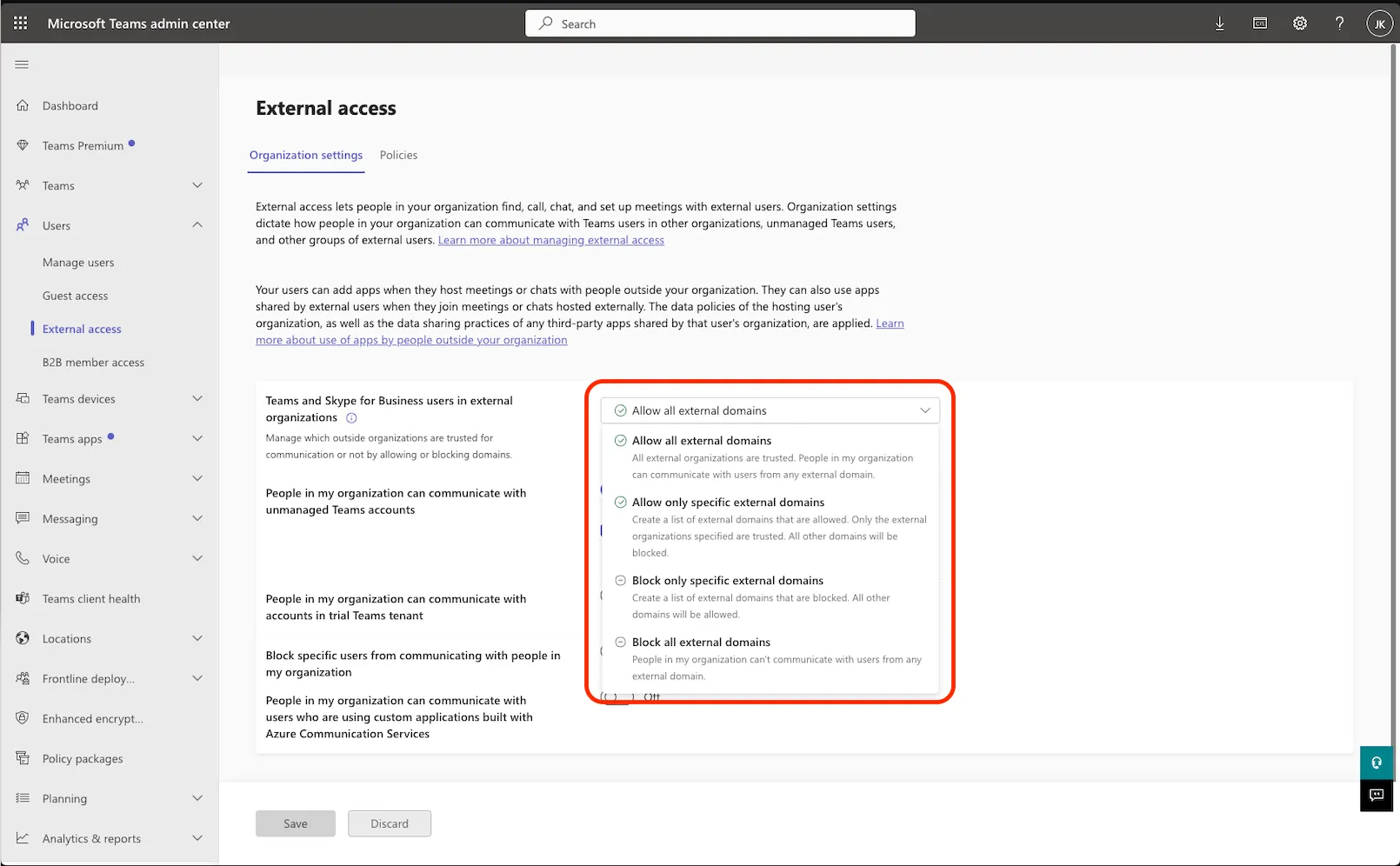
If the channel doesn’t work
- Wait for propagation. Cross-tenant access takes up to six hours and Teams policies up to 24 hours. Most setups that look broken immediately afterwards are not.
- Check the Office 365 application on both the inbound and outbound B2B direct connect settings. This is the most commonly missed step.
- Check your default settings. Organizational settings override defaults, so QA Wolf must be allowed on its own entry rather than relying on your tenant defaults, which block B2B direct connect.
- Check Conditional Access. Policies scoped to external users and the Office 365 SharePoint Online app apply to people joining a shared channel. If yours require MFA or a compliant device, set Trust settings on the inbound configuration to trust those claims from QA Wolf’s tenant.
- Guest accounts can’t be used. Someone who already has a guest account in your tenant has to be added by their organization account, searched as
ext:user@domain.com.