When your app sends confirmation links, password resets, or invitation emails, you can test those flows directly inside QA Wolf using the built-in getInbox function.getInbox gives you an email inbox you can send to, wait on, and read from — all inside your test runner. It can also generate unique email addresses, so every test run uses a fresh inbox.In addition, it includes helper functions to:
Send messages from that address
Wait for one message to arrive
Wait for multiple messages over a period of time
getInbox() returns the following objects: { emailAddress, sendMessage, waitForMessage, waitForMessages }.
Our platform includes an Email Allowlist to ensure test emails are delivered only to approved addresses or domains. The allowlist prevents unintended delivery and keeps your testing environments secure and controlled. You must add any email address you use in a flow to the allowlist.QA Wolf provides internal email domains—qawolf.email and qawolfworkflows.com—for email testing. We recommend using these instead of public email services because we control the servers, which allows us to stabilize tests that rely on email interactions and prevent the sporadic failures that can occur when using external providers.Our platform sets an automatic default. You cannot delete the default.How to change the default email
When you set a default email address, any test or helper that accepts an email can omit the address and will fall back to the default. You can still override per test by specifying a different address.
1
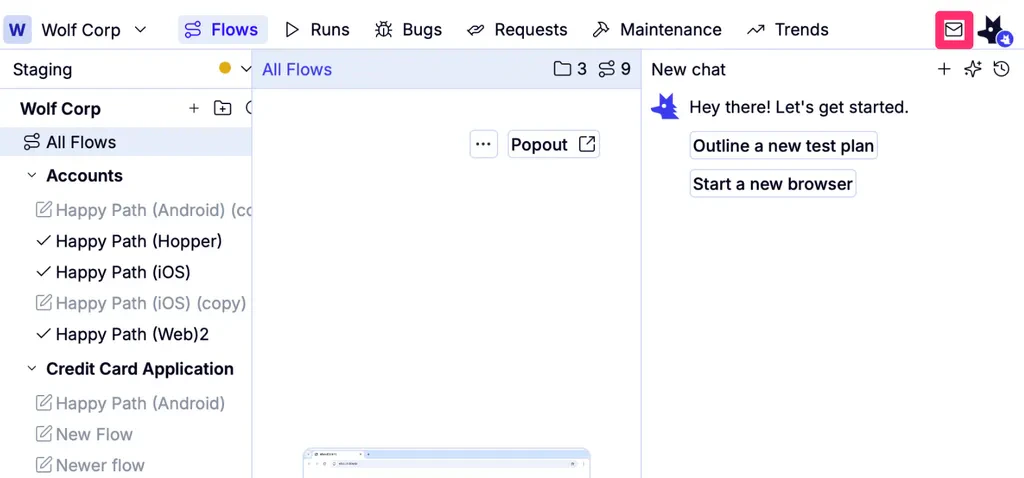
Click the icon on the upper right. A drawer opens
2
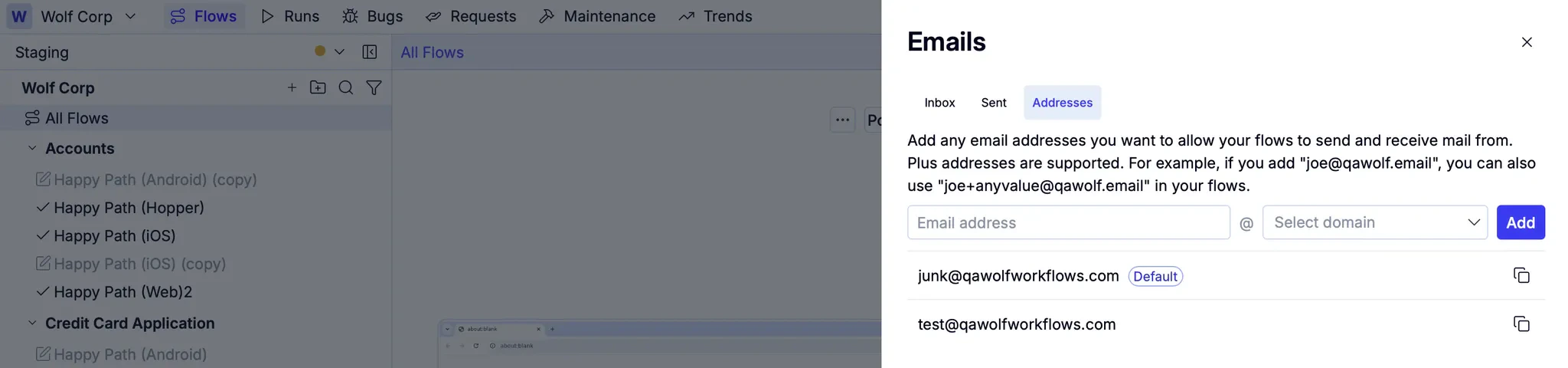
Click Addresses.
3
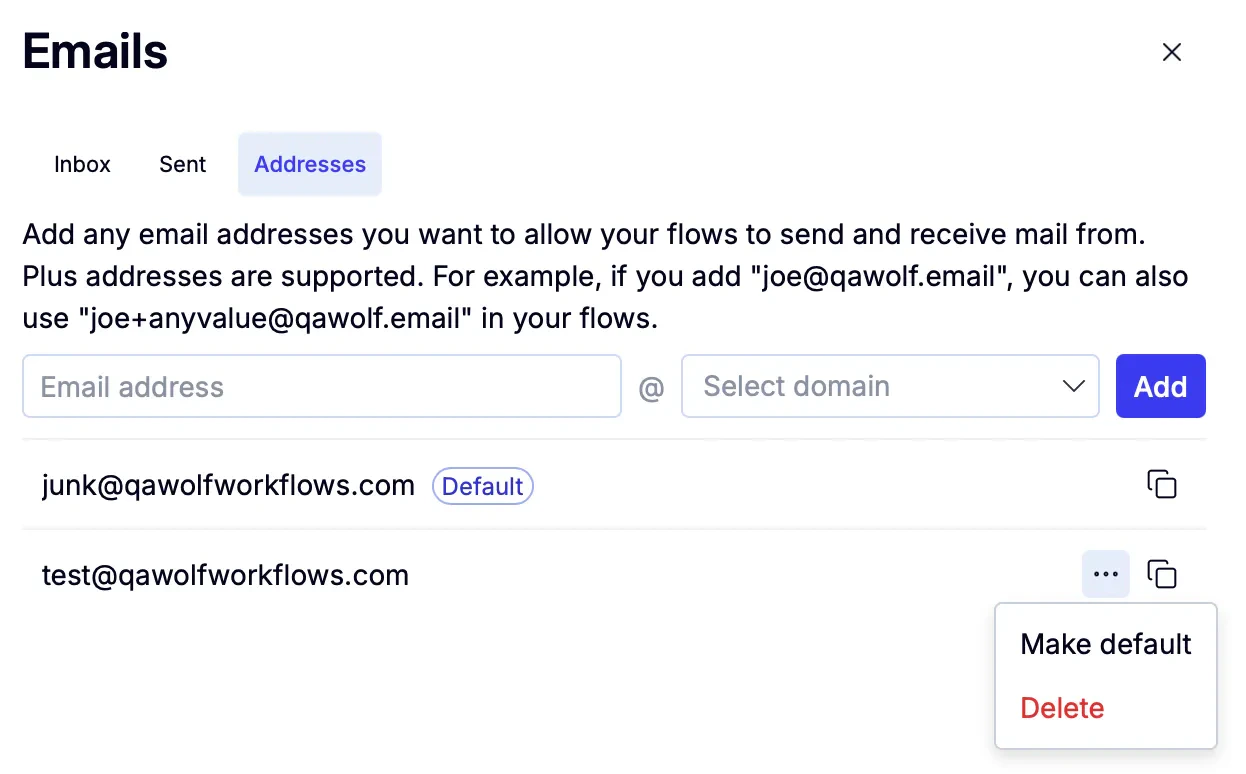
Enter the username and domain in the appropriate fields, then click Add.a. You can create as many email addresses as you like in the allowlist.b. To change the default mail address in the allowlist, hover the email you’d like to set as the default, then click the icon and select Make default.
The simplest way to access your test inbox is to add this line to your flow:
Copy
Ask AI
const { emailAddress } = await getInbox();
If you don’t pass any options to getInbox, QA Wolf uses your team’s default email address, which you can find by going to the Flows tab, selecting Workspace settings from the Workspace name dropdown, choosing Flows from the left navigation, and finding the email address marked as default under the Email Allowlist
Any email address used with getInbox must be on your team’s Email Allowlist.
If you need to access a specific allow-listed email address:
QA Wolf automatically appends a random suffix after a + sign (i.e., plus addressing).
Your application may not allow + symbols in email addresses. If so, you can specify a different delimiter using the delimiter option.const { emailAddress } = await getInbox({ new: true, delimiter: - });The above generates new emails with random strings after the - symbol.
Often, you want your test to wait for a specific email to arrive and then verify its content. This approach is ideal for verifying signup confirmations or password reset links.
Copy
Ask AI
const { waitForMessage } = await getInbox({ new: true });const message = await waitForMessage({ subject: /Welcome to QA Wolf/ });await expect(message.body).toContain("This is a test email");
Sometimes, you want to collect all emails received over a short window. This approach helps validate bulk or sequence-based email events (like multi-step onboarding).
Our platform includes the sendMessage helper for the less common case where your application receives or reacts to incoming emails. You can use it to simulate an external sender and verify how your app processes inbound messages (like replies, support emails, or automated triggers).
Copy
Ask AI
const { sendMessage } = await getInbox({ new: true });await sendMessage({ to: "my-team+recipient@qawolf.email", subject: "Welcome to QA Wolf", body: "This is a test email from QA Wolf.",});