> ## Documentation Index
> Fetch the complete documentation index at: https://docs.qawolf.com/llms.txt
> Use this file to discover all available pages before exploring further.
# How to use the Elements tab to pick a locator
> Inspect DOM elements and build stable locators for automated tests using the Elements tab in QA Wolf.
The Elements tab is a testing-focused inspection tool built into the Automate tab. Unlike standard browser developer tools, it is optimized for identifying elements and generating stable locators rather than for debugging or modifying page structure. It is read-only and does not modify the page structure.
Use it while writing or debugging a flow to find and verify selectors before adding them to your code.
You must have an active browser session to use the **Elements** tab.
## Pick a locator
Click an element in the browser to inspect it. The Elements tab populates with the platform's recommended locator for that element.
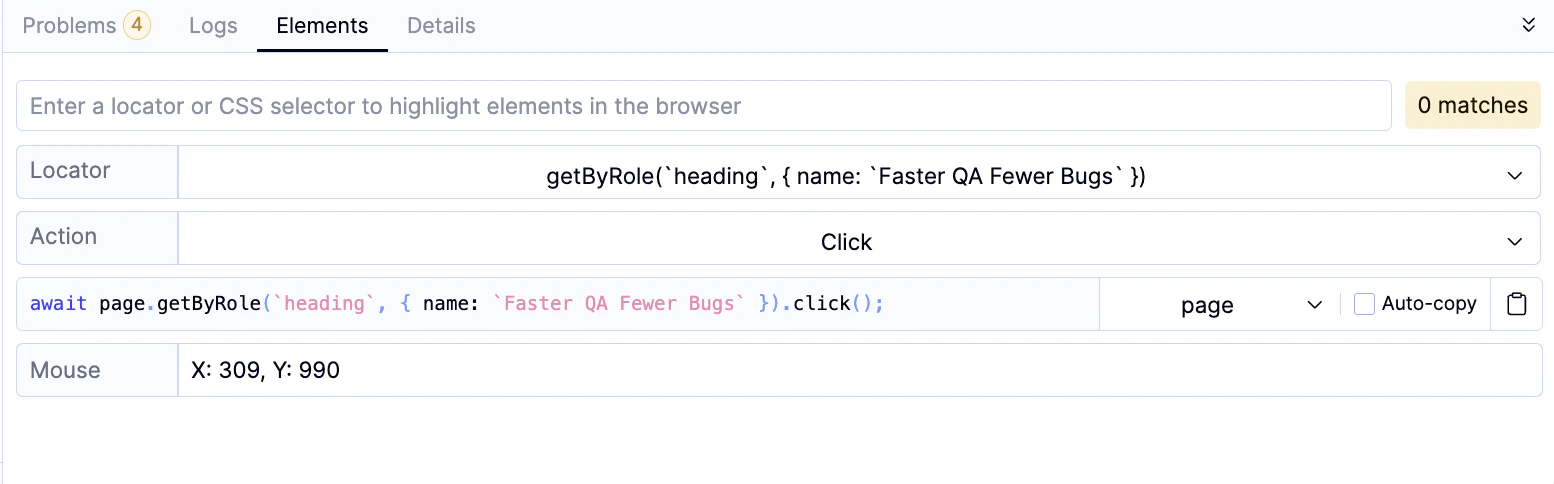 To use a different locator, open the **Locator** dropdown. The platform's recommended locator appears at the top.
Use the **Action** dropdown to select an interaction or assertion. The locator populates in the field below.
Copy and paste the locator into your flow.
Use a stable `test ID` attribute where possible — one that stays the same even when the UI layout or styling changes. This prevents many common test failures caused by shifting locators.
To use a different locator, open the **Locator** dropdown. The platform's recommended locator appears at the top.
Use the **Action** dropdown to select an interaction or assertion. The locator populates in the field below.
Copy and paste the locator into your flow.
Use a stable `test ID` attribute where possible — one that stays the same even when the UI layout or styling changes. This prevents many common test failures caused by shifting locators.