> ## Documentation Index
> Fetch the complete documentation index at: https://docs.qawolf.com/llms.txt
> Use this file to discover all available pages before exploring further.
# Scheduling flows
> Create scheduled and event-based runs, choose which flows to include, and set the execution order.
## Create a schedule
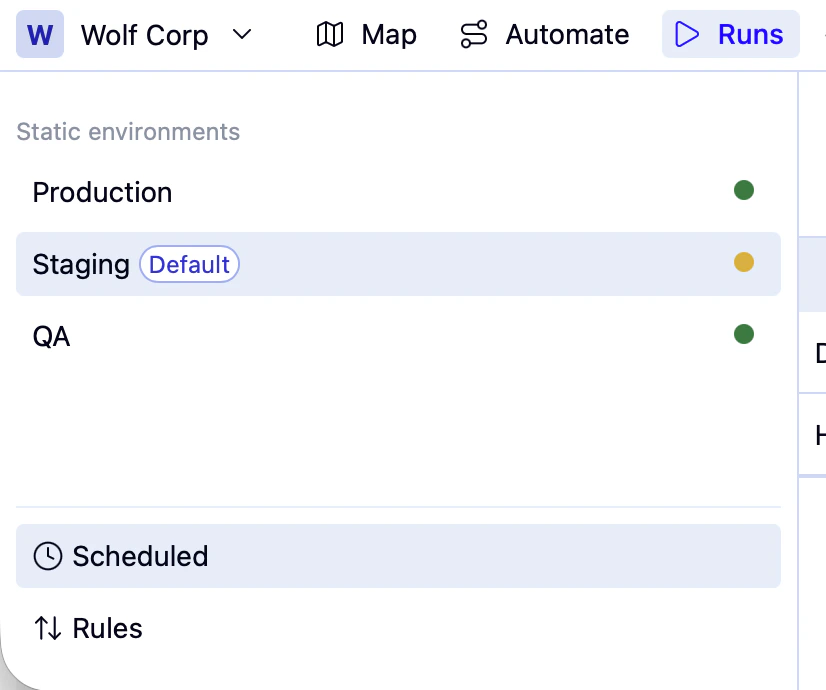
In the **Runs** tab, choose the environment for your scheduled run from the list on the left.
Click **Scheduled**, then **Schedule a run** on the right.
 A drawer opens where you can configure your schedule:
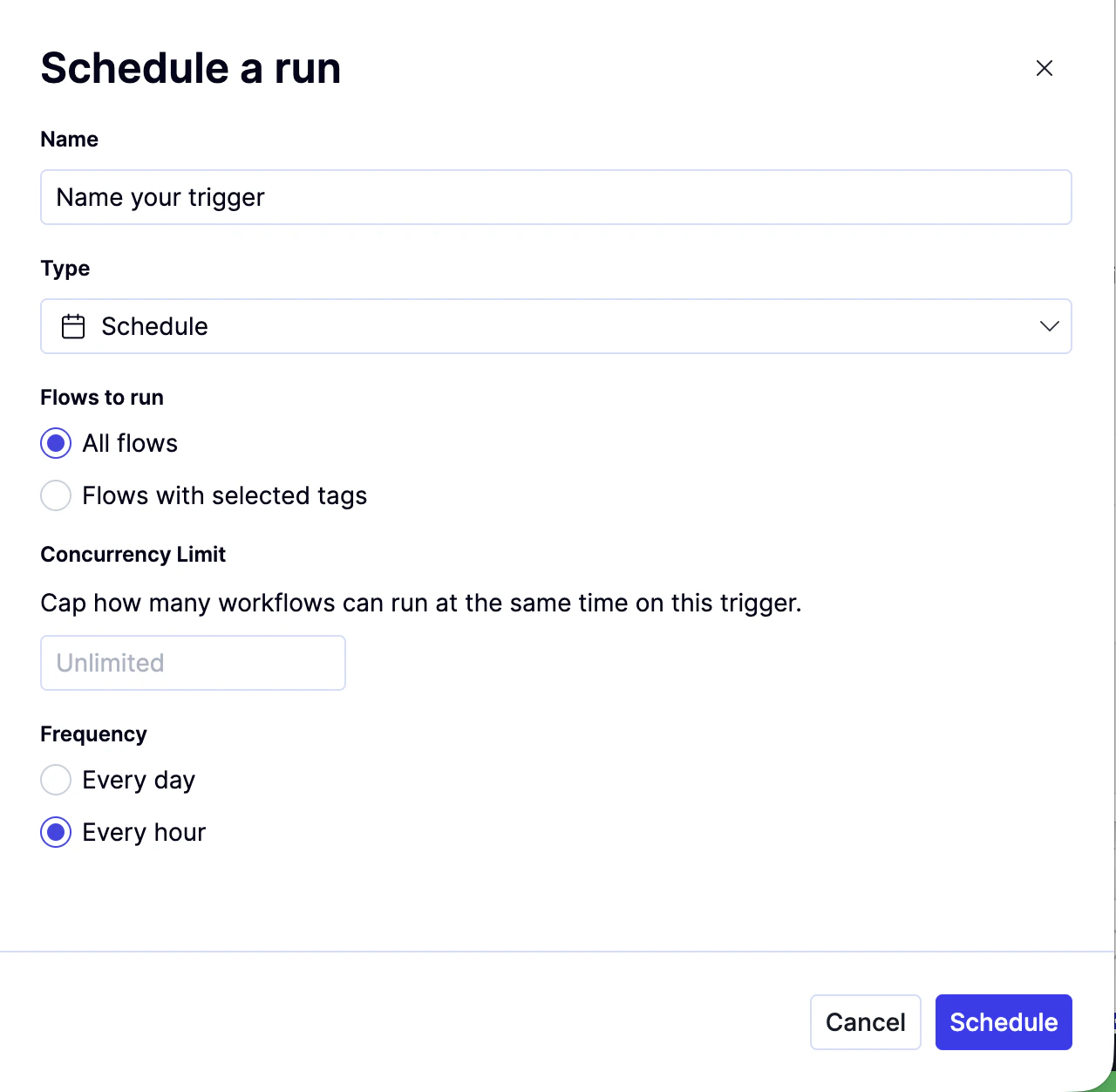 a. **Name** — give your schedule a descriptive name.
b. **Type** — set to **Scheduled** for a time-based run.
a. **Name** — give your schedule a descriptive name.
b. **Type** — set to **Scheduled** for a time-based run.
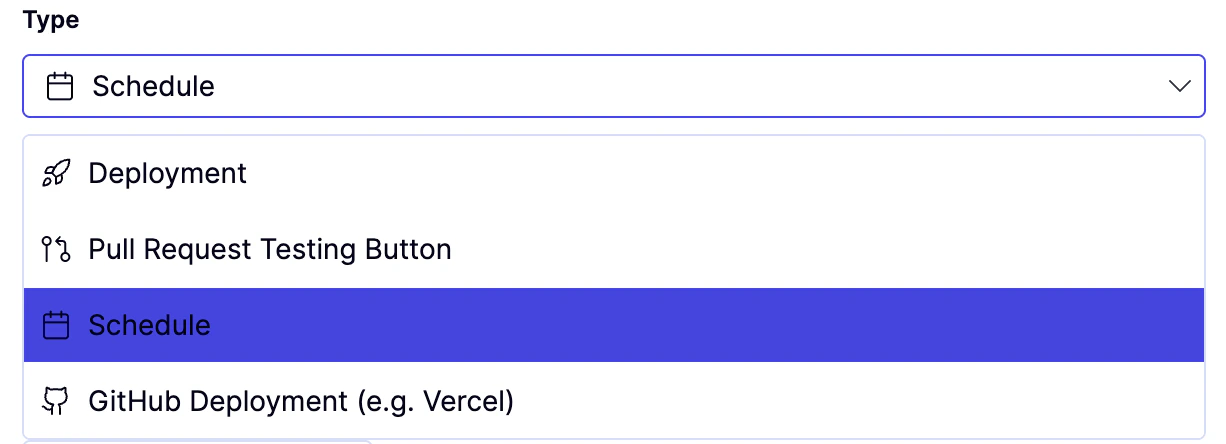 The other three options require setup from QA Wolf:
* *Deployment* — triggers a run from a VCS deployment hook
* *Pull Request Testing Button* — triggers a run from a custom button in your VCS
* *GitHub Deployment* — available for teams using GitHub-based deployments
c. **Flows to run** — run *All flows* or *Flows with selected tags*. See [Use tags effectively](/qawolf/Use-tags-effectively-2c35b2a994fb809abbd7ea9402738bdb) to learn how to tag your flows.
d. **Concurrency limit** — sets the maximum number of concurrent flows to control load on your system. This overrides the value set in **Workspace settings → Environment**.
e. **Frequency** — choose *Every day* or *Every hour*.
Once you've set up schedules for an environment, runs will appear in the Scheduled tab as soon as they are started.
## Manage schedules
### See all schedules
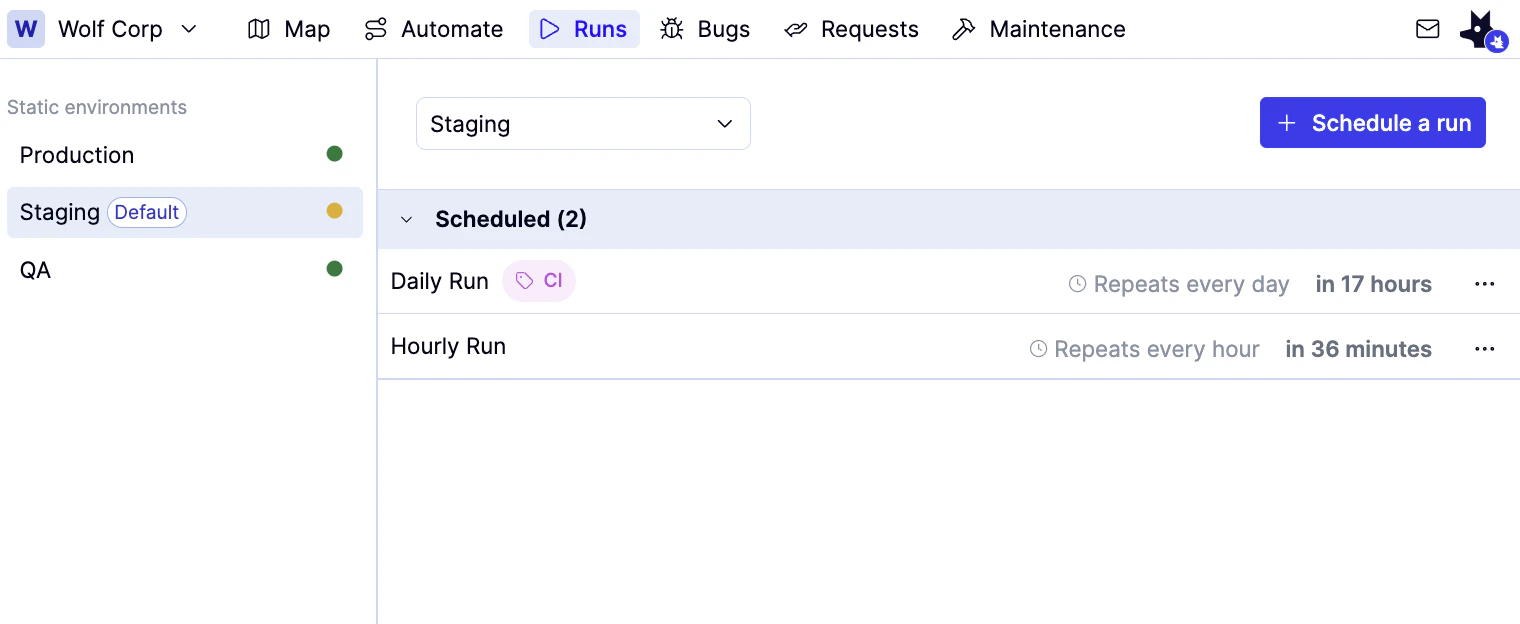
Open the **Runs** tab and click **Scheduled** from the lower left.
The other three options require setup from QA Wolf:
* *Deployment* — triggers a run from a VCS deployment hook
* *Pull Request Testing Button* — triggers a run from a custom button in your VCS
* *GitHub Deployment* — available for teams using GitHub-based deployments
c. **Flows to run** — run *All flows* or *Flows with selected tags*. See [Use tags effectively](/qawolf/Use-tags-effectively-2c35b2a994fb809abbd7ea9402738bdb) to learn how to tag your flows.
d. **Concurrency limit** — sets the maximum number of concurrent flows to control load on your system. This overrides the value set in **Workspace settings → Environment**.
e. **Frequency** — choose *Every day* or *Every hour*.
Once you've set up schedules for an environment, runs will appear in the Scheduled tab as soon as they are started.
## Manage schedules
### See all schedules
Open the **Runs** tab and click **Scheduled** from the lower left.
 ### Pause a schedule
Click the icon to the right of the schedule, then click **Pause**. Paused schedules appear in gray text with a status of **Paused**.
### Edit a schedule
Click the icon to the right of the schedule, then click **Edit**. A drawer opens where you can edit your schedule.
### Pause a schedule
Click the icon to the right of the schedule, then click **Pause**. Paused schedules appear in gray text with a status of **Paused**.
### Edit a schedule
Click the icon to the right of the schedule, then click **Edit**. A drawer opens where you can edit your schedule.