> ## Documentation Index
> Fetch the complete documentation index at: https://docs.qawolf.com/llms.txt
> Use this file to discover all available pages before exploring further.
# File, review & edit bug reports
> Create, review, and resolve bug reports in QA Wolf to track confirmed product defects linked to failing flows.
## Overview
Bug reports track confirmed product defects, specifically unexpected application behavior rather than test or setup issues.
Bug reports are automatically associated with flows when opened from the Investigation view. Multiple flows can be linked to the same bug report when they expose the same issue. A bug report automatically closes once all associated flows are passing.
Once the test issues are fixed, you can attempt to clear the bug report by running all associated flows directly from the report. Any flows that pass are removed from the report and resume running according to their schedules. The bug report remains open until all associated flows have passing runs.
**Best practices**
* Use bug reports to track and resolve underlying product issues.
* Allow flows with known bugs to continue running to detect when the issue is fixed.
* Avoid quarantining flows for known bugs unless execution is causing operational issues.
## Get to know the bug report tab
You can find all bug reports for your workspace in the **Bugs** tab. This page lists both open and closed reports and allows you to create new ones or open existing ones for editing.
* Use the **Open** and **Closed** tabs to switch between active and resolved reports.
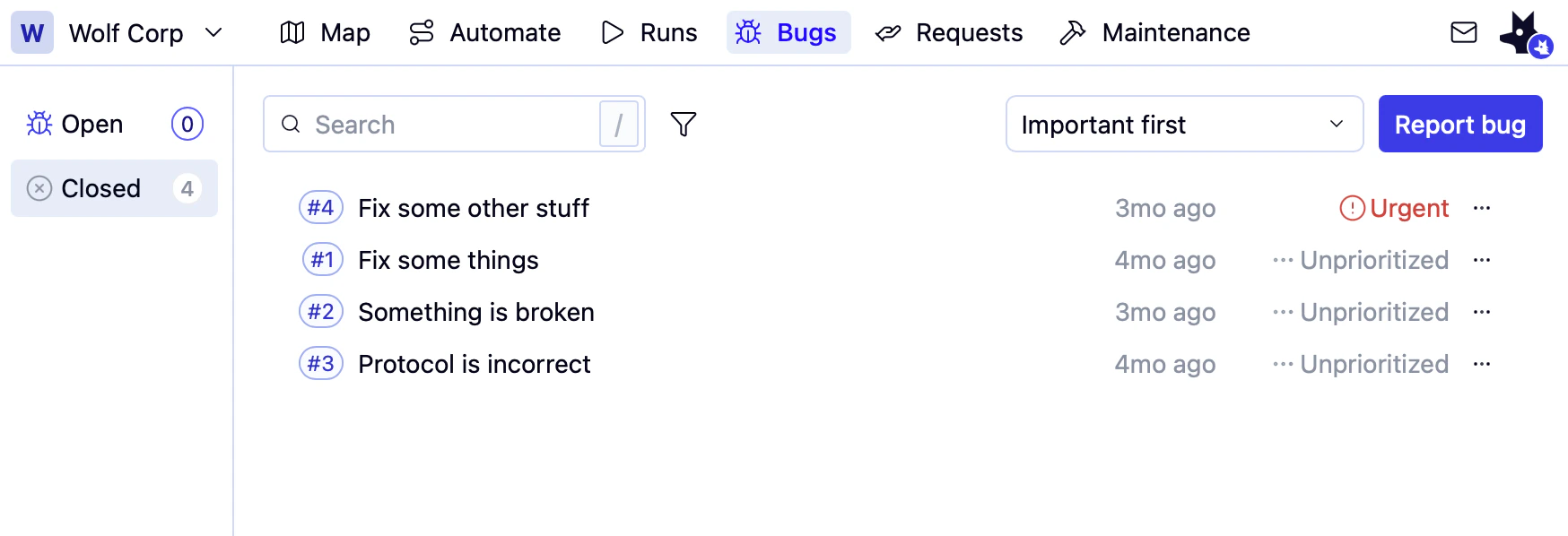 * Use the **Search** bar to filter by report name. Use the icon to filter by report **Priority** or **Creator is me**.
## File a bug report
In the Investigation view, select the failing flow.
**Under Diagnose**, click **Report a bug**.
You can also find **Diagnose** by hovering over the failing flow to show the icon, then clicking it to show the icon. **Diagnose** will appear below the Flow list.
A drawer appears, displaying a pre-populated form in QA Wolf's standard bug-report format.
* Use the **Search** bar to filter by report name. Use the icon to filter by report **Priority** or **Creator is me**.
## File a bug report
In the Investigation view, select the failing flow.
**Under Diagnose**, click **Report a bug**.
You can also find **Diagnose** by hovering over the failing flow to show the icon, then clicking it to show the icon. **Diagnose** will appear below the Flow list.
A drawer appears, displaying a pre-populated form in QA Wolf's standard bug-report format.
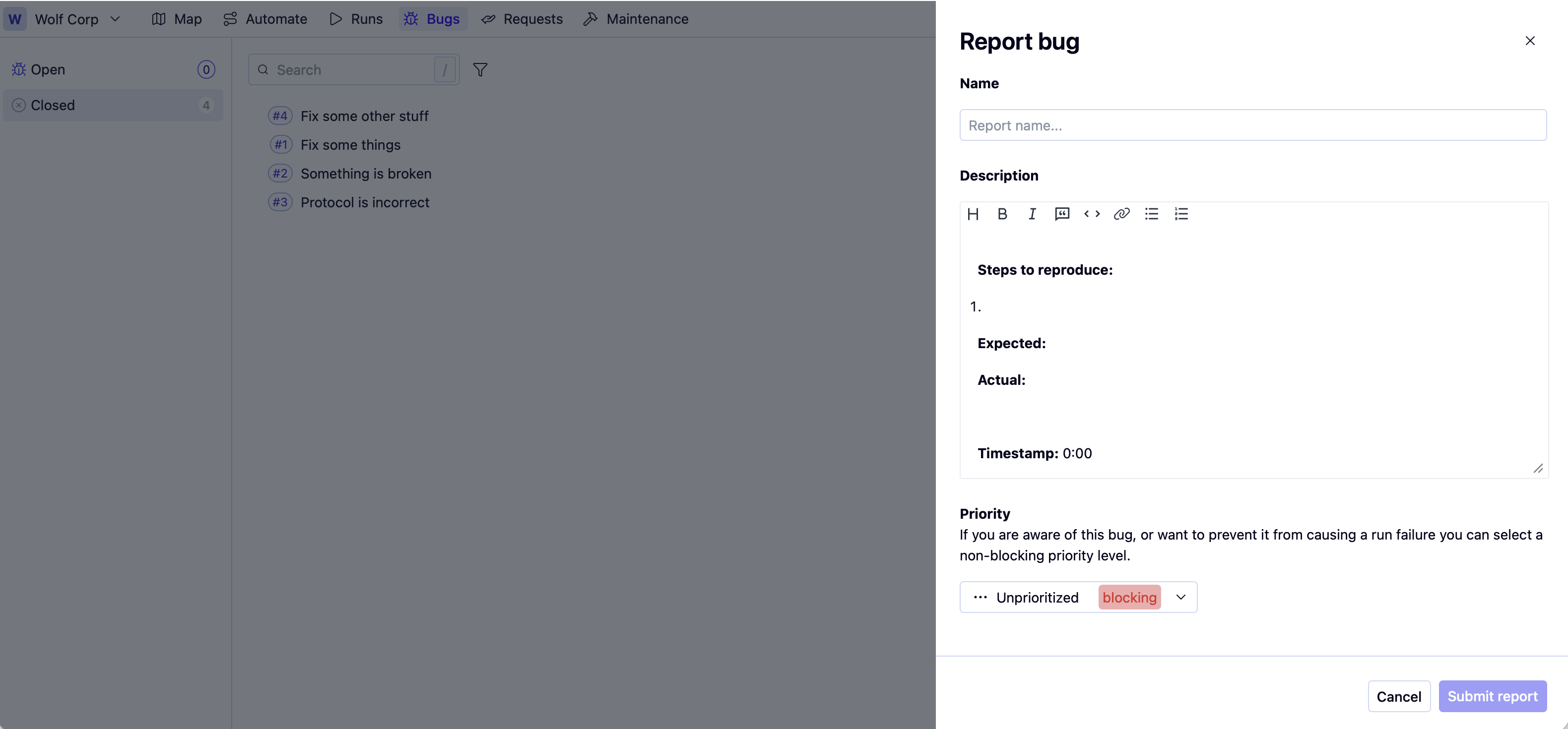 Click the **Name** field to open a dropdown of existing bug reports. As you type, the list autocompletes to help you find a match.
a. If you need a new report, type its name and press **Enter**, or choose the top option in the dropdown.
After selecting a name, fill out the remaining form. The form contains the following fields:
a. **Description:** Provide a clear summary of the issue. This field includes a built-in template to help you capture the most important details—such as expected behavior, actual behavior, and steps to reproduce. You can also include a link to a cloud-hosted video (e.g., Loom) in the **Video** field to illustrate the problem.
b. **Priority:** Set the bug's urgency. **Urgent** and **High** represent blocking priorities and will affect the overall environment status.
c. **Environment (read-only):** Indicates the environment where you observed the bug.
d. **Affected flows (read-only):** Lists the flows impacted by this bug.
**Flows with open bugs are still included in scheduled runs.**
* If any bug associated with a flow has a blocking **Priority** (*Urgent* or *High*) and at least one flow in the run fails all three attempts, the run ends in a *Failed* status. The environment's status will appear with the icon on both the **Flows** and **Runs** tabs.
* If the flow has only non-blocking bugs, and at least one flow in the run fails all three attempts, the run ends as *Needs investigation*. The environment's status will appear with the icon on both the **Flows** and **Runs** tabs.
You can also file bug reports from the **Bugs** tab by clicking **Report bug** to open the form for filing a new bug. However, bugs you open from this method will not be associated with any flows. To associate this bug with flows, you must follow the **Diagnose** steps above.
## Review or edit an existing bug report
* From the **Bugs** tab, find the bug report you'd like to open and click on it.
* The only field you can change here is the **Priority** field. All other fields are read-only.
## Clear bug reports
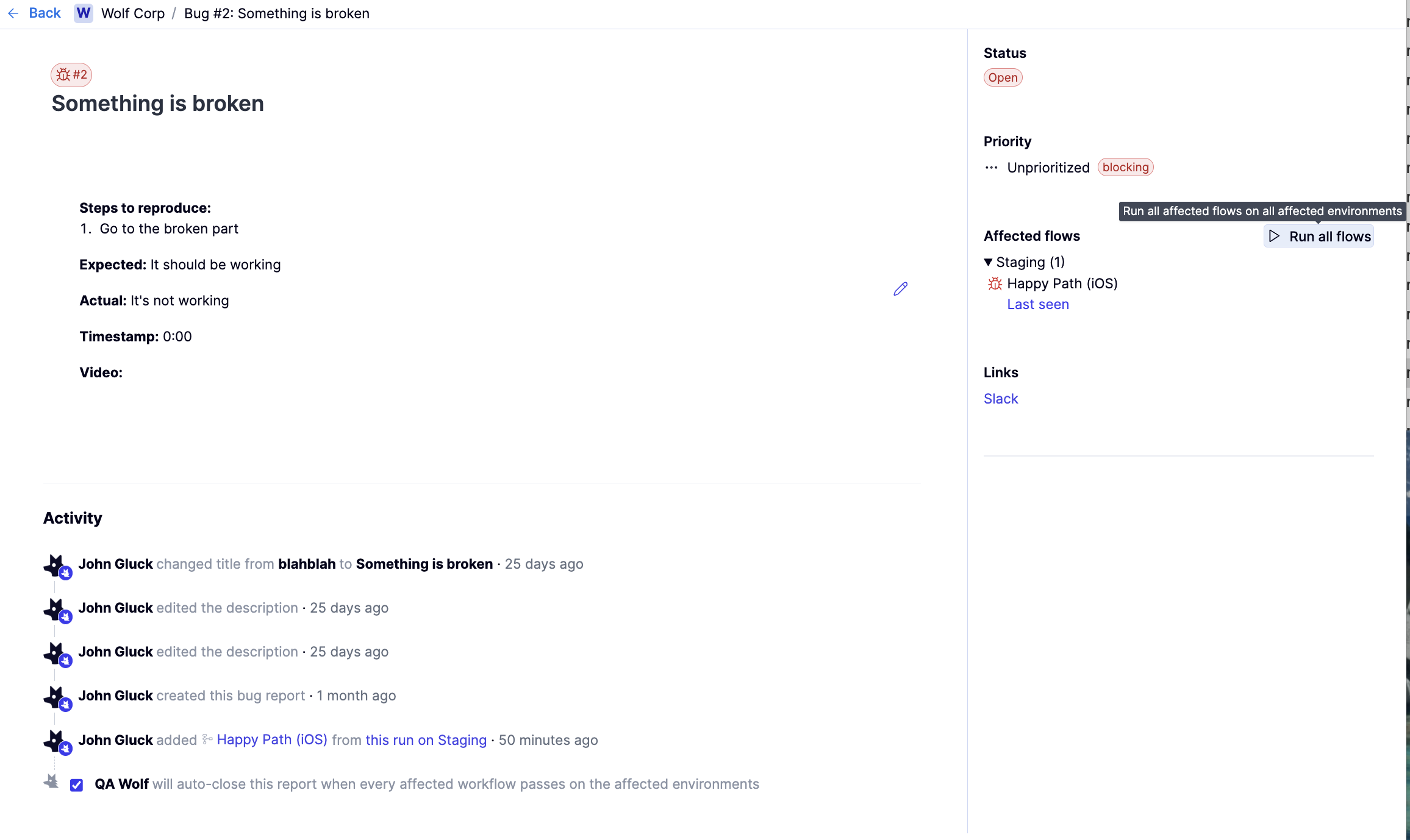
A bug report should close automatically on the next scheduled run once you apply the fix. However, you can also manually run all flows associated with a given bug; if they pass, the bug report will close automatically.
Open the **Bugs** tab and click the report you'd like to close.
Click **Run all flows**. This opens the **Runs** tab in a separate browser tab and starts a manual run of all flows associated with the bug report. Any flows that pass will be removed from the bug report. If all flows pass, the bug report will close automatically.
Click the **Name** field to open a dropdown of existing bug reports. As you type, the list autocompletes to help you find a match.
a. If you need a new report, type its name and press **Enter**, or choose the top option in the dropdown.
After selecting a name, fill out the remaining form. The form contains the following fields:
a. **Description:** Provide a clear summary of the issue. This field includes a built-in template to help you capture the most important details—such as expected behavior, actual behavior, and steps to reproduce. You can also include a link to a cloud-hosted video (e.g., Loom) in the **Video** field to illustrate the problem.
b. **Priority:** Set the bug's urgency. **Urgent** and **High** represent blocking priorities and will affect the overall environment status.
c. **Environment (read-only):** Indicates the environment where you observed the bug.
d. **Affected flows (read-only):** Lists the flows impacted by this bug.
**Flows with open bugs are still included in scheduled runs.**
* If any bug associated with a flow has a blocking **Priority** (*Urgent* or *High*) and at least one flow in the run fails all three attempts, the run ends in a *Failed* status. The environment's status will appear with the icon on both the **Flows** and **Runs** tabs.
* If the flow has only non-blocking bugs, and at least one flow in the run fails all three attempts, the run ends as *Needs investigation*. The environment's status will appear with the icon on both the **Flows** and **Runs** tabs.
You can also file bug reports from the **Bugs** tab by clicking **Report bug** to open the form for filing a new bug. However, bugs you open from this method will not be associated with any flows. To associate this bug with flows, you must follow the **Diagnose** steps above.
## Review or edit an existing bug report
* From the **Bugs** tab, find the bug report you'd like to open and click on it.
* The only field you can change here is the **Priority** field. All other fields are read-only.
## Clear bug reports
A bug report should close automatically on the next scheduled run once you apply the fix. However, you can also manually run all flows associated with a given bug; if they pass, the bug report will close automatically.
Open the **Bugs** tab and click the report you'd like to close.
Click **Run all flows**. This opens the **Runs** tab in a separate browser tab and starts a manual run of all flows associated with the bug report. Any flows that pass will be removed from the bug report. If all flows pass, the bug report will close automatically.
 ## Update the diagnosis of a test failure
Sometimes, a run will still fail after an application fix is deployed. This can happen when the original issue masked a different problem, or when the fix changes behavior in a way that affects the test.
If this happens after a developer ships a fix:
Open the failed run under **Needs investigation** to enter the **Investigation view**.
Re-run the failing flow to confirm whether the failure still occurs.
Review the failure evidence:
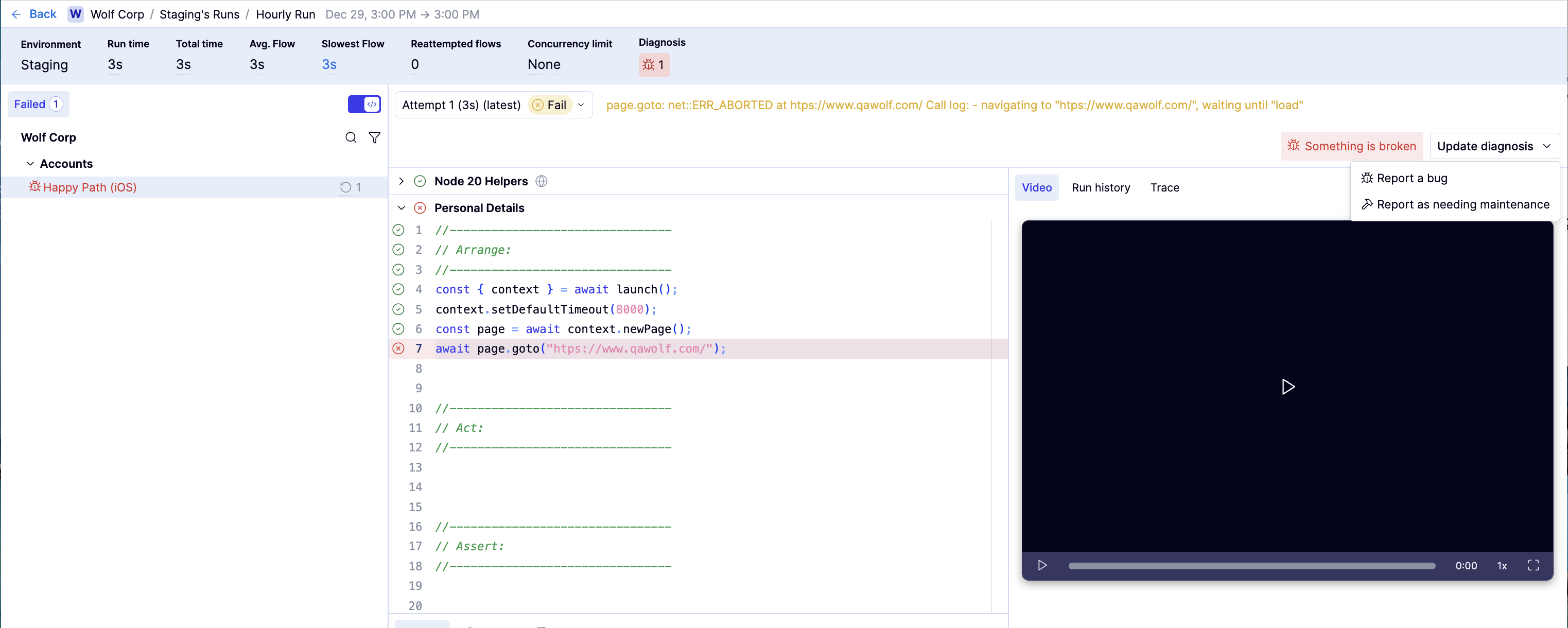
* If the flow already has a bug filed and the failure points to a new application issue upstream of the existing one, click **Update diagnosis**, then select **Report a bug** to file a new bug report.
* If the flow already has a bug filed but the failure now indicates the test needs to be updated, click **Update diagnosis**, then select **Report as needing maintenance**.
This keeps diagnoses accurate as failures evolve, without tying the new failure too closely to the original issue.
## Update the diagnosis of a test failure
Sometimes, a run will still fail after an application fix is deployed. This can happen when the original issue masked a different problem, or when the fix changes behavior in a way that affects the test.
If this happens after a developer ships a fix:
Open the failed run under **Needs investigation** to enter the **Investigation view**.
Re-run the failing flow to confirm whether the failure still occurs.
Review the failure evidence:
* If the flow already has a bug filed and the failure points to a new application issue upstream of the existing one, click **Update diagnosis**, then select **Report a bug** to file a new bug report.
* If the flow already has a bug filed but the failure now indicates the test needs to be updated, click **Update diagnosis**, then select **Report as needing maintenance**.
This keeps diagnoses accurate as failures evolve, without tying the new failure too closely to the original issue.