> ## Documentation Index
> Fetch the complete documentation index at: https://docs.qawolf.com/llms.txt
> Use this file to discover all available pages before exploring further.
# How to integrate with Jira
> Connect QA Wolf to Jira to automatically create, sync, and close issue tickets from QA Wolf bug reports.
## Overview
* **Automatic issue handling.** Creates Jira issues automatically when new bug reports are generated in QA Wolf, keeping Jira up to date without manual entry.
Context added in Jira is not written back to QA Wolf.
* **Synchronization.** Closing a bug report in QA Wolf will close the linked Jira ticket. QA Wolf also performs regular bug revalidations to ensure accuracy.
Closing a Jira ticket should automatically update QA Wolf. Contact us if that doesn't happen so we can help you troubleshoot.
* **Test creation requests.** Add a **QA Wolf** label to a Jira ticket to automatically create a coverage request in QA Wolf.
* **Custom configuration.** Specify the project, assignee, and issue status. Currently, each integration setup supports one project, one assignee, and one status type.
* **Custom fields.** Add custom Jira fields to bug reports if your Jira project uses them. Custom fields apply globally across all tickets created through QA Wolf, not per workflow.
## Set up the integration
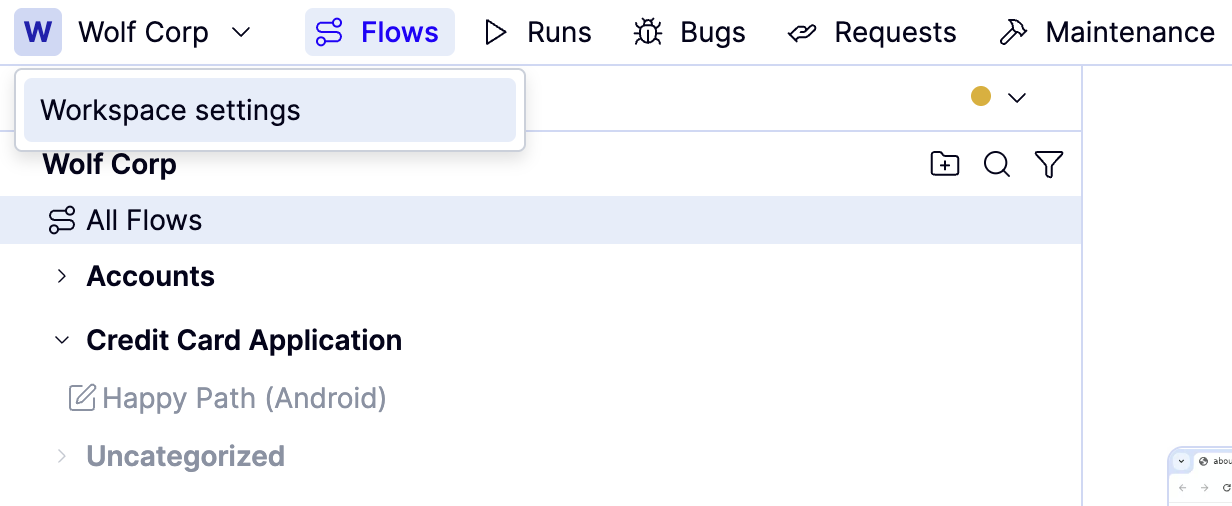
Open the `Workspace name` dropdown and click **Workspace settings**.
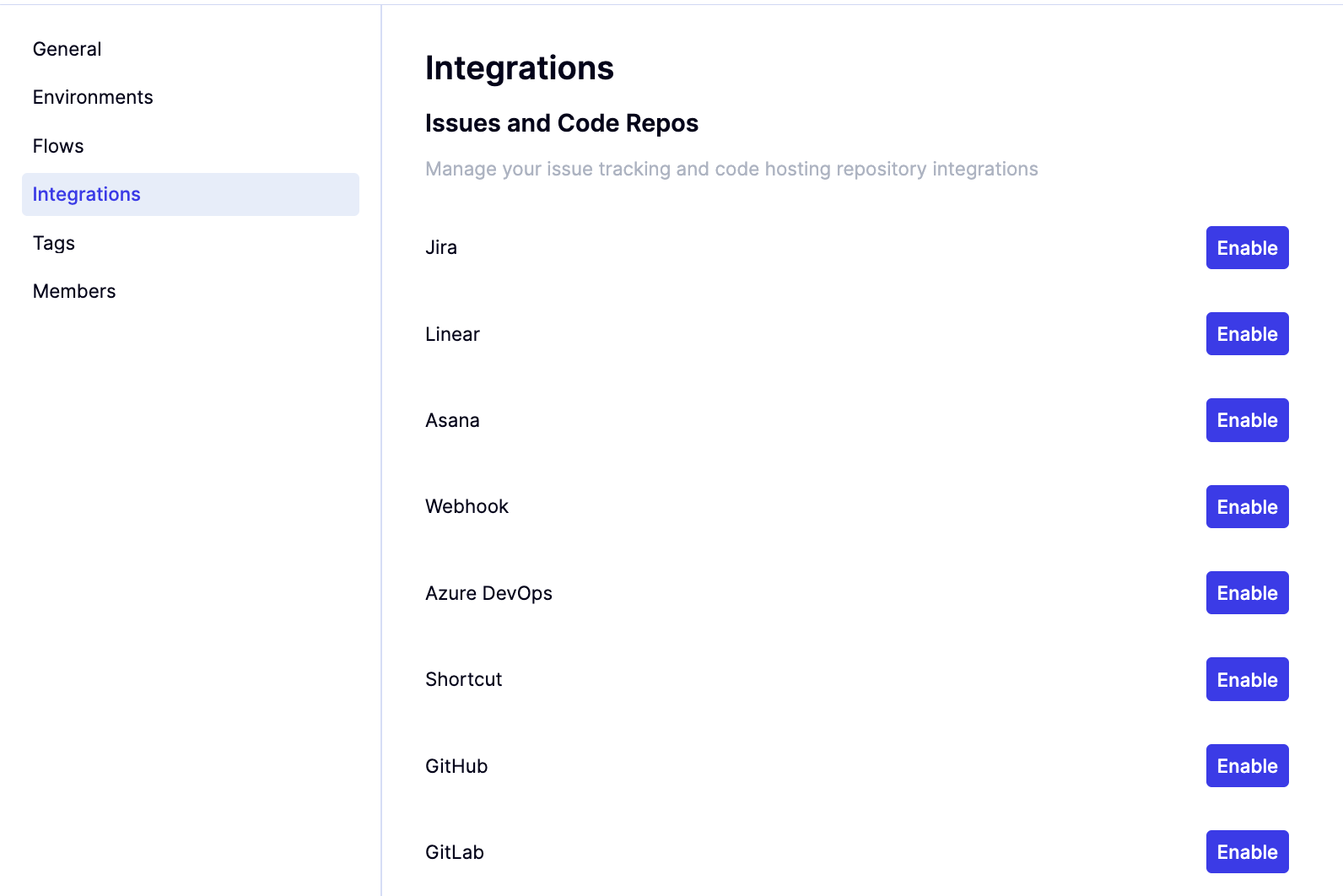
 Navigate to **Integrations**.
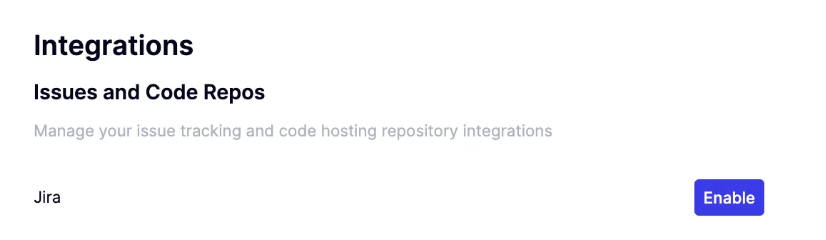
 Click **Enable** next to Jira. The **Sync bug reports to Jira** modal appears.
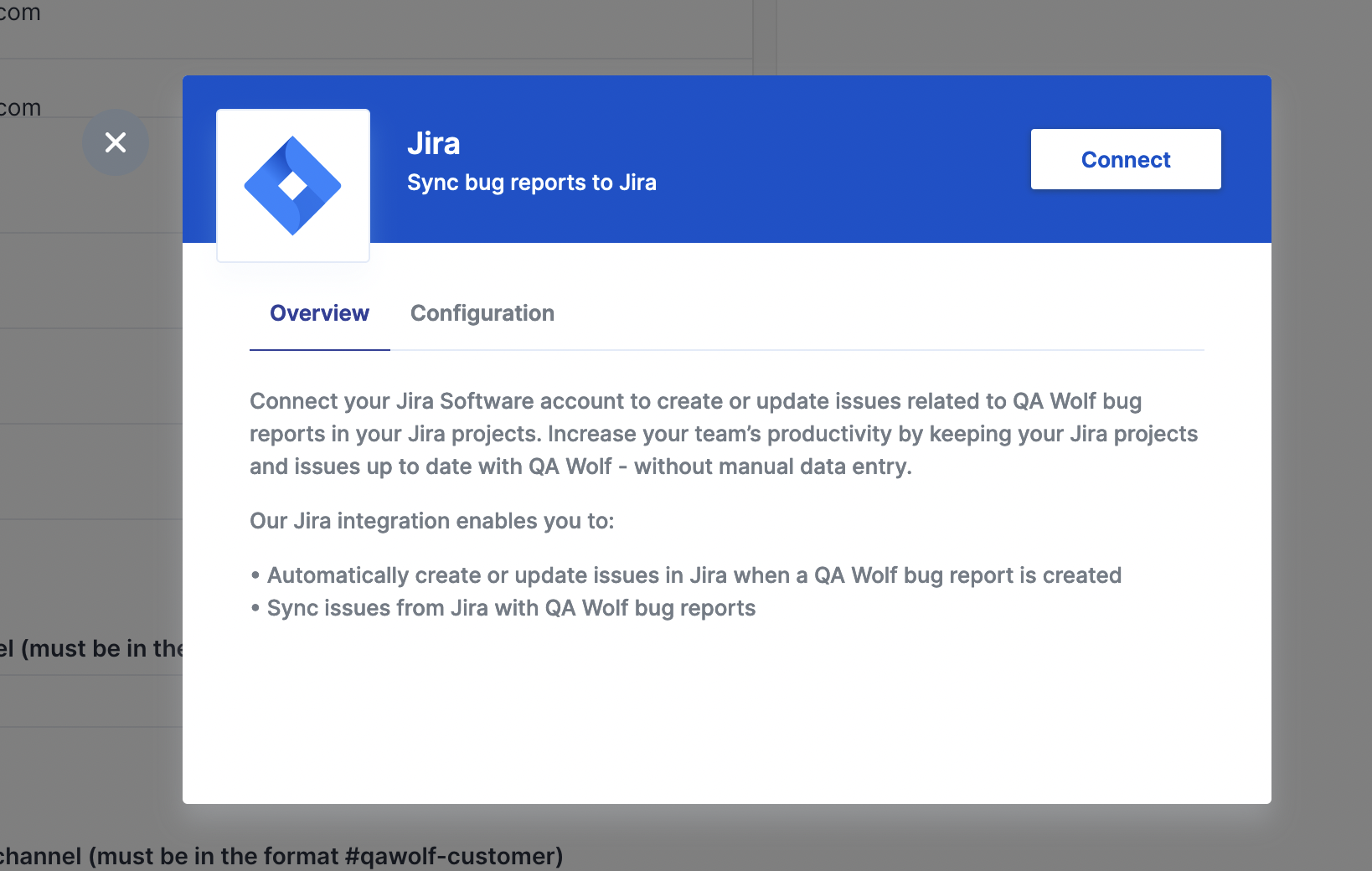
 Click **Connect**.
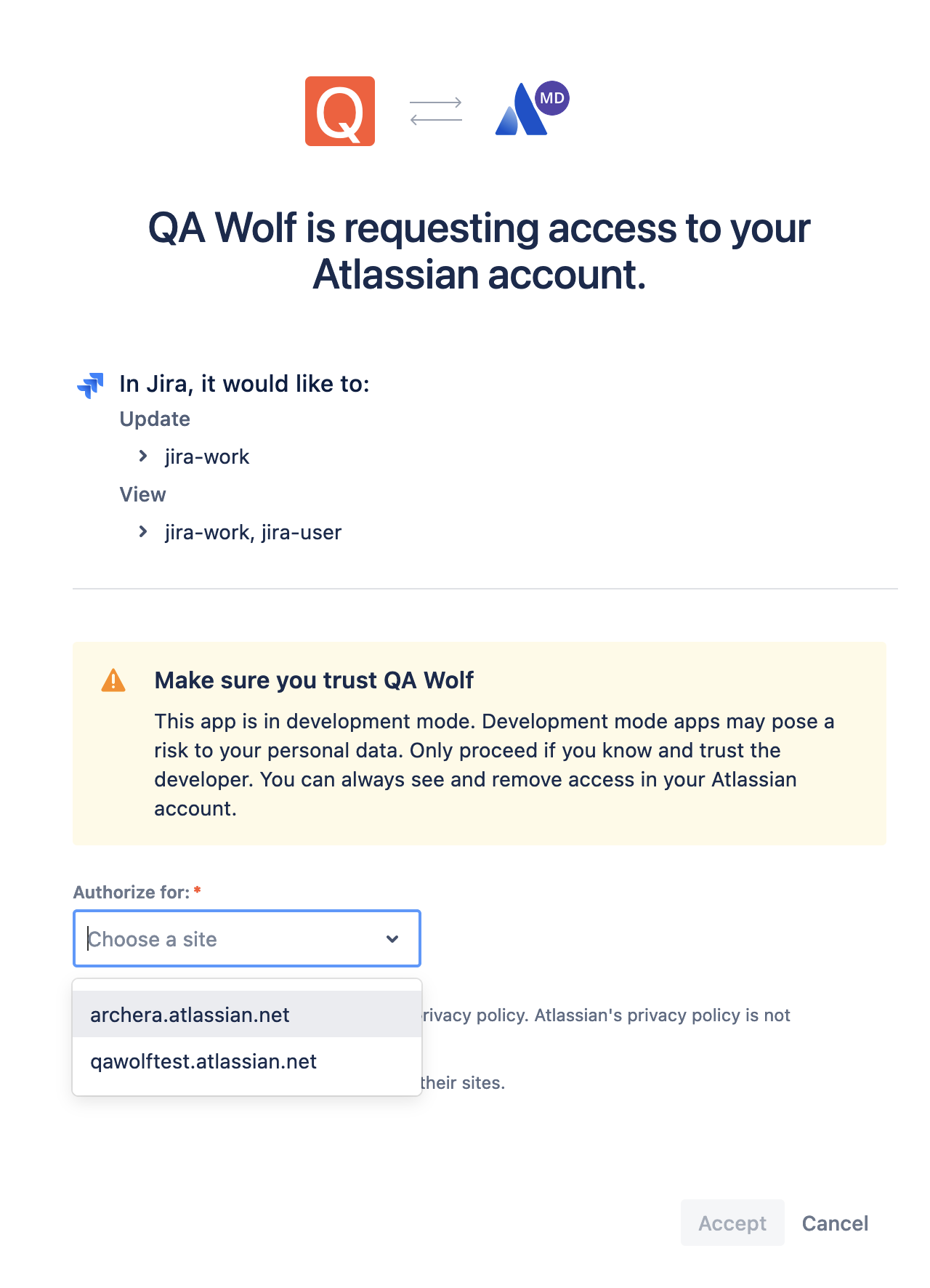
 Select the Jira team you want to link to your QA Wolf team and click **Accept** to authorize the connection.
 Choose your Jira **Project**, **Issue Type**, and **Assignee**, then enable:
* **Create bug issue report**
* **Close bug issue report**
This ensures bugs are created and closed automatically across both systems.
Choose your Jira **Project**, **Issue Type**, and **Assignee**, then enable:
* **Create bug issue report**
* **Close bug issue report**
This ensures bugs are created and closed automatically across both systems.
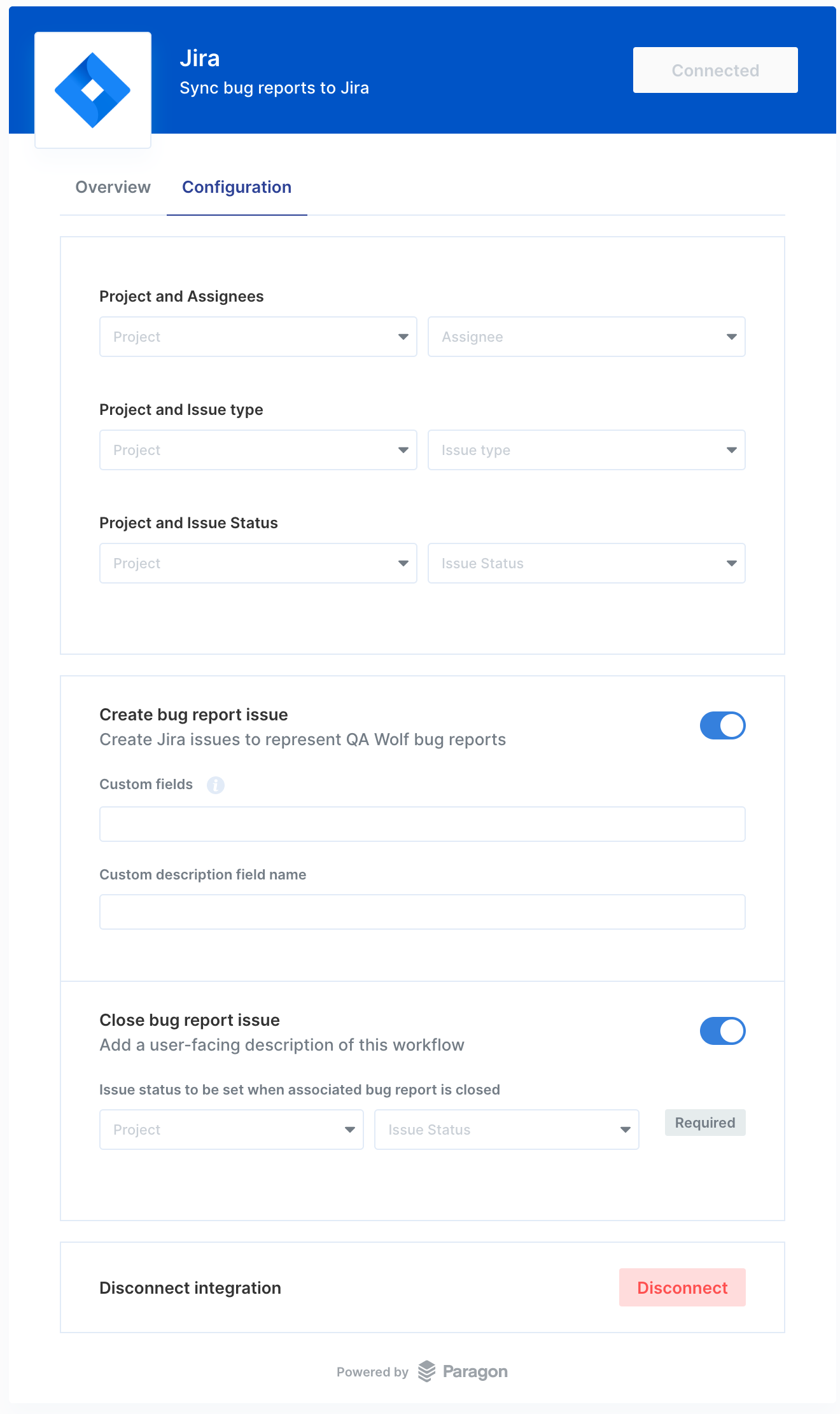 If there are any custom fields you need us to configure, such as the issue description, please reach out and let us know. We can configure those for you.