> ## Documentation Index
> Fetch the complete documentation index at: https://docs.qawolf.com/llms.txt
> Use this file to discover all available pages before exploring further.
# Integrating with Microsoft Teams
> Set up Microsoft Teams to receive QA Wolf notifications by configuring external access and shared channels.
## Completion checklist
In the [Teams Admin Center](https://admin.teams.microsoft.com/):
Teams policies > Join external shared channels to On
Users > External Access > Ensure QA Wolf is not blocked
In the [Microsoft Entra admin center](https://entra.microsoft.com/) (**as a Security Administrator**):
Add QA Wolf's tenant ID - `3d41cc11-5772-457c-aad2-16b3924b22d0`
Verify access settings do not restrict access to or from QA Wolf, or adjust accordingly
Share your Microsoft Entra tenant ID with QA Wolf
### Enable shared channels in Teams
Shared channels are **enabled by default** in Teams.
QA Wolf provides a shared channel for your Teams integration. To use it, your organization must have shared channels enabled.
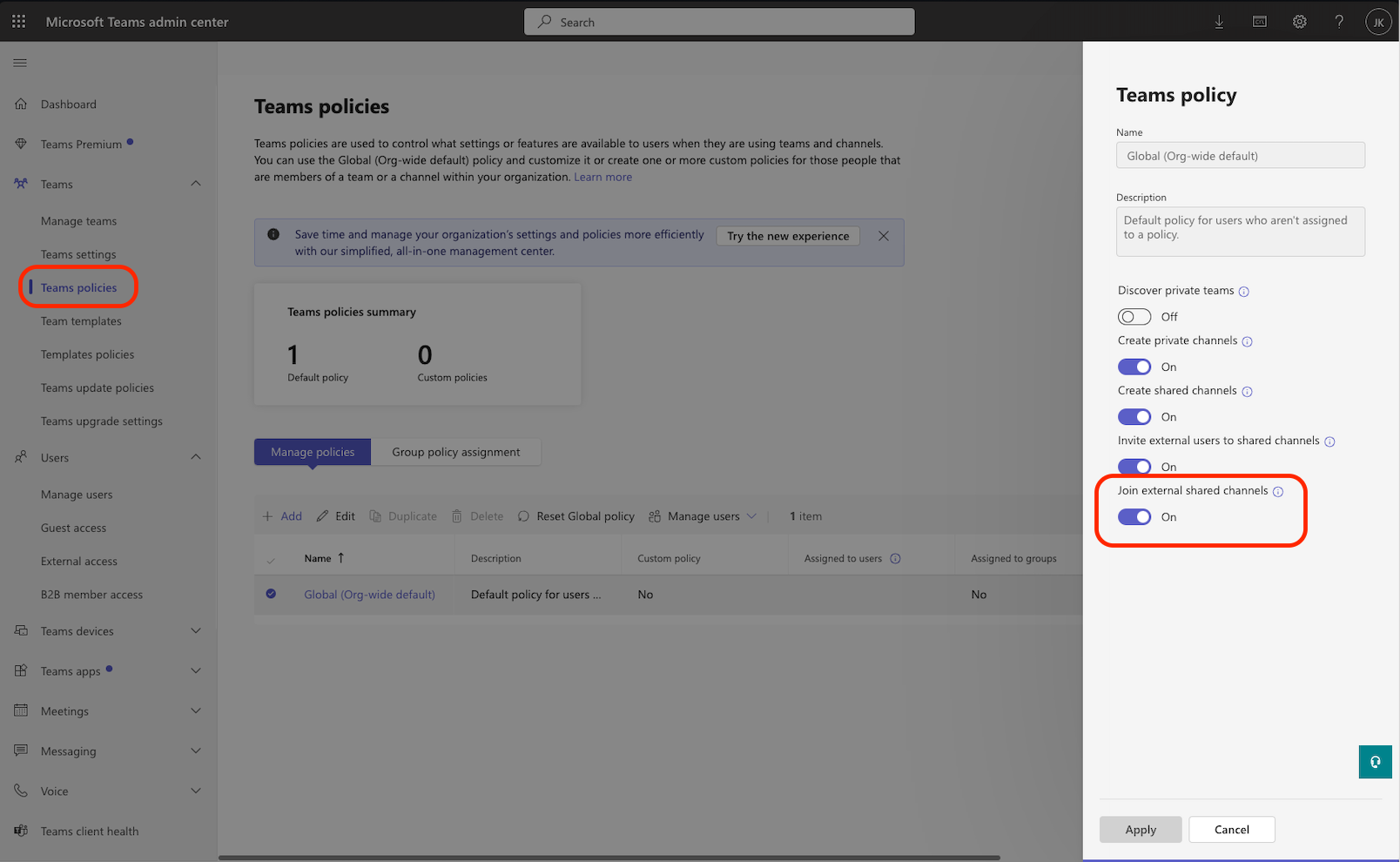
In the [Microsoft Teams admin center](https://admin.teams.microsoft.com/), expand **Teams** in the left navigation bar and choose **Teams policies**.
Click the policy you want to confirm or change.
Under *Shared channels settings*, turn on **Join external shared channels** to allow collaboration with other orgs.
Click **Apply** to save your changes.
 ### Enable external access
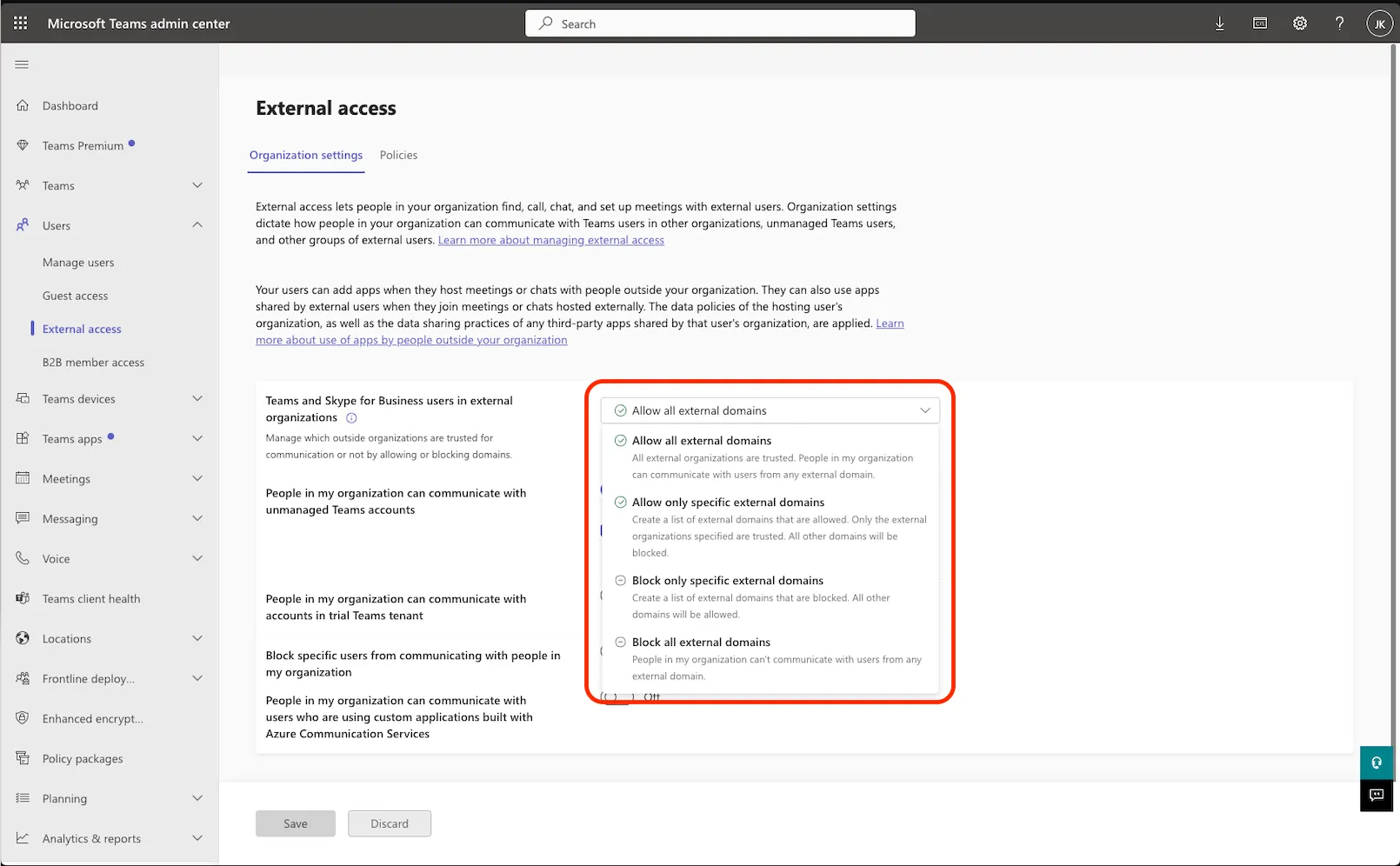
You must enable external access so QA Wolf team members can join your **Teams meetings** and your team can see QA Wolf's presence status (online/offline/away) in shared channels.
In the [Teams admin center](https://admin.teams.microsoft.com/), expand **Users** in the left navigation bar and choose **External access**.
Choose the appropriate option for allowing **Teams and Skype for Business users in external organizations**.
**Do not** select **Block all external domains** — this setting prevents the integration from working.
Allowing **qawolf.com** under **Allow only specific external domains** will ensure QA Wolf team members can participate while all other external domains remain blocked.
### Enable external access
You must enable external access so QA Wolf team members can join your **Teams meetings** and your team can see QA Wolf's presence status (online/offline/away) in shared channels.
In the [Teams admin center](https://admin.teams.microsoft.com/), expand **Users** in the left navigation bar and choose **External access**.
Choose the appropriate option for allowing **Teams and Skype for Business users in external organizations**.
**Do not** select **Block all external domains** — this setting prevents the integration from working.
Allowing **qawolf.com** under **Allow only specific external domains** will ensure QA Wolf team members can participate while all other external domains remain blocked.
 ### Enable cross-tenant access in Microsoft Entra
To use a shared channel with QA Wolf, you must allow our Microsoft Entra tenant by adding QA Wolf as an allowed organization using our Microsoft Entra tenant ID.
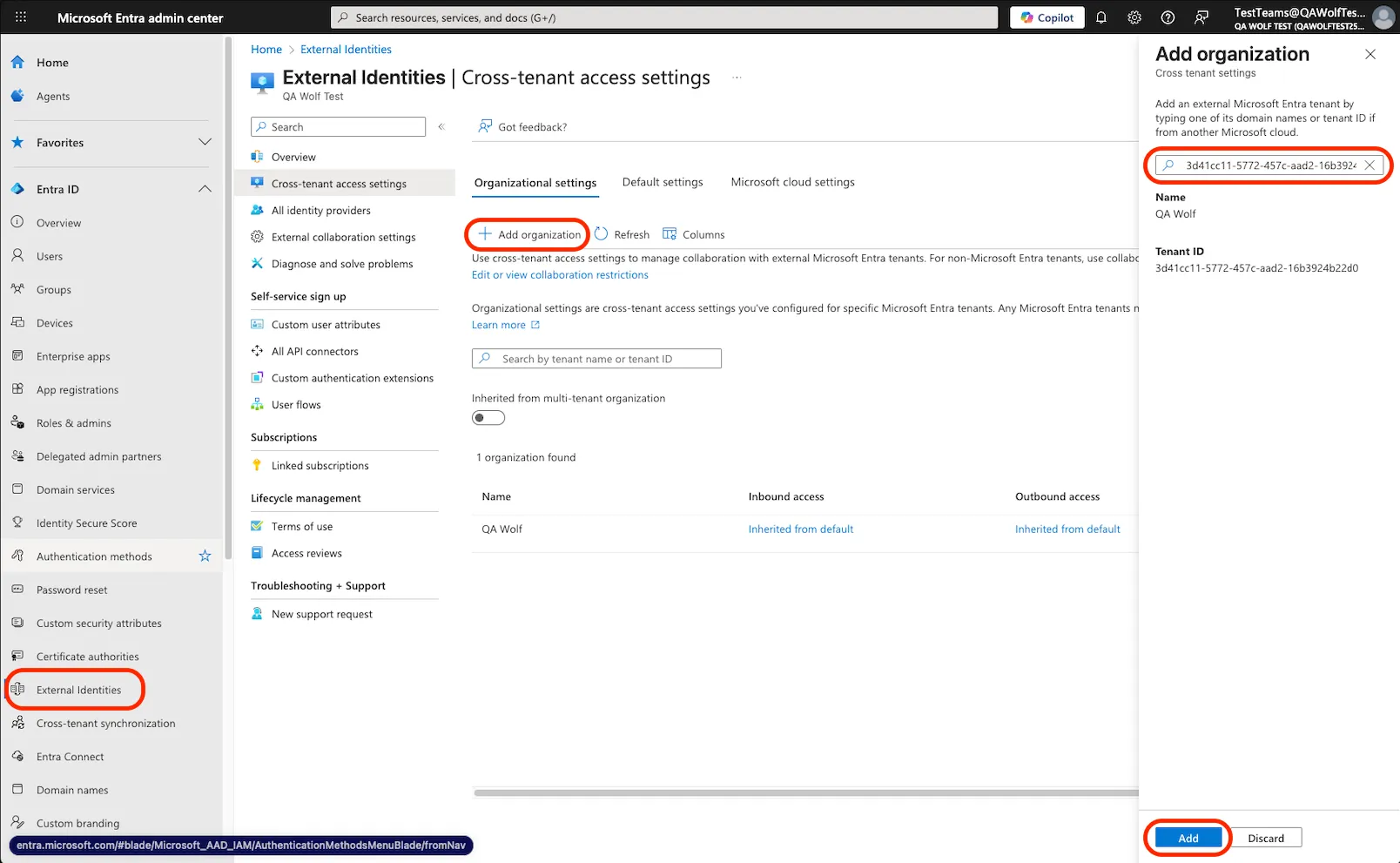
As a **Security Administrator**, sign in to the [Microsoft Entra admin center](https://entra.microsoft.com/).
Choose **External Identities** from the left navigation bar, then choose **Cross-tenant access settings**.
On the **Organizational settings** tab, click **Add organization**.
In the **Add Organization** drawer on the right, type QA Wolf's tenant ID: `3d41cc11-5772-457c-aad2-16b3924b22d0` and click **Add** at the bottom.
### Enable cross-tenant access in Microsoft Entra
To use a shared channel with QA Wolf, you must allow our Microsoft Entra tenant by adding QA Wolf as an allowed organization using our Microsoft Entra tenant ID.
As a **Security Administrator**, sign in to the [Microsoft Entra admin center](https://entra.microsoft.com/).
Choose **External Identities** from the left navigation bar, then choose **Cross-tenant access settings**.
On the **Organizational settings** tab, click **Add organization**.
In the **Add Organization** drawer on the right, type QA Wolf's tenant ID: `3d41cc11-5772-457c-aad2-16b3924b22d0` and click **Add** at the bottom.
 If your default access settings restrict access, update your inbound and outbound B2B direct connect settings to allow QA Wolf.
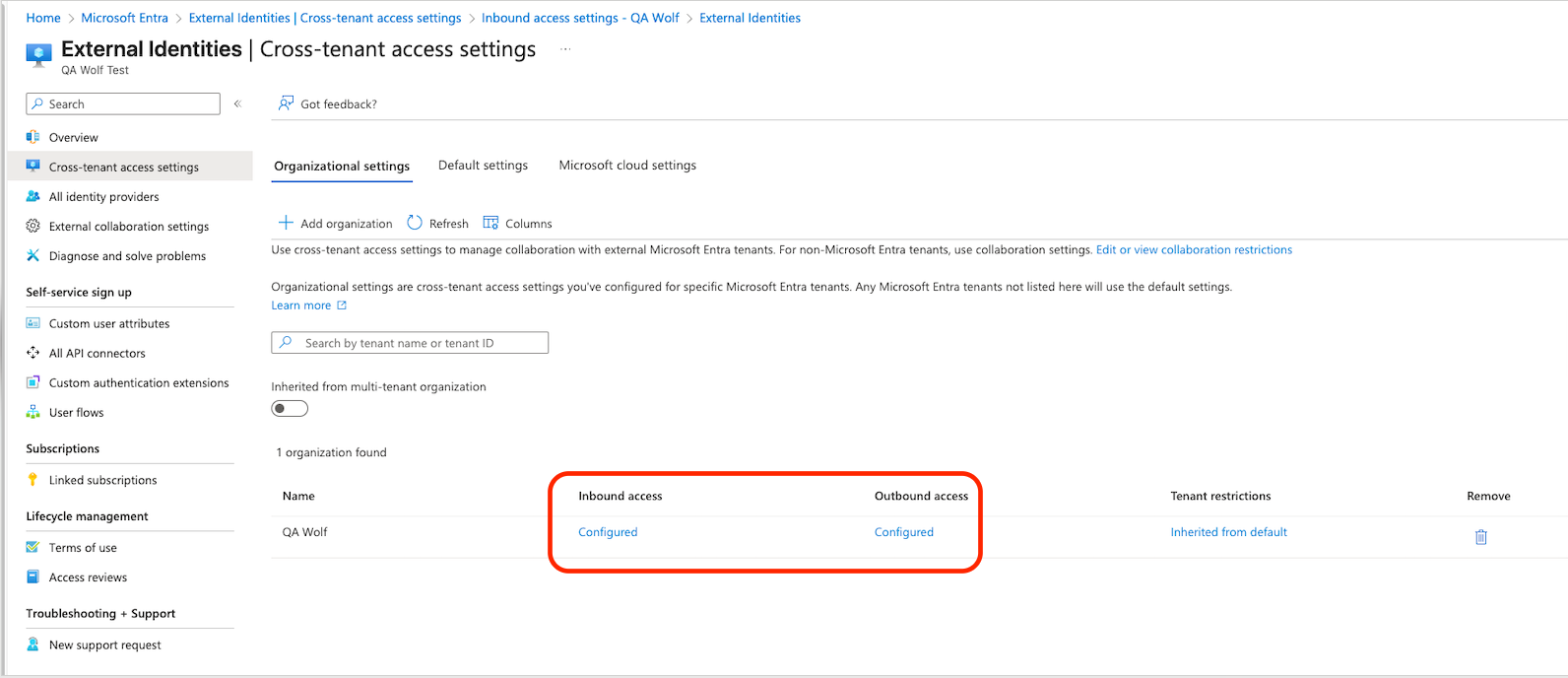
Still under Organizational Settings, you should see QA Wolf listed under **organizations found**.
If your default access settings restrict access, update your inbound and outbound B2B direct connect settings to allow QA Wolf.
Still under Organizational Settings, you should see QA Wolf listed under **organizations found**.
 #### Check access
Click on the Configured link underneath Inbound access or Outbound access.
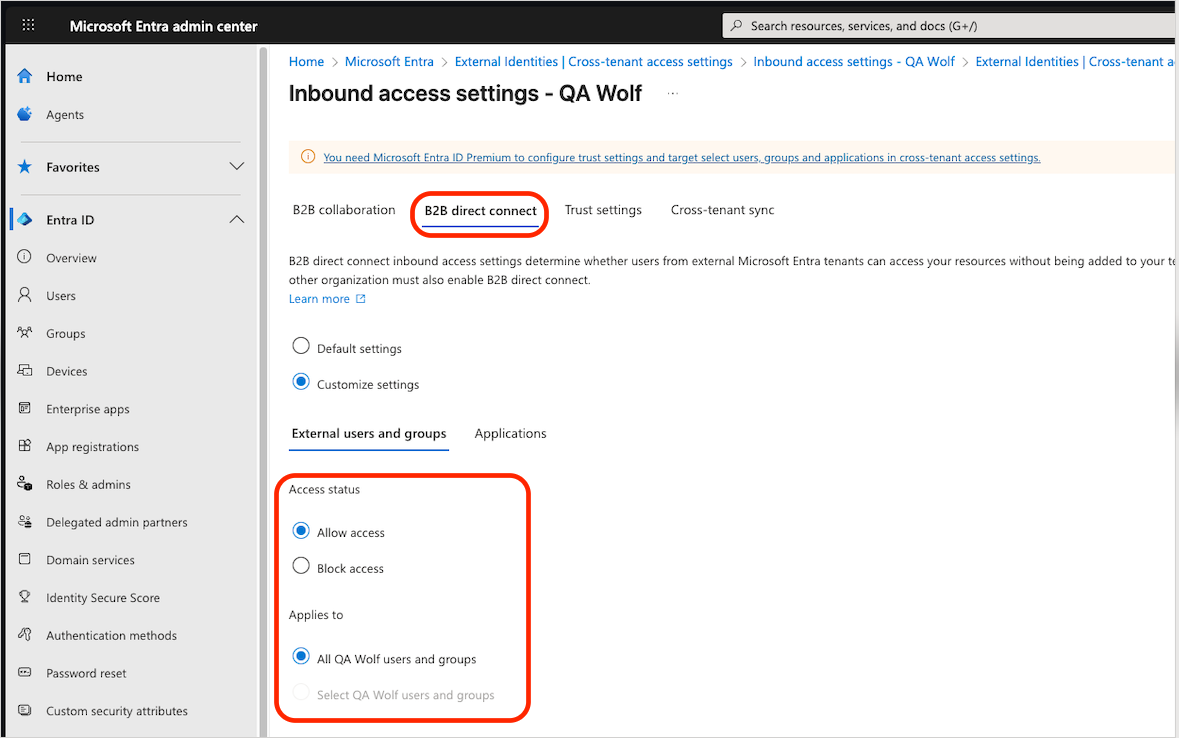
Click the B2B direct connect tab.
Select the Customize settings radio button.
On the **External users and groups** tab:
* For **Access status**, select *Allow access*
* For **Applies to**, select *All QA Wolf users and groups*
After updating these settings, verify that your default access configuration no longer blocks access to or from QA Wolf.
Shared channel collaboration will not work if the default settings continue to block external tenants.
#### Check access
Click on the Configured link underneath Inbound access or Outbound access.
Click the B2B direct connect tab.
Select the Customize settings radio button.
On the **External users and groups** tab:
* For **Access status**, select *Allow access*
* For **Applies to**, select *All QA Wolf users and groups*
After updating these settings, verify that your default access configuration no longer blocks access to or from QA Wolf.
Shared channel collaboration will not work if the default settings continue to block external tenants.
 We use shared channels so customers can access them without switching tenants, and B2B Direct Connect must be used to invite or join them. **B2B Collaboration** will not work (see [*MS doc*](https://learn.microsoft.com/en-us/microsoft-365/solutions/collaborate-teams-direct-connect?view=o365-worldwide) for details).
| B2B Collaboration | B2B Direct Connect |
| ------------------------------- | ----------------------------------------- |
| Applies to guest accounts | Enables direct shared channel invitations |
| Requires tenant switching | Seamless access from own tenant |
| Only supports standard channels | Fully supports shared channels |
#### Complete setup
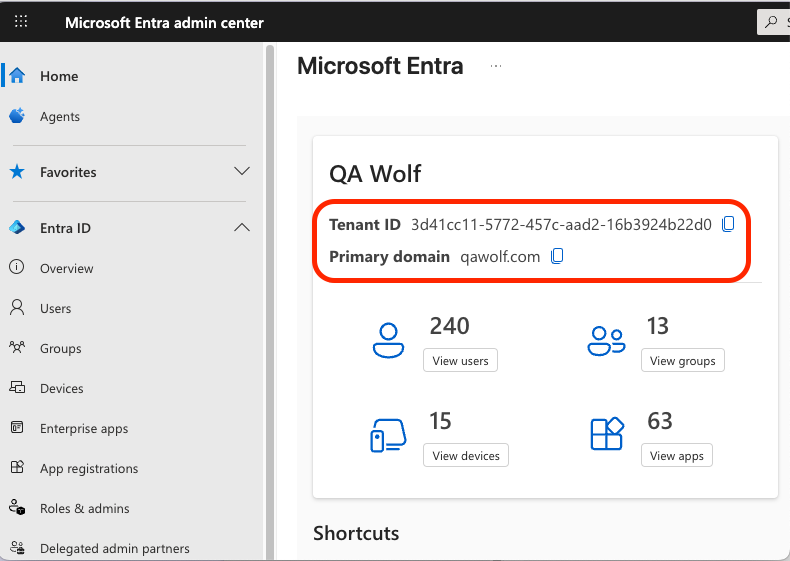
We need your **Microsoft Entra tenant ID** and **domain name** so we can configure cross-tenant access on our side. Customers can locate their Tenant ID and domain on the [Microsoft Entra dashboard](https://entra.microsoft.com/#home).
We use shared channels so customers can access them without switching tenants, and B2B Direct Connect must be used to invite or join them. **B2B Collaboration** will not work (see [*MS doc*](https://learn.microsoft.com/en-us/microsoft-365/solutions/collaborate-teams-direct-connect?view=o365-worldwide) for details).
| B2B Collaboration | B2B Direct Connect |
| ------------------------------- | ----------------------------------------- |
| Applies to guest accounts | Enables direct shared channel invitations |
| Requires tenant switching | Seamless access from own tenant |
| Only supports standard channels | Fully supports shared channels |
#### Complete setup
We need your **Microsoft Entra tenant ID** and **domain name** so we can configure cross-tenant access on our side. Customers can locate their Tenant ID and domain on the [Microsoft Entra dashboard](https://entra.microsoft.com/#home).