> ## Documentation Index
> Fetch the complete documentation index at: https://docs.qawolf.com/llms.txt
> Use this file to discover all available pages before exploring further.
# How to integrate GitHub/GitHub Actions
> Connect QA Wolf to GitHub Actions to automatically trigger test runs when you deploy code from your repository.
If your repositories are hosted on GitHub.com or GitHub Enterprise Cloud, this is the recommended setup. The integration connects directly to your QA Wolf environments using GitHub Actions to notify QA Wolf of new deployments.
If your team self-hosts GitHub Enterprise Server without internet access, or has disabled GitHub Actions by policy, use the [QA Wolf CI SDK](/qawolf/Integrate-with-the-QA-Wolf-SDK-2db5b2a994fb8043be61f06f025d9c63) instead.
Make sure you have:
* Access to your QA Wolf workspace.
* Admin access to your GitHub repository.
## Enable the GitHub integration in QA Wolf
Open the `Workspace name` dropdown in QA Wolf and click **Workspace Settings**.
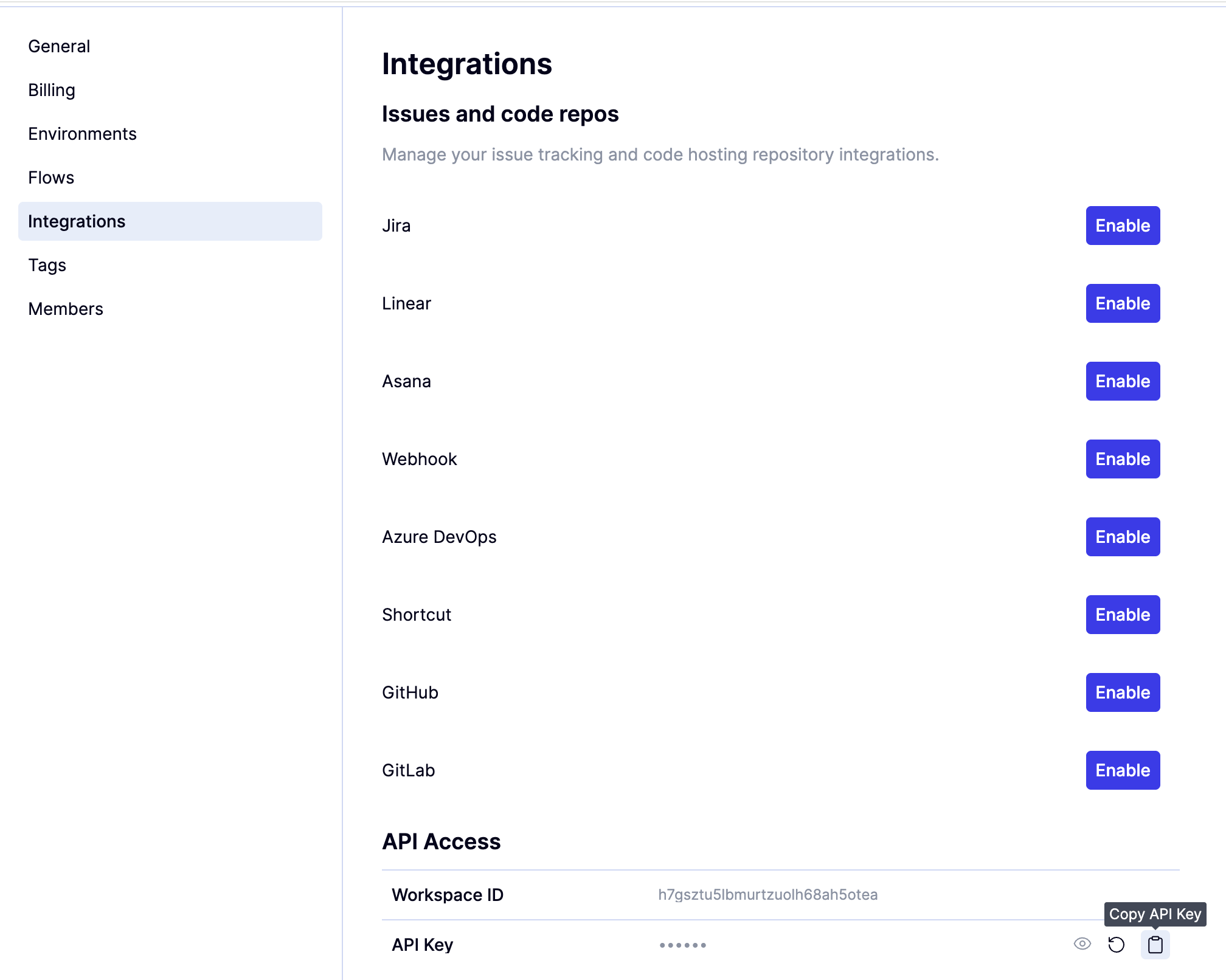
Choose **Integrations** and then click **Enable** next to **GitHub**. This opens GitHub, where you'll be prompted to sign in if you have not already done so.
 Your user cannot be a member of multiple GitHub orgs.
Choose the repositories QA Wolf should access.
Your user cannot be a member of multiple GitHub orgs.
Choose the repositories QA Wolf should access.
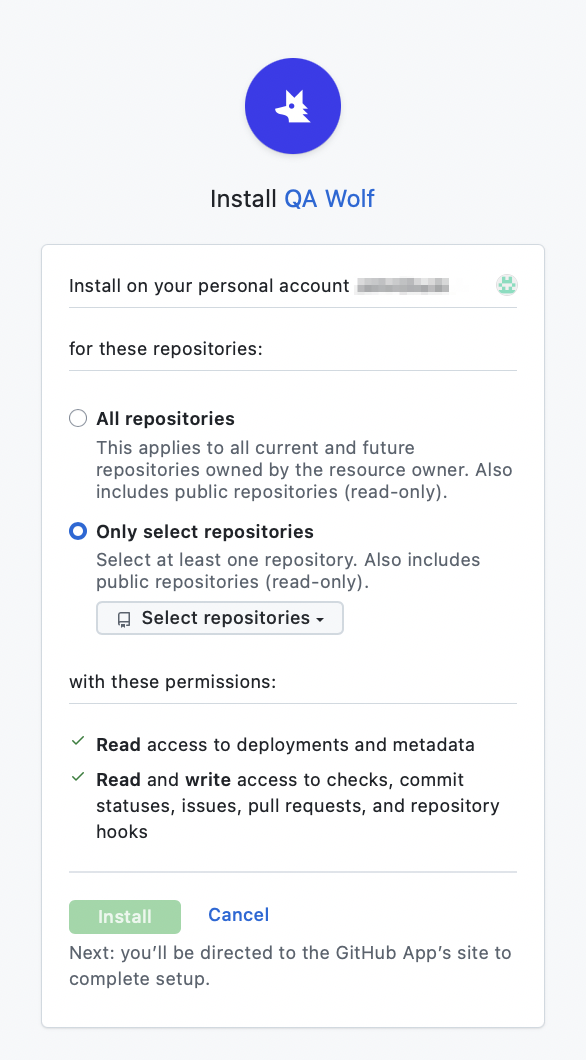 Click **Install**. Once installed, QA Wolf can create PR comments.
### Find the QAWOLF\_API\_KEY
Open the `Workspace name` dropdown in QA Wolf and click **Workspace Settings**.
Click **Install**. Once installed, QA Wolf can create PR comments.
### Find the QAWOLF\_API\_KEY
Open the `Workspace name` dropdown in QA Wolf and click **Workspace Settings**.
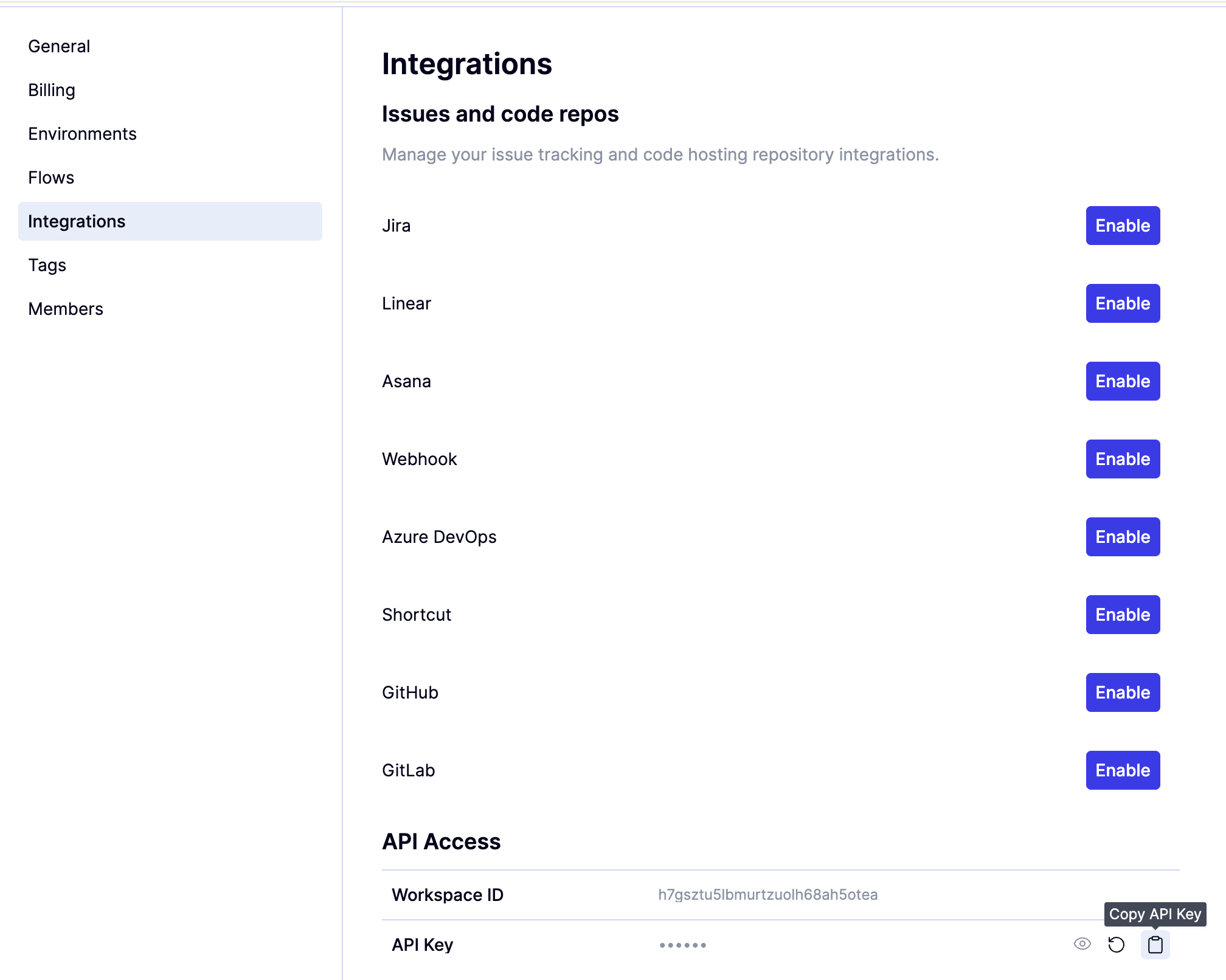 Choose **Integrations**.
Generate your **QAWOLF\_API\_KEY** by clicking the icon to the right of **API Key** under **API Access**.
### Add the QAWOLF\_API\_KEY secret
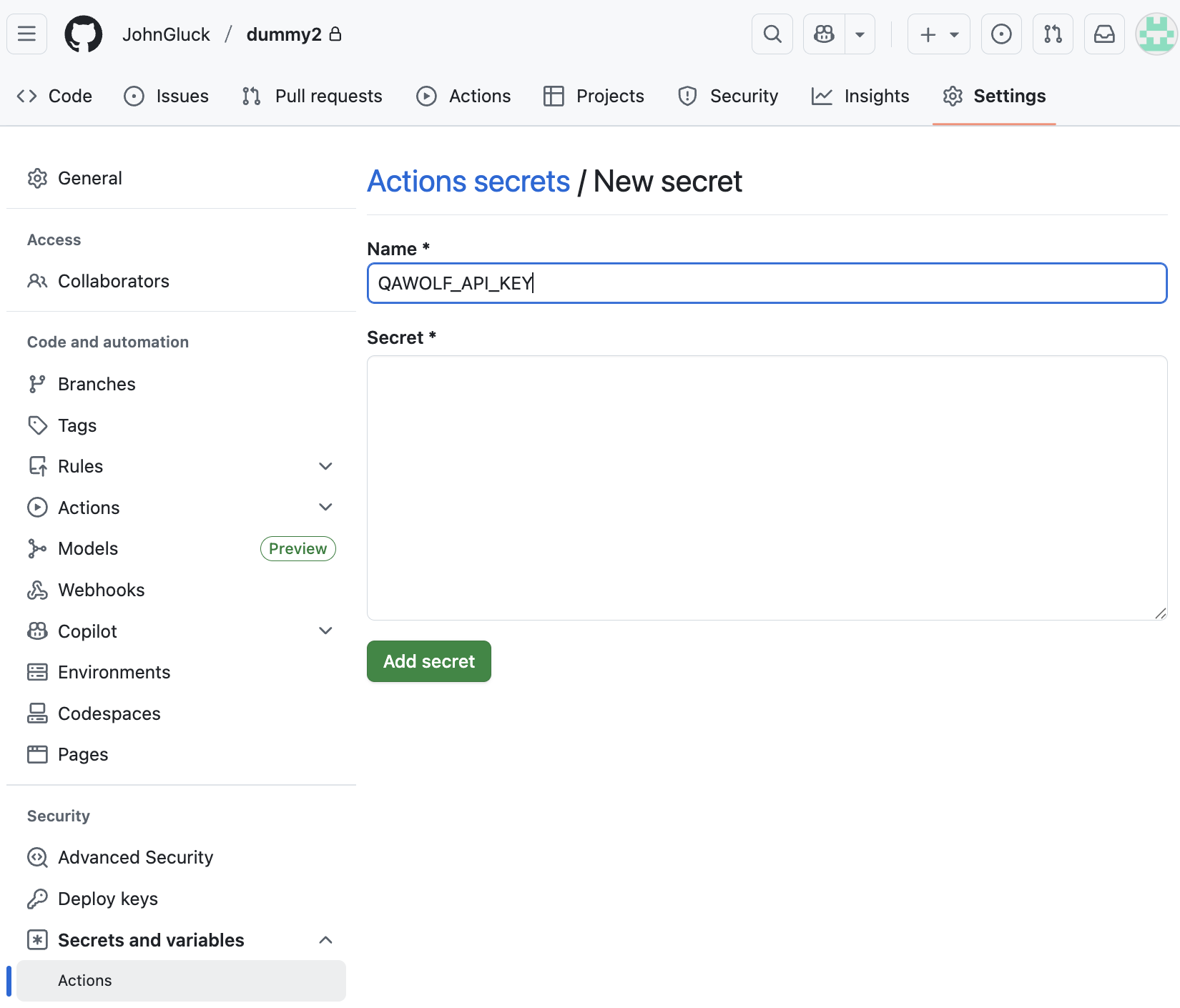
Return to GitHub, go to your repository's **Settings** tab, click **Secrets and variables**, and then **Actions**.
Type `QAWOLF_API_KEY` in **Name** and paste your API key into **Secret**.
Click **Add secret** to save.
Choose **Integrations**.
Generate your **QAWOLF\_API\_KEY** by clicking the icon to the right of **API Key** under **API Access**.
### Add the QAWOLF\_API\_KEY secret
Return to GitHub, go to your repository's **Settings** tab, click **Secrets and variables**, and then **Actions**.
Type `QAWOLF_API_KEY` in **Name** and paste your API key into **Secret**.
Click **Add secret** to save.
 This key allows your workflow to authenticate with QA Wolf when the Action runs.
## Add the GitHub Actions workflow
QA Wolf's official GitHub Action, [Notify QA Wolf on Deploy](https://github.com/marketplace/actions/notify-qa-wolf-on-deploy), notifies QA Wolf whenever a new deployment is ready for testing.
This must be done for every repository you want connected to CI/CD.
Open your repository on GitHub. Click the **Actions** tab.
This key allows your workflow to authenticate with QA Wolf when the Action runs.
## Add the GitHub Actions workflow
QA Wolf's official GitHub Action, [Notify QA Wolf on Deploy](https://github.com/marketplace/actions/notify-qa-wolf-on-deploy), notifies QA Wolf whenever a new deployment is ready for testing.
This must be done for every repository you want connected to CI/CD.
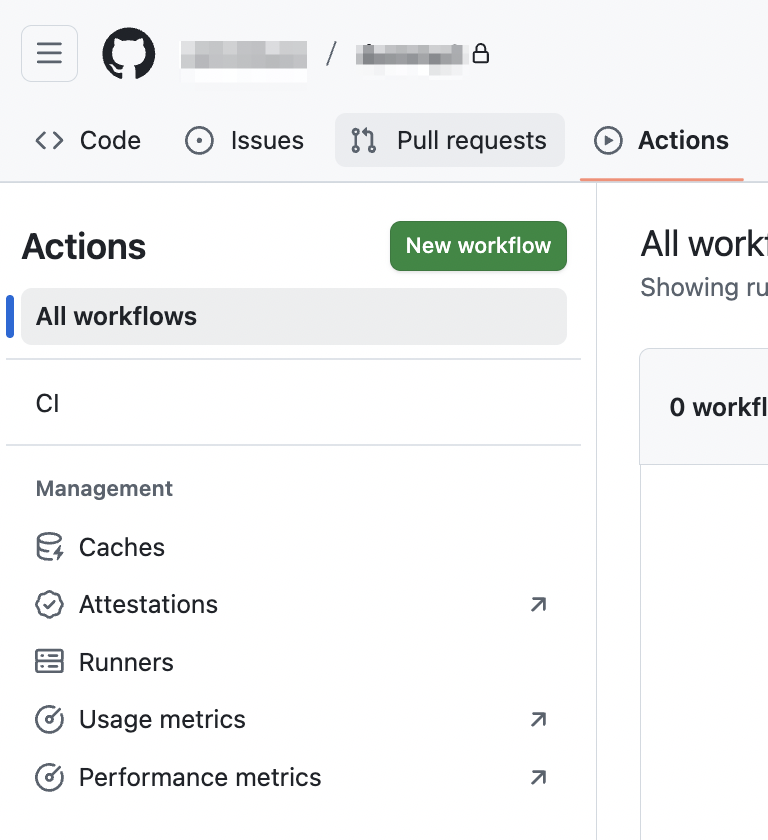
Open your repository on GitHub. Click the **Actions** tab.
 If you already have actions, click **New workflow**.
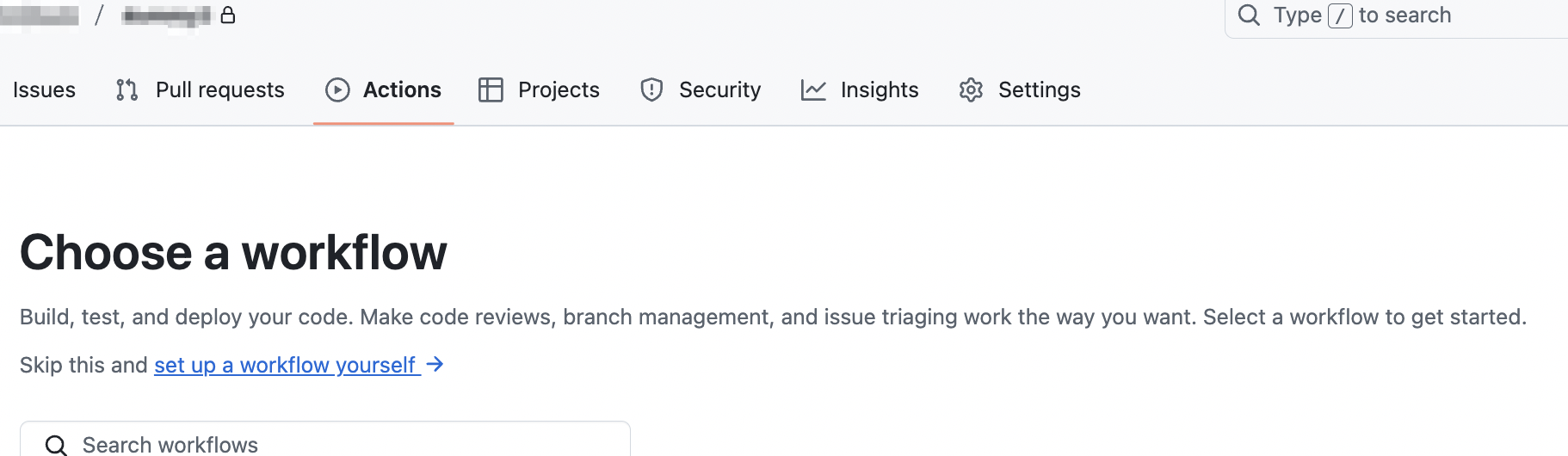
 Choose **Set up a workflow yourself**.
 Copy the example below into your workflow file (usually `.github/workflows/deploy.yml`). Replace the values in `deployment-type` and `deployment-url` with your actual values.
To get the value for `deployment-type`, reach out to QA Wolf and we will provide this value for you.
```yaml theme={null}
- name: Notify QA Wolf
uses: qawolf/notify-qawolf-on-deploy-action@v1
with:
qawolf-api-key: ${{ secrets.QAWOLF_API_KEY }}
deployment-type: "staging"
deployment-url: "https://staging.example.com"
```
## Verify the integration
Push a new commit to your main branch and wait for your deployment to complete.
Open QA Wolf and confirm a new run appears under the expected environment.
Copy the example below into your workflow file (usually `.github/workflows/deploy.yml`). Replace the values in `deployment-type` and `deployment-url` with your actual values.
To get the value for `deployment-type`, reach out to QA Wolf and we will provide this value for you.
```yaml theme={null}
- name: Notify QA Wolf
uses: qawolf/notify-qawolf-on-deploy-action@v1
with:
qawolf-api-key: ${{ secrets.QAWOLF_API_KEY }}
deployment-type: "staging"
deployment-url: "https://staging.example.com"
```
## Verify the integration
Push a new commit to your main branch and wait for your deployment to complete.
Open QA Wolf and confirm a new run appears under the expected environment.