> ## Documentation Index
> Fetch the complete documentation index at: https://docs.qawolf.com/llms.txt
> Use this file to discover all available pages before exploring further.
# Integrate a mobile build with Fastlane
> Upload Android and iOS build artifacts and trigger QA Wolf test runs from your existing Fastlane lanes using the QA Wolf plugin.
## When to use Fastlane
This guide is for teams that already use Fastlane to build Android or iOS apps. If your mobile builds are defined as Fastlane lanes, the QA Wolf Fastlane plugin lets you upload build artifacts and trigger test runs within your existing mobile automation. This is the recommended option for mobile teams that use Fastlane today.
If you do not use Fastlane, use the QA Wolf CI SDK instead. QA Wolf does not set up Fastlane or create build lanes—this guide assumes Fastlane is already installed and that it is producing a mobile build artifact.
## Before you begin
Before configuring the Fastlane integration, make sure you have the following in place:
* A working Fastlane setup for your Android or iOS app.
* A Fastlane lane that produces a mobile build artifact (APK, AAB, or IPA).
* A QA Wolf API key stored as a secret in your CI environment.
* Artifact naming conventions are defined for your environments. See [Artifact naming conventions](#artifact-naming-conventions) below.
Before mobile test runs can execute, QA Wolf must enable mobile triggers for your workspace. QA Wolf will handle this and may ask you for:
* Which environments you want to test.
* Whether PR testing is enabled.
* The artifact naming conventions you are using.
* The upload and trigger method you chose.
Until this step is complete, CI jobs can upload artifacts and send deployment notifications, but mobile test runs will not start automatically.
## How Fastlane works with QA Wolf
The Fastlane integration uses a QA Wolf Fastlane plugin to perform two actions:
Upload a mobile build artifact to QA Wolf.
Notify QA Wolf of a deployment event so a test run can be triggered.
You can upload builds without triggering runs, which is useful during initial setup or validation.
The artifact name you provide is used to associate the build with the correct environment. QA Wolf automatically applies the file extension.
## Install & configure Fastlane for QA Wolf
Add the [QA Wolf Fastlane plugin](https://github.com/qawolf/fastlane-plugin-qawolf) to your project if it is not already installed. This is typically done in your **Fastfile** or plugin configuration, depending on how your project manages Fastlane plugins. Follow the instructions on the `README` to install.
Make sure your CI environment exports the **QAWOLF\_API\_KEY** environment variable so Fastlane can authenticate with QA Wolf.
### Find the QAWOLF\_API\_KEY
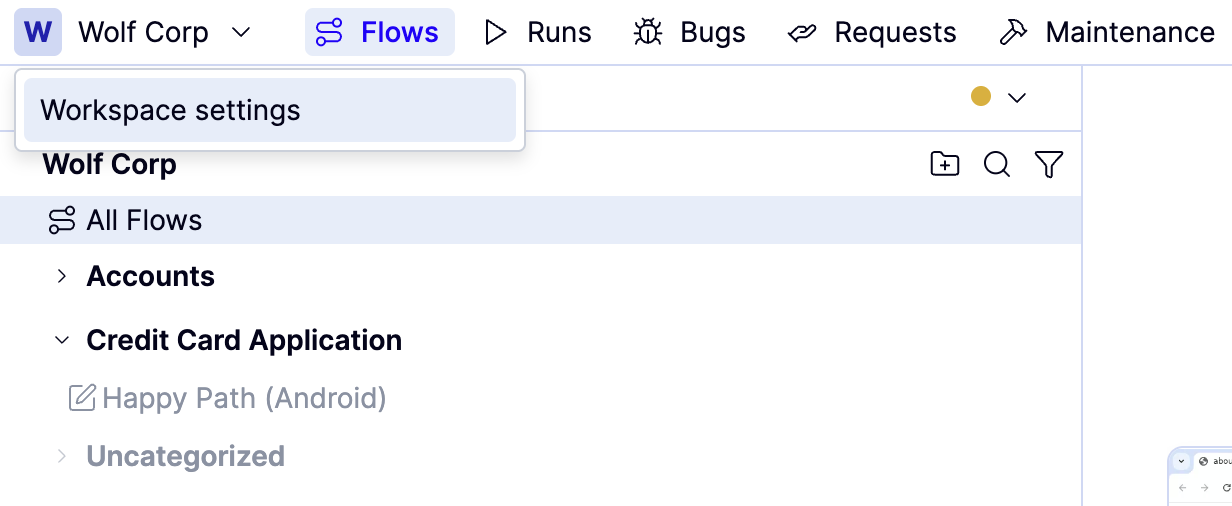
Open the `Workspace name` dropdown in QA Wolf and click **Workspace Settings**.
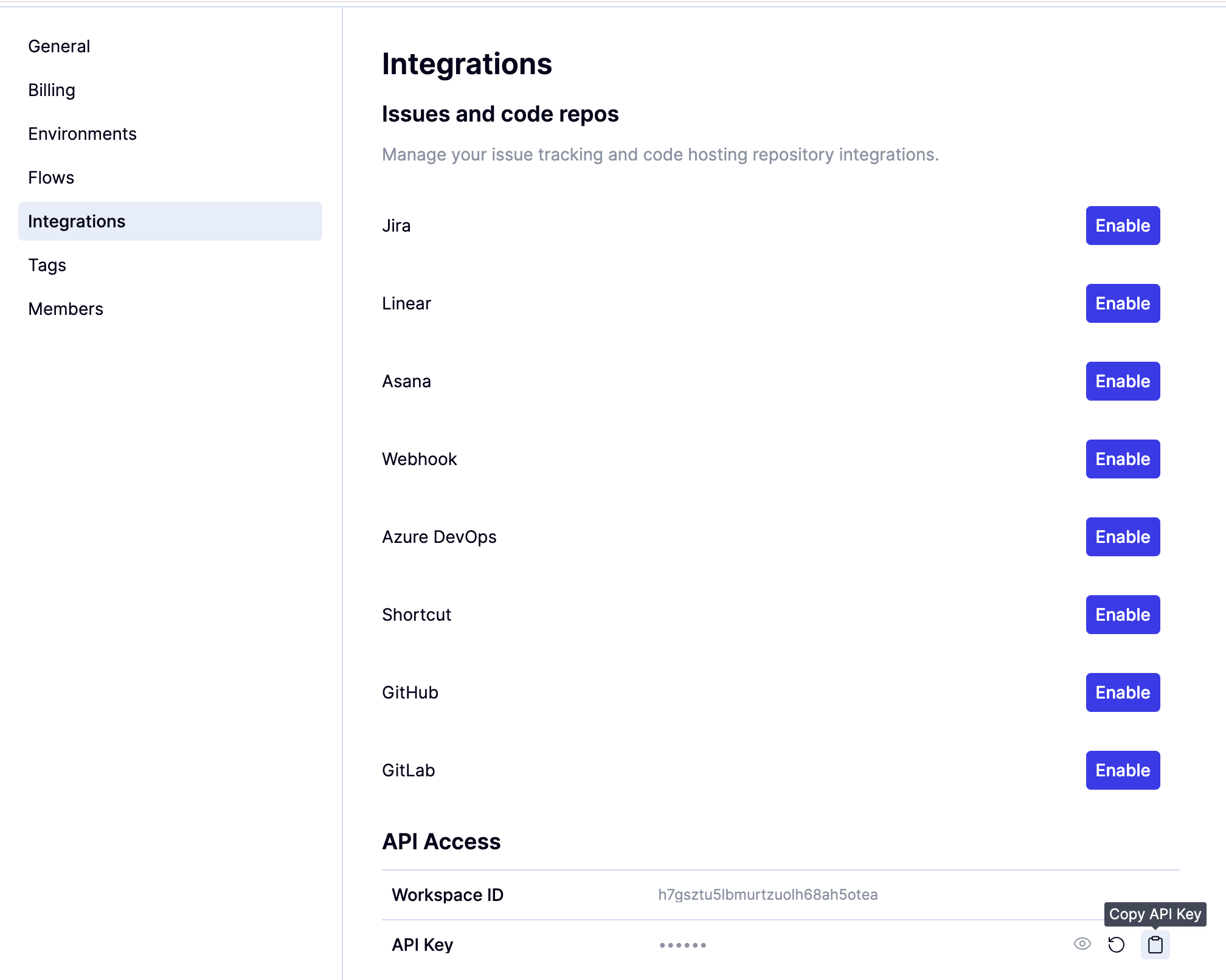
 Choose **Integrations**.
Generate your **QAWOLF\_API\_KEY** by clicking the icon to the right of **API Key** under **API Access**.
Choose **Integrations**.
Generate your **QAWOLF\_API\_KEY** by clicking the icon to the right of **API Key** under **API Access**.
 ### Add the QAWOLF\_API\_KEY secret
Store `QAWOLF_API_KEY` as a secret in your CI system and ensure it is exported as an environment variable in the job that runs Fastlane. The exact steps depend on your CI provider — refer to your CI system's documentation for storing secrets.
## Artifact naming conventions
Mobile build artifacts must follow consistent naming conventions so QA Wolf can correctly associate each build with the right environment and make failures easier to diagnose.
The artifact name is used to identify:
* Which environment the build belongs to
* Whether the build is tied to a pull request
* Which build was used for a given test run
### Static environments
Static environments are long-lived environments such as staging or release environments.
**Format**
```text theme={null}
-
```
**Example**
```text theme={null}
app-staging
```
Use the same basename every time a build is generated for the same environment.
### PR (ephemeral) environments
PR environments are short-lived and tied to a specific pull request. These are only relevant if PR testing is enabled.
**Format**
```text theme={null}
---pr
```
**Example**
```text theme={null}
app-myorg-myrepo-pr123
```
Including the organization, repository, and pull request number ensures each build can be traced back to the correct change and environment.
QA Wolf applies the file extension (.apk, .aab, or .ipa) automatically based on the uploaded artifact. You only need to provide the basename.
## Upload a mobile build artifact
Once your Fastlane lane produces a build artifact, you can upload it to QA Wolf.
Add the `upload_to_qawolf` action to your lane and provide the artifact basename that matches your naming conventions. If this step completes successfully, the artifact has been uploaded and is available for use in test runs.
```ruby theme={null}
lane :qawolf do
# Build your app
gradle(
task: "assemble",
build_type: "Release"
)
# Upload the artifact to QA Wolf
upload_to_qawolf(
executable_file_basename: "app-staging"
)
end
```
## Trigger a test run
After uploading a build artifact, you can notify QA Wolf that a new deployment is ready for testing.
Add the `notify_deploy_qawolf` action to your lane. This step is optional and is required only if you want a test run to start automatically.
The environment key must match the value configured by QA Wolf for your workspace.
If mobile triggers have not yet been enabled, this step will complete without starting a test run.
```ruby theme={null}
notify_deploy_qawolf(
executable_environment_key: "RUN_INPUT_PATH"
)
```
## Verify the integration
Run the Fastlane lane in CI.
Confirm the artifact upload step completes successfully.
Confirm the deploy notification step runs without errors.
Once mobile triggers are enabled, check the **Runs** tab to see the triggered test run.
If no run appears, the most common cause is a missing or incomplete QA Wolf platform configuration.
## Troubleshooting and common issues
* **Artifact uploads succeed, but no runs start:** Mobile triggers may not be enabled yet. Contact QA Wolf to complete platform configuration.
* **Artifact not found during test execution:** Verify the artifact basename matches the expected naming conventions.
* **Authentication errors:** Confirm QAWOLF\_API\_KEY is set correctly in your CI environment.
* **Incorrect environment used:** Verify the environment key passed to notify\_deploy\_qawolf matches the configured value.
### Add the QAWOLF\_API\_KEY secret
Store `QAWOLF_API_KEY` as a secret in your CI system and ensure it is exported as an environment variable in the job that runs Fastlane. The exact steps depend on your CI provider — refer to your CI system's documentation for storing secrets.
## Artifact naming conventions
Mobile build artifacts must follow consistent naming conventions so QA Wolf can correctly associate each build with the right environment and make failures easier to diagnose.
The artifact name is used to identify:
* Which environment the build belongs to
* Whether the build is tied to a pull request
* Which build was used for a given test run
### Static environments
Static environments are long-lived environments such as staging or release environments.
**Format**
```text theme={null}
-
```
**Example**
```text theme={null}
app-staging
```
Use the same basename every time a build is generated for the same environment.
### PR (ephemeral) environments
PR environments are short-lived and tied to a specific pull request. These are only relevant if PR testing is enabled.
**Format**
```text theme={null}
---pr
```
**Example**
```text theme={null}
app-myorg-myrepo-pr123
```
Including the organization, repository, and pull request number ensures each build can be traced back to the correct change and environment.
QA Wolf applies the file extension (.apk, .aab, or .ipa) automatically based on the uploaded artifact. You only need to provide the basename.
## Upload a mobile build artifact
Once your Fastlane lane produces a build artifact, you can upload it to QA Wolf.
Add the `upload_to_qawolf` action to your lane and provide the artifact basename that matches your naming conventions. If this step completes successfully, the artifact has been uploaded and is available for use in test runs.
```ruby theme={null}
lane :qawolf do
# Build your app
gradle(
task: "assemble",
build_type: "Release"
)
# Upload the artifact to QA Wolf
upload_to_qawolf(
executable_file_basename: "app-staging"
)
end
```
## Trigger a test run
After uploading a build artifact, you can notify QA Wolf that a new deployment is ready for testing.
Add the `notify_deploy_qawolf` action to your lane. This step is optional and is required only if you want a test run to start automatically.
The environment key must match the value configured by QA Wolf for your workspace.
If mobile triggers have not yet been enabled, this step will complete without starting a test run.
```ruby theme={null}
notify_deploy_qawolf(
executable_environment_key: "RUN_INPUT_PATH"
)
```
## Verify the integration
Run the Fastlane lane in CI.
Confirm the artifact upload step completes successfully.
Confirm the deploy notification step runs without errors.
Once mobile triggers are enabled, check the **Runs** tab to see the triggered test run.
If no run appears, the most common cause is a missing or incomplete QA Wolf platform configuration.
## Troubleshooting and common issues
* **Artifact uploads succeed, but no runs start:** Mobile triggers may not be enabled yet. Contact QA Wolf to complete platform configuration.
* **Artifact not found during test execution:** Verify the artifact basename matches the expected naming conventions.
* **Authentication errors:** Confirm QAWOLF\_API\_KEY is set correctly in your CI environment.
* **Incorrect environment used:** Verify the environment key passed to notify\_deploy\_qawolf matches the configured value.