> ## Documentation Index
> Fetch the complete documentation index at: https://docs.qawolf.com/llms.txt
> Use this file to discover all available pages before exploring further.
# Clear a release
> Resolving failures is about deliberately clearing a release, not about achieving 100% passing results.
An environment enters **Needs investigation** when one or more flows fail in a run. An environment enters **Failed** status when one or more flows mapped to high-priority bug reports fail. These states indicate that one or more runs require resolution before the release should proceed.
Failed flows and environment status provide a release signal. If you want runs in *Failed* status to block releases, ask your Customer Success Manager about our CI Greenlight feature.
A run that contains failed flows remains in **Investigating** or **Failed** as long as any failed flow has not been resolved. A failed flow is considered resolved when one of the following occurs:
* The flow passes on a subsequent attempt, including when a temporary environmental issue resolves.
* The flow is fixed, and the updated version is applied to the run.
* The underlying application issue causing the failure is fixed.
* A maintenance report is filed, preventing the flow from being included in runs until it is fixed.
A run transitions to *Completed* only after all failed flows have been resolved. Once all runs are completed, the environment exits the *Needs investigation* or *Failed* status and can be considered ready for release.
## Reattempt a failure caused by a flake
Reattempting is appropriate when all failures in the run are believed to be caused by a flake or a temporary environment glitch.
Open the **Runs** tab and click the run that is in **Investigating** or **Failed** status to open the Investigation view.
Click the icon to open the context menu.
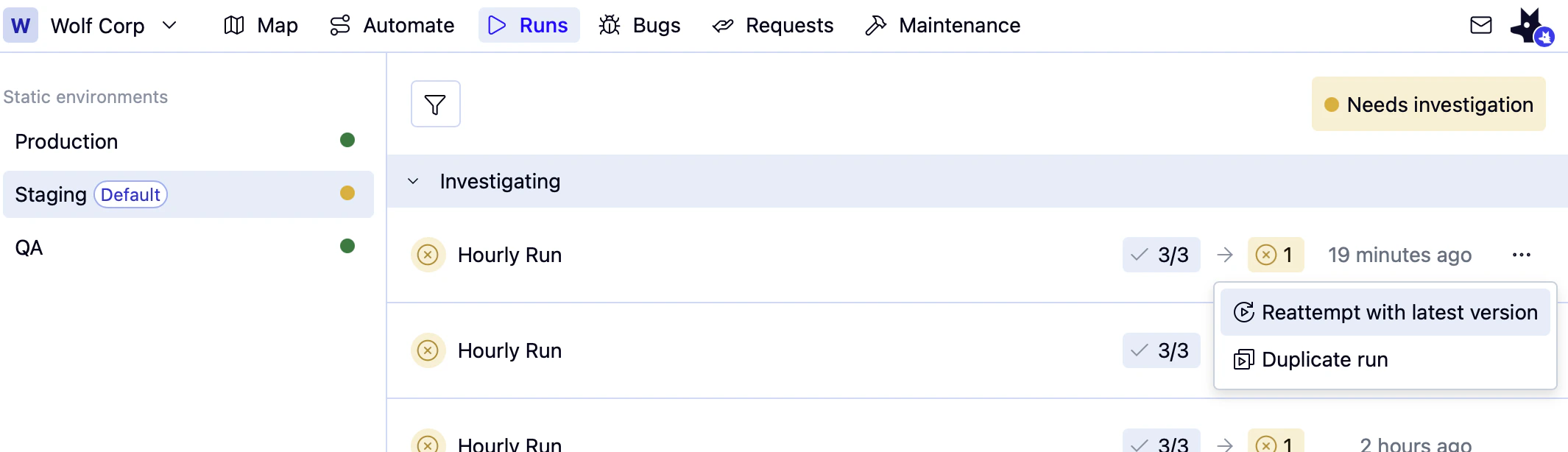 Choose one of the following options depending on where you are in your investigation:
* **Reattempt with latest version** — runs only the failed flows. Use this when you want to quickly check that a suspected temporary glitch has resolved.
* **Duplicate run** — a full retry of all flows, including up to three attempts. Use this after you have validated that the temporary problem has resolved but want to check whether it was masking deeper issues.
## Bypass a failing flow to clear a release
Bypassing a failed flow is appropriate when the failure is understood and should not block the release — for example, an understood failure in a third-party dependency. Bypassing does not fix the flow or the underlying issue. Instead, it records that the failure has been reviewed and does not require further investigation for the current release.
Open the **Runs** tab and select a run in **Investigating** or **Failed** status.
Select the failed run that contains the flow that doesn't need further investigation.
Choose one of the following options depending on where you are in your investigation:
* **Reattempt with latest version** — runs only the failed flows. Use this when you want to quickly check that a suspected temporary glitch has resolved.
* **Duplicate run** — a full retry of all flows, including up to three attempts. Use this after you have validated that the temporary problem has resolved but want to check whether it was masking deeper issues.
## Bypass a failing flow to clear a release
Bypassing a failed flow is appropriate when the failure is understood and should not block the release — for example, an understood failure in a third-party dependency. Bypassing does not fix the flow or the underlying issue. Instead, it records that the failure has been reviewed and does not require further investigation for the current release.
Open the **Runs** tab and select a run in **Investigating** or **Failed** status.
Select the failed run that contains the flow that doesn't need further investigation.
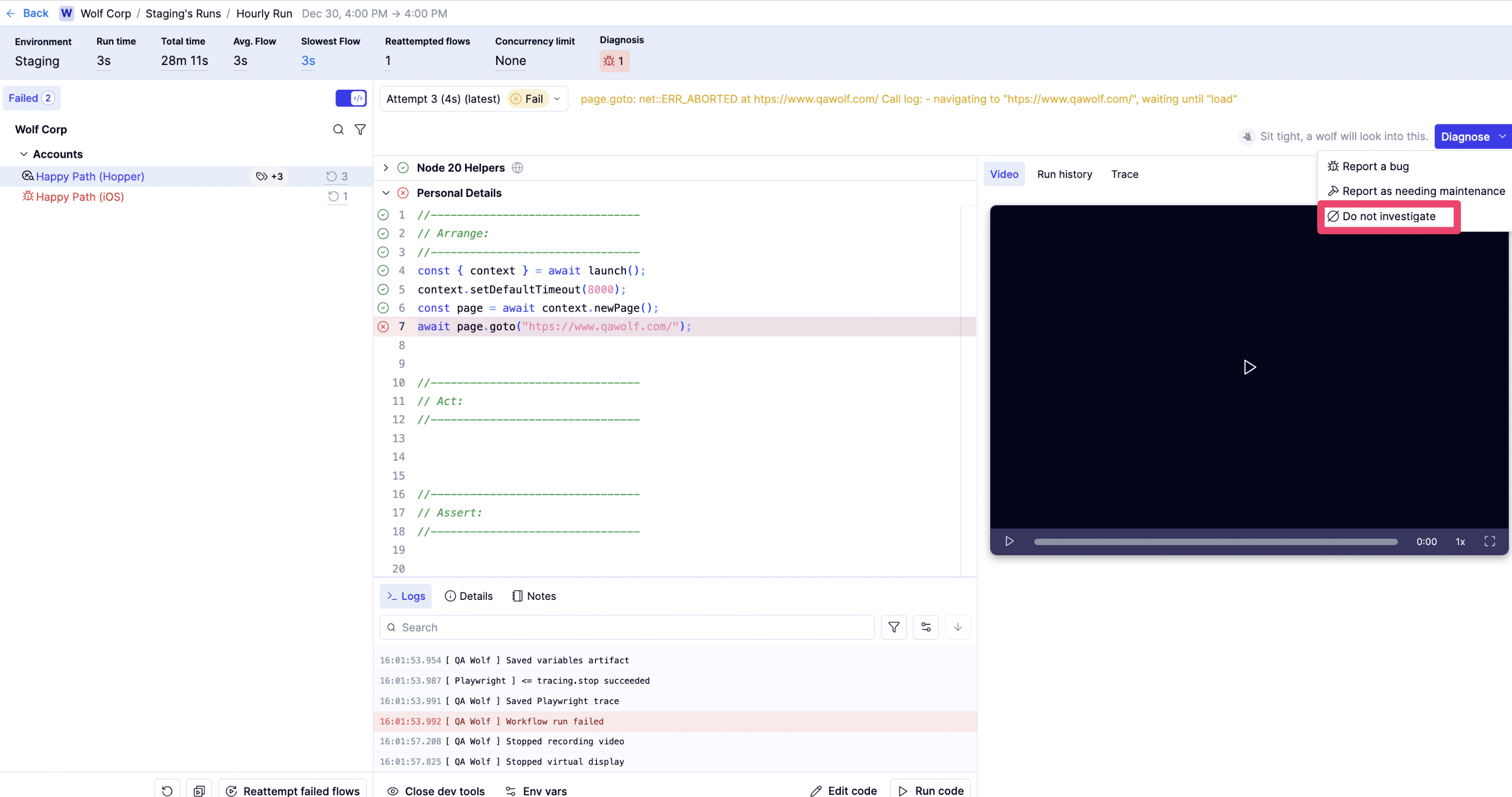 Click **Diagnose** in the center panel.
Select **Do not investigate**.
Once a failed flow is marked as **Do not investigate**, it is considered resolved for the run. When all failed flows in the run have either passed or been bypassed, the run transitions to **Completed**.
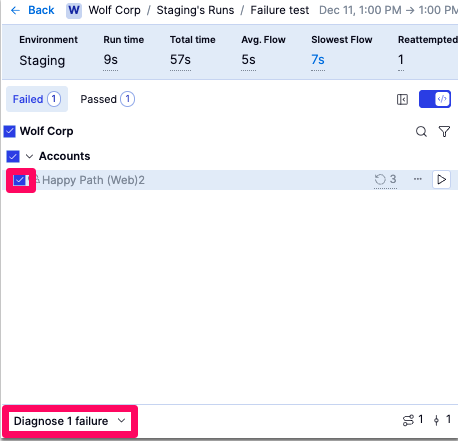
You can also find **Diagnose** by hovering over the failing flow to show the icon, then clicking it to show the icon. **Diagnose** will appear below the flow list.
Click **Diagnose** in the center panel.
Select **Do not investigate**.
Once a failed flow is marked as **Do not investigate**, it is considered resolved for the run. When all failed flows in the run have either passed or been bypassed, the run transitions to **Completed**.
You can also find **Diagnose** by hovering over the failing flow to show the icon, then clicking it to show the icon. **Diagnose** will appear below the flow list.
 ## Repair a broken test to unblock a release
From the **Runs** tab, select the environment from the list on the upper left.
In the center panel, select a run from the **Investigating** list.
In the Investigation view, click **Edit code** to open the flow for changes.
Click **Run code**.
When the flow fails, click **Fix with AI** in the banner at the top of the editor. Describe the problem or let the AI interpret the error automatically.
You can also repair the test manually by modifying the code yourself.
When satisfied with the changes, review and publish your changes. You **must** publish your changes to enable **Use as reattempt**.
Click **Use as reattempt**. The flow should pass and will move to the **Completed** section of the Runs tab.
## Clear the release when there's a bug or broken test that can't be fixed immediately
Some failures represent real issues but are not practical to fix during the current release. In these cases, the appropriate action is to document the work required and allow the release to proceed.
Follow-up work generally falls into two categories:
**For bugs** — [file a bug report](/qawolf/Manage-bug-reports-2c75b2a994fb80308ddcc7cc60703c2f). When you file a bug report, the severity is used to display warnings about the safety of a given release.
**For flow maintenance** — [file a maintenance report](/qawolf/Manage-maintenance-reports-2d55b2a994fb80728909f48b1023f7fa). This prevents the flow from being executed in runs until it is fixed, which resolves the investigation state without requiring an immediate fix.
## Repair a broken test to unblock a release
From the **Runs** tab, select the environment from the list on the upper left.
In the center panel, select a run from the **Investigating** list.
In the Investigation view, click **Edit code** to open the flow for changes.
Click **Run code**.
When the flow fails, click **Fix with AI** in the banner at the top of the editor. Describe the problem or let the AI interpret the error automatically.
You can also repair the test manually by modifying the code yourself.
When satisfied with the changes, review and publish your changes. You **must** publish your changes to enable **Use as reattempt**.
Click **Use as reattempt**. The flow should pass and will move to the **Completed** section of the Runs tab.
## Clear the release when there's a bug or broken test that can't be fixed immediately
Some failures represent real issues but are not practical to fix during the current release. In these cases, the appropriate action is to document the work required and allow the release to proceed.
Follow-up work generally falls into two categories:
**For bugs** — [file a bug report](/qawolf/Manage-bug-reports-2c75b2a994fb80308ddcc7cc60703c2f). When you file a bug report, the severity is used to display warnings about the safety of a given release.
**For flow maintenance** — [file a maintenance report](/qawolf/Manage-maintenance-reports-2d55b2a994fb80728909f48b1023f7fa). This prevents the flow from being executed in runs until it is fixed, which resolves the investigation state without requiring an immediate fix.